PDF Editors for Mac: What They Cost, and What Preview Already Does
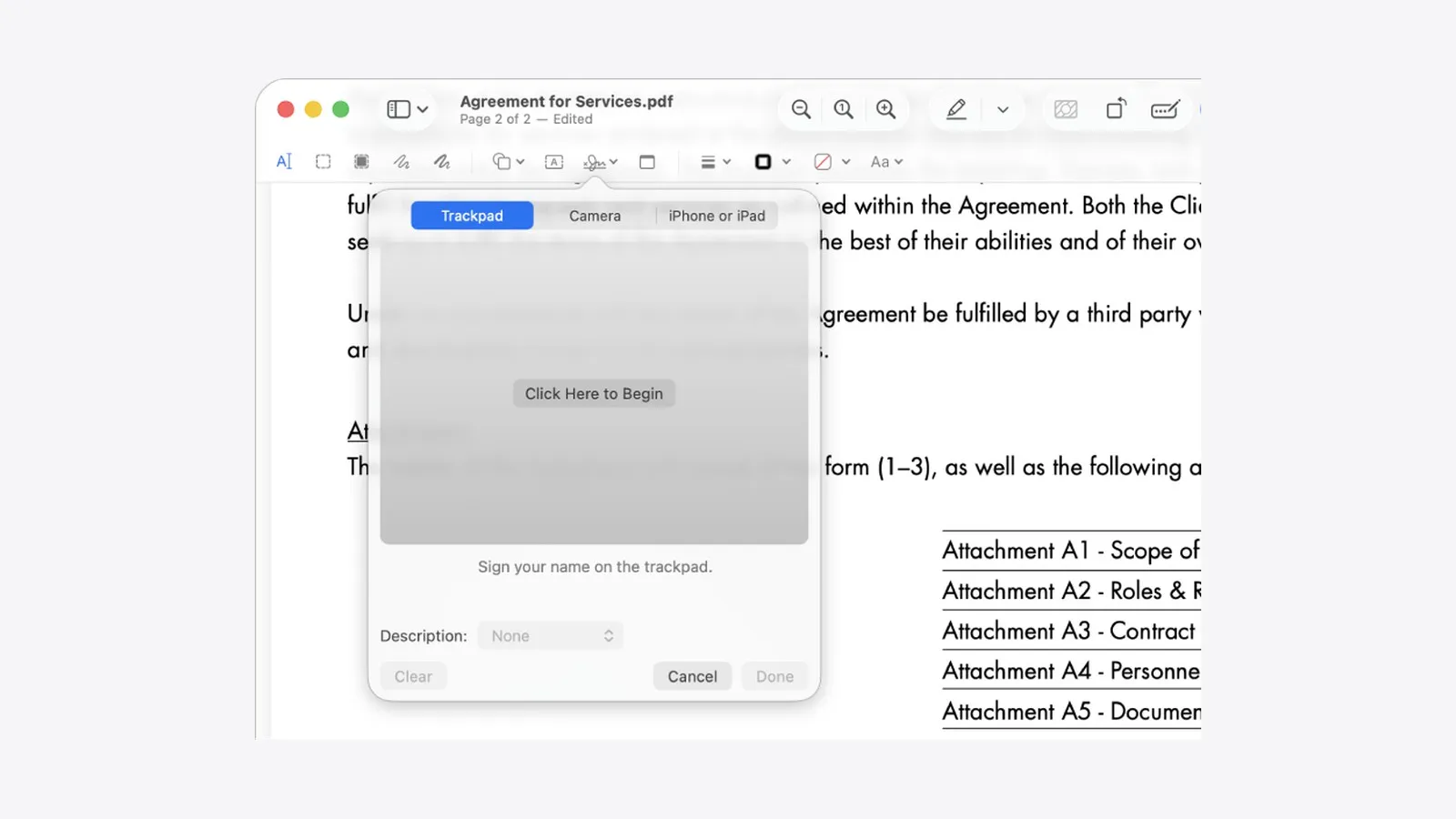
Every price here was read off the vendor’s own purchase page on September 4, 2026. This guide gives the pricing model rather than the checkout figure, because several vendors in this category run a permanent discount and the number at checkout moves.
Most guides to this topic open with a paid application. On a Mac that is the wrong place to start, because the answer for a large share of readers is already installed and most of them do not know what it can do.
- Already on your Mac, free: Preview. Merges PDFs, adds and deletes and reorders pages, crops, rotates, fills and signs forms, annotates, sets a password and shrinks file size.
- Genuinely free, and the only one: PDFgear. Free on the Mac App Store with no in-app purchases, which nothing else in this category can say. Read the section below on why that is contested before you install it.
- Buy once, keep it: PDF Studio Pro from Qoppa, US $149 as a one-time fee, one licence covering two machines.
- Subscription, and the deepest feature set: Adobe Acrobat, from US $14.99 a month on an annual plan.
- If you only need to sign and send back: stop at Preview. This is the most common job in the category and it needs nothing else.
What Preview already does, and the exact line where it stops
Apple’s Preview user guide for macOS Tahoe 26 lists what the app is documented to do with a PDF, and the list is longer than its reputation. Under editing: fill out and sign forms, select and copy text, highlight and underline and strike through, add notes, annotate, combine separate PDFs, add and delete and move pages, crop and rotate. Under file management: export, password-protect, and reduce file size.
The boundary is just as clear, and it is defined by what the guide never mentions. There is an entry for selecting and copying text in a PDF and no entry anywhere for editing it. There is Live Text for pulling words out of a photograph and no document OCR that turns a scan into a searchable file. There is form filling and no form creation, and no redaction of any kind.
So the line is easy to state: Preview handles everything around the text and nothing to the text itself. If your job is signing a lease, merging three scans into one file, dropping a page out of a report or emailing something smaller than it started, you are finished and you did not spend anything.
”Free” on the Mac App Store means almost nothing here
Search the Mac App Store for a PDF editor and you get a wall of the word Free. Of the 23 macOS PDF editors that search returns, 21 are listed Free and two carry a price. That word is doing no work at all, because most of those apps take payment through in-app purchases after installation.
| App | App Store listing | In-app purchases | Range shown on the listing |
|---|---|---|---|
| PDFgear | Free | None | - |
| iLovePDF | Free | Yes | $3.99 to $44.99 |
| PDF Reader Pro | Free | Yes | $7.99 to $99.99 |
| PDFelement | Free | Yes | $3.99 to $119.99 |
| Foxit PDF Editor | Free | Yes | $49.99 to $139.99 |
| PDF Expert | $139.99 | Yes | $10 to $130 |
Checked September 4, 2026 on the US storefront.
Two rows are worth pausing on. Foxit is listed Free and sells in-app purchases up to $139.99, which is the same figure PDF Expert charges outright. And PDF Expert charges $139.99 up front and then sells in-app purchases on top of it, reaching $130.
PDF Expert is also the app most AI assistants name first when asked for the best Mac PDF editor, usually crediting its pricing. That recommendation is worth examining, because Readdle’s own website and its own App Store listing describe two different products commercially. The website is built around yearly plans with a lifetime option beside them. The App Store sells it outright at $139.99. Both are official points of sale for the same software, and they do not agree on how you are meant to pay.
What each one actually costs, and in what shape
The price matters less than the shape of the payment, because the shape is what you are still living with in three years.
| Tool | Pricing model | Entry price, as of 2026-09-04 | Runs on |
|---|---|---|---|
| Preview | Part of macOS | Free | Mac only |
| PDFgear | Free, no in-app purchases | Free | Mac, Windows, iOS, Android |
| PDF Studio Pro | Perpetual licence, one-time | US $149, one user on two machines | Mac, Windows, Linux |
| Adobe Acrobat Standard | Subscription | From US $14.99/mo, annual plan | Mac, Windows |
| Adobe Acrobat Pro | Subscription | From US $19.99/mo, annual plan | Mac, Windows |
| PDF Expert | Subscription on the vendor site, outright on the App Store | See note above | Mac, iOS |
Two details from those purchase pages do not appear in most comparisons.
Adobe charges you to leave. Under every tier on Adobe’s pricing page sits a line stating that a fee applies of up to half your remaining annual commitment if you cancel after 14 days. The monthly figure is an annual commitment billed monthly, not a month-to-month arrangement.
Adobe’s answer on buying outright is a no that is not quite a no. Its own FAQ says perpetual versions were discontinued after Acrobat 2020, then links in the same sentence to Acrobat Pro 2024 desktop software and to a page explaining that it does not include feature enhancements. A one-time licence still exists and is frozen at the feature set it shipped with.
Qoppa’s store page is unusually direct by comparison. It states the licence is perpetual, that payment is a one-time fee with no subscription or commitment, and that upgrading to future major versions is optional. One key covers one user on two computers across Windows, Mac or Linux.
Which one for which job
- Signing a document and sending it back: Preview. Nothing else needed.
- Merging scans and getting the file under an email limit: Preview, then PDF Studio Pro if its compression is too blunt for you.
- Editing the actual words in a PDF: PDFgear if free matters most, PDF Studio Pro if you want to buy it once, Acrobat if the document is complicated.
- Turning a scan into searchable text (OCR): PDF Studio Pro or Acrobat. Preview cannot do this and neither can Skim.
- Removing sensitive text before you send a file: PDF Studio Pro or Acrobat, and read the next section first.
- Refusing to rent software: PDF Studio Pro. It is the only mainstream option here that is still sold as a perpetual licence and is still being developed.
- Reading and annotating academic papers: Skim, which is free and open source and has been in active development since 2007, though it is a reader and note-taker rather than an editor.
The black rectangle is not redaction
This one is worth its own heading because getting it wrong has consequences that are not visible on screen.
Preview has no redaction tool. When people redact in Preview they draw a filled black rectangle over the text using markup. The rectangle is a graphic sitting on top of the page. The text underneath is still in the file, and it can be selected, copied out, or read by anything that parses the document. The document looks censored and is not.
Real redaction removes the characters from the file and cleans up what is left behind. Adobe puts it in the paid tiers, alongside OCR, and PDF Studio Pro includes it. Those two capabilities, redaction and OCR, are the honest boundary between free and paid in this category. Not editing in general, which Preview does plenty of.
PDFgear is the only genuinely free one, and it is also the contested one
PDFgear is the single app in the table with no price and no in-app purchases, and it does the things Preview will not, including text editing and OCR. That combination invites the obvious question, and the answer is more interesting than either side of the argument suggests.
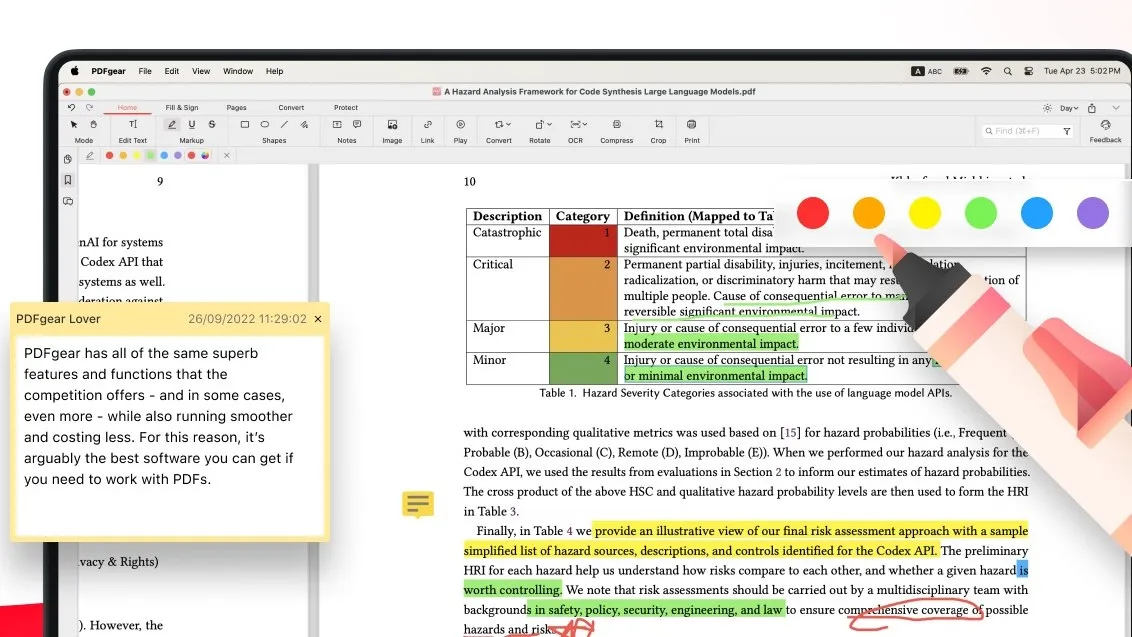
The company is real and checkable: PDF GEAR TECH PTE. LTD., registered in Singapore in September 2020. Threads on Reddit and the Linus Tech Tips forums have accused the software of being spyware or worse, based on an automated sandbox report of its Windows installer that flagged code injection, keyboard hooks and root certificate changes. PDFgear has published detailed rebuttals of each accusation.
In January 2026 the company commissioned Cure53, a Berlin security firm with a long public record of auditing password managers and cryptographic libraries, to examine the flagged behaviours. The report was published on 19 March 2026 and is hosted on Cure53’s own site rather than PDFgear’s. It found no malicious functionality in the components it analysed, and explained each sandbox flag as a false positive with an ordinary cause.
Four things about that report are usually left out of the summaries, including PDFgear’s own.
- It is a Windows audit. All three work packages cover the Windows client, and the tested file is a Windows installer. The Mac app was never in scope.
- Cure53 did not receive the source code. It was given snippets covering six of the eight flagged behaviours, and states that it could not rule out other code paths or prove the absence of malicious functionality in the application as a whole.
- It was not a general security audit. The report says so directly in its conclusion. The brief was to explain the sandbox flags.
- It did find one issue. Rated informational, the updater checks the integrity of a downloaded installer using MD5, which is broken against collision attacks. Cure53 notes that someone positioned between you and the server could substitute a file with a matching hash.
On the root certificate accusation, the loudest of them, Cure53 watched the Windows certificate store, saw three certificates added, verified all three as genuine trusted authorities, and concluded they were likely installed by Windows itself rather than by PDFgear.
That is the honest position, and it is neither of the two positions being argued online. An independent firm looked at part of the Windows product and found nothing malicious in what it was shown. Nobody has audited the Mac app. If you are installing it on a Mac, the audit everyone cites does not cover the thing you are installing.
Two tools people recommend that are not editors
Skim turns up constantly in lists of free Mac PDF editors. It describes itself as a PDF reader and note-taker built for reading scientific papers, and its feature list has no page manipulation, no text editing, no forms and no OCR. It is excellent at what it does. It is not an editor. Its website still says “OS X” and looks abandoned, which is misleading in the other direction: the project was committing code the day this guide was checked.
LibreOffice Draw appears on the same lists. The Document Foundation markets Draw for diagrams and illustrations and does not describe it as a PDF editor at all, though it will open one. LibreOffice 26.8 requires macOS 11 or newer.
Key Takeaways
- Start with Preview. It merges, reorders, crops, fills forms, signs, password-protects and compresses. For the most common jobs you do not need to buy anything.
- Preview stops at the text. No text editing, no OCR, no redaction, no form creation. That boundary comes from Apple’s own documentation.
- “Free” on the App Store is not information. 21 of 23 PDF editors are listed Free; Foxit’s in-app purchases reach $139.99.
- PDFgear is the only one with no price and no in-app purchases, and the Cure53 audit that is cited to clear it covers the Windows client, not the Mac app.
- PDF Studio Pro is the buy-once answer, US $149 for a perpetual licence covering two machines, with OCR and redaction included.
- Acrobat is a commitment, not a monthly bill. Cancelling after 14 days can cost up to half the remaining year.
- A black rectangle in Preview is not redaction. The text stays in the file.
If your next job is getting a large scan small enough to email, the storage and compression side is covered in our guide to freeing up space on a Mac. For the wider set of free Mac utilities that replace paid software, see the best free image viewers for Mac.
Image credits: the Preview screenshot at the top is Apple’s own, from the Preview User Guide page on filling out and signing PDF forms. The PDFgear interface screenshot is courtesy of PDF GEAR TECH PTE. LTD., from its Mac App Store listing. Both are used for editorial illustration, and the comment shown inside the PDFgear document is the developer’s own promotional text, not ours.
Recommended reading
Mac Cleaner Apps in 2026: What Each One Costs and Removes
Mac cleaner apps in 2026 compared on price and on what they actually delete: the macOS built-in tools, free apps like OnyX and Mole, and the paid suites, including the checkout terms.
Mac Activity Monitor: How to Read CPU, Memory Pressure and Energy Impact
Learn to read Mac Activity Monitor like a pro: CPU, Memory Pressure, Energy Impact, and which processes are safe to quit in macOS 26 Tahoe.
How to Free Up Space on Mac: System Data, Snapshots and Purgeable Space
Step-by-step methods to reclaim disk space on macOS Tahoe: System Data, APFS snapshots, purgeable space, and built-in tools. Updated for 2026.