External DVD Drive for Mac in 2026: What Actually Works
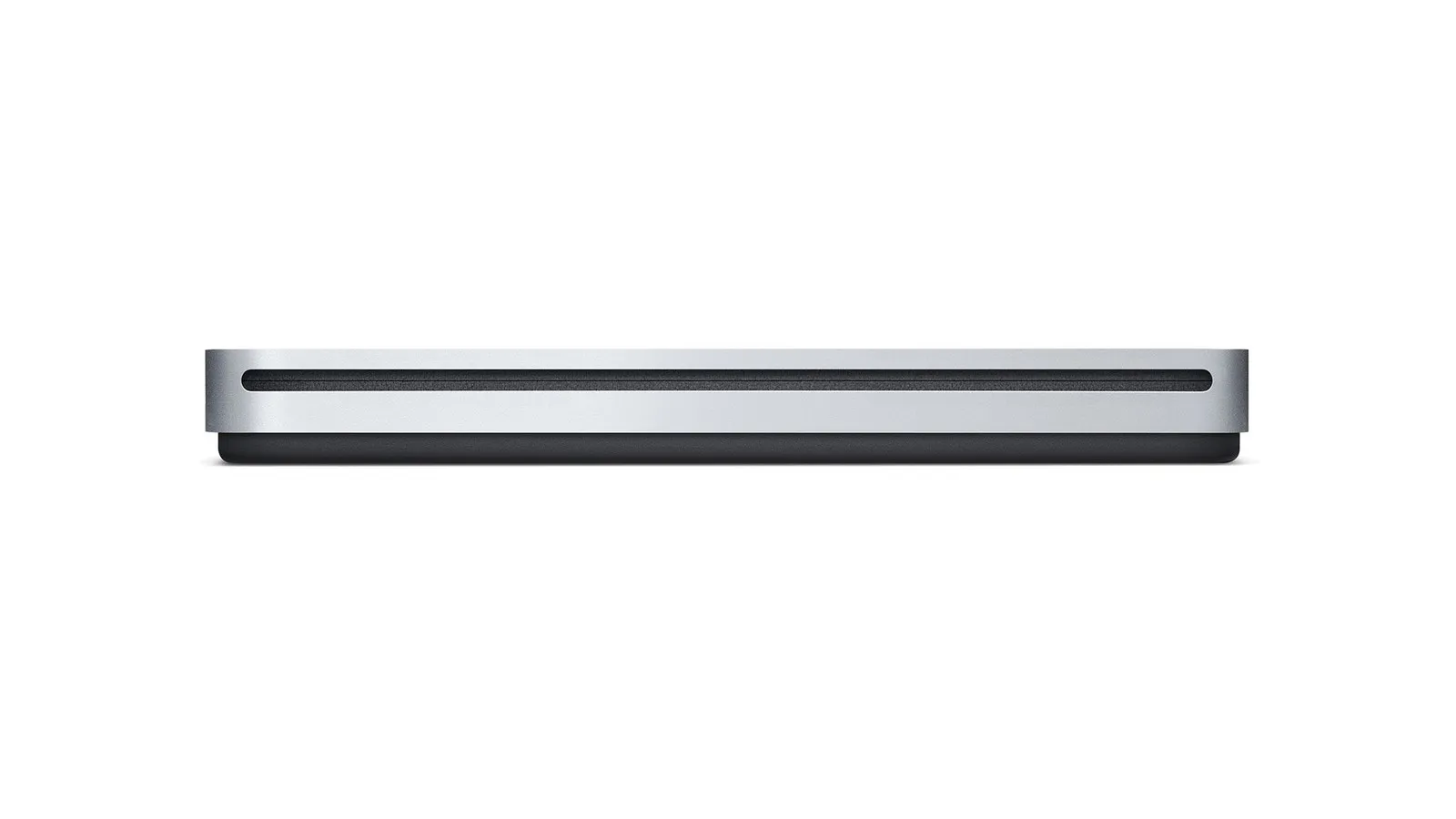
Every fact below is attributed to the page that states it, with the date it was read. We do not own the hardware described here and do not test it; where a claim is the manufacturer’s, it is labelled as the manufacturer’s.
Apple no longer sells anything that reads a disc
The Apple USB SuperDrive was the default answer to this question for sixteen years. It is gone. The product page for MD564LL/A returns a 404, and Apple never announced the discontinuation: the US and Canadian online stores changed to “Sold Out” in August 2024, and by October 2024 the same status had reached every other market, as tracked at the time by 9to5Mac, MacRumors and Macworld. Its list price while Apple sold it was US $79, and it had held that price for well over a decade.
The last Mac with a built-in optical drive stopped shipping years before that: the non-Retina 13-inch MacBook Pro, discontinued in October 2016.
So there is no first-party option left. Every reader of this page is choosing between a SuperDrive they already own, a used one, and a third-party drive.
What Apple still documents, and what it does not say
Apple has stopped selling the SuperDrive but has not withdrawn its documentation. The support article How to connect the Apple USB SuperDrive is live as of September 7, 2026, and it answers the two questions people actually ask.
On which Macs it works, Apple’s wording is exact:
The Apple USB SuperDrive is compatible with Mac computers introduced in 2008 or later that don’t have a built-in optical drive.
Read that carefully, because it is narrower than the way it usually gets quoted. Apple’s condition is a year and the absence of a built-in drive. The page says nothing about Apple Silicon, nothing about M-series chips and nothing about any specific macOS version, in either direction. Anyone telling you Apple has confirmed the SuperDrive works on an M4 Mac is reading a silence as a promise. What is fair to say is that Apple’s own stated condition contains no chip requirement, and that Apple continues to publish the guide.
The second thing the page settles is the adapter question, and here it is specific in a way most write-ups are not. To connect a SuperDrive to a Thunderbolt or USB-C port, Apple names three:
- USB-C Digital AV Multiport Adapter
- USB-C VGA Multiport Adapter
- USB-C to USB Adapter
The SuperDrive’s own cable is USB-A and the drive is bus-powered, so the adapter sits between the drive and the port. Apple also documents the mundane part that trips people up: the aluminium enclosure faces up, and you eject from Finder with File > Eject.
There is one more restriction worth knowing before you buy a used one. The SuperDrive refuses to work on a Mac that shipped with a built-in optical drive. That was Apple’s way of protecting the accessory’s market when it launched, and it is now mostly a historical curiosity, since any Mac new enough to be worth pairing with one has no internal drive to begin with. It matters only if you are reviving an older machine.
What the drive makers actually promise, and where the promises stop
We have no Mac and no drives here, so this section does not rank hardware and does not tell you which one is best. What it does instead is more useful and almost nobody publishes it: it shows what the manufacturers themselves commit to in writing, because that is the part you can hold them to, and the two most frequently recommended drives commit in completely different ways.
| ASUS ZenDrive U9M | Pioneer BDR-XD08B | |
|---|---|---|
| Disc types | CD, DVD | CD, DVD, Blu-ray |
| Stated macOS support | ”Mac OS® X 10.6 and above”, with no upper limit named | Mac firmware updater published; the Mac Drive Utility’s stated OS list ends at macOS Sonoma 14 |
| Interface, as the vendor states it | USB 2.0, with Type-C and Type-A cables both supplied | USB 3.2 Gen 1, USB-C |
| Last dated Mac support activity | Not dated on the page | Firmware updater .dmg for the XD08 family, updated 2024-11-21 |
Read as of September 7, 2026, from ASUS’s own tech-spec page and Pioneer’s firmware download page.
Three things fall out of that table, and each one is a buying decision.
“Mac OS X 10.6 and above” is an open-ended statement, not a current one. It names a floor from 2009 and no ceiling. It does not tell you the vendor has tested anything recent; it tells you the vendor has never revised the sentence. Treat an open-ended claim as the absence of information about current macOS, not as a promise about it.
Pioneer’s is the opposite shape, and the ceiling is the news. Pioneer does publish a macOS firmware updater for this drive family and updated it in November 2024, which is more recent Mac attention than most of this category gets. But the stated operating-system list for its Mac Drive Utility runs Catalina, Big Sur, Monterey, Ventura and stops at Sonoma 14. It names neither Sequoia nor Tahoe. That does not mean the drive fails on a current Mac: the utility is optional, and reading and writing discs does not depend on it. It means the vendor has not extended its written support to the last two macOS releases, and if you need the firmware tooling, that gap is yours to carry.
A USB-C connector is not a USB-C speed. The ZenDrive U9M has a Type-C cable in the box and is a USB 2.0 device by ASUS’s own specification. For an optical drive this rarely matters, since the disc is slower than the bus either way, but it is a good illustration of why the connector shape on a product photo tells you nothing about the interface underneath.
If you are pricing these, get the figure from the vendor’s or retailer’s own checkout page on the day you buy. Street prices for optical drives move constantly and any number printed in an article like this one is wrong within months, which is why there are none here.
Connecting the drive to a modern Mac
Plug the drive into a port on the Mac itself before you plug it into anything else. That one step separates a drive problem from a power problem, and it is the difference between a five-minute fix and a return.
- Check what ports you have. Every current MacBook Air, MacBook Pro, iMac and Mac mini is USB-C and Thunderbolt only, so a USB-A drive needs an adapter and a USB-C drive does not.
- For a SuperDrive specifically, use one of the three adapters Apple names above. All three are passthrough adapters rather than powered hubs.
- Connect straight to the Mac first, not through a dock or a multi-port hub, and confirm the disc appears on the desktop or in the Finder sidebar within a few seconds.
- Only after that works, move it to your hub or dock if you want it there permanently.
- If it mounts directly but not through the hub, the hub is the variable, not the Mac.
When the drive does not show up
An optical drive spins its disc with a motor and drives a laser, which is a heavier and less predictable power draw than the keyboards and flash drives most hubs are built around. That is the mechanism behind the common failure where a drive powers up, makes noise, and never appears in Finder. Work through it in this order.
- Plug the drive straight into a port on the Mac, bypassing every hub, dock and dongle.
- If it works there but not on your hub, try a different port on the same hub; some allocate power unevenly between ports.
- If your dock has a port labelled for charging as distinct from data, try that one.
- Check Finder > Settings > General and confirm “CDs, DVDs, and iPods” is ticked. A disc can mount correctly and still be invisible on the desktop if it is not.
- If the drive drops out after less than a minute of use rather than failing immediately, that pattern points at power rather than at a failing drive, so retest it on a direct connection before returning it.
Playing a DVD: the app is there, and the region limit is permanent
macOS includes DVD Player for standard DVD-Video discs, and Apple still documents it. It does not announce itself: it launches when a supported drive is connected and a disc is inserted, which is why so many people conclude their Mac cannot play DVDs at all. If nothing happens on insertion, open DVD Player from Spotlight before assuming the software is missing.
The region limit is the part worth reading twice, because it is permanent and it lives in the drive rather than in the Mac. Apple states it plainly in the DVD Player user guide:
WARNING: You can set the region code for your DVD drive only five times (including the original setting). The fifth time you change the code, it’s permanently set to the last code you set. Any DVDs you play must match the last code you set.
Because that counter is in the drive’s firmware, it travels with the drive between Macs, and it cannot be reset. If you buy discs from more than one region, the practical answer is a second drive rather than spending changes on one.
Blu-ray is a different matter: macOS has no native Blu-ray playback at all, whatever drive you attach. Our guide to playing Blu-ray on a Mac covers what that actually requires.
Burning and ripping: which app does which job
Burning is a Finder job. Apple’s Disk Utility guide, on the page about creating a disk image, carries this note:
Note: You can burn information to a CD or DVD using the Burn command in the Finder.
Note what that says and does not say. Apple directs you to the Finder. It is widely repeated online that Apple “removed” burning from Disk Utility; we could not source that claim from Apple, so we are not making it. What is documented is where Apple tells you to go.
To burn data files, insert a blank disc, choose File > New Burn Folder in Finder, drag your files onto it, and click Burn. To burn an existing .dmg or .iso, Control-click the image file in Finder and choose “Burn Disc Image to Disc”.
Ripping an audio CD is a Music job, inherited from iTunes. Open Music > Settings > Files > Import Settings to choose the encoder and what happens on insertion. If you are looking for the rest of what iTunes used to do, our iTunes alternatives roundup covers where those jobs moved.
Ripping a video DVD is a different job again, and Finder does not do it. See how to copy or rip a DVD on a Mac for the free software path, and burning a video DVD for the authoring step that a Burn Folder cannot handle.
Key Takeaways
- Apple sells no optical drive at all. The USB SuperDrive went out of stock in the US and Canada in August 2024 and everywhere by October 2024, at a US $79 list price, with no announcement.
- Apple’s compatibility statement is about the year and the absence of a built-in drive, and says nothing about Apple Silicon in either direction. Treat “Apple confirms it works on M-series” as something nobody has actually sourced.
- For connecting a SuperDrive to a USB-C Mac, Apple names three adapters, listed above, and all three are passthrough rather than powered.
- Check the vendor’s stated macOS support before buying, because the shapes differ: ASUS names a floor and no ceiling, Pioneer names a ceiling and it is macOS Sonoma 14.
- A drive that spins but never mounts is usually a power problem, so test it directly on the Mac before testing anything else.
- The DVD region code can be set five times, then the drive is locked for good, and the counter is in the drive, not the Mac.
Image credit: product photograph of the Apple USB SuperDrive by Apple, from its own SuperDrive support article, used for editorial illustration.
Sources read on September 7, 2026: Apple, How to connect the Apple USB SuperDrive; Apple, Change your DVD drive’s region; Apple, Create a disk image using Disk Utility; ASUS ZenDrive U9M tech specs; Pioneer firmware downloads.
Frequently Asked Questions
Can you still buy the Apple USB SuperDrive in 2026?
Not from Apple. It went out of stock in the US and Canada in August 2024 and globally by October 2024, at a US $79 list price, and Apple never replaced it. Used units are the only route, and Apple’s support documentation for the drive is still published.
Does the Apple USB SuperDrive work on Apple Silicon Macs?
Apple does not say, in either direction. Its stated condition is that the drive works with Macs introduced in 2008 or later that have no built-in optical drive, and that sentence contains no chip requirement and no macOS version. Anyone quoting Apple as confirming M-series support is adding something Apple did not write.
Do I need to install a driver?
Neither Apple’s SuperDrive page nor the ASUS and Pioneer pages we read document a driver installation step for basic reading and writing. Pioneer publishes an optional Drive Utility and firmware updater for Mac separately, and it is that optional tooling whose stated support stops at macOS Sonoma 14.
Why does my external DVD drive spin up but never appear in Finder?
That pattern usually points at power rather than software: the drive gets enough current to turn the motor but not enough to complete the USB handshake that mounts it. Plug it directly into a port on the Mac, bypassing hubs and docks, and check that “CDs, DVDs, and iPods” is enabled in Finder > Settings > General.
How many times can I change my DVD drive’s region code?
Five, including the original setting. Apple’s warning is quoted in full above. After the fifth change the drive is locked to that region permanently, and because the counter lives in the drive’s firmware, moving it to another Mac does not reset it.
Recommended reading
How to Play Blu-Ray on Mac: The Drive, the Software and What It Costs
Learn how to play Blu-ray on Mac with the right external drive and software. Free VLC method, paid apps, and ripping compared for macOS Tahoe 26.
Best Blu-Ray Ripper for Mac in 2026: Free & Paid
Compare the Blu-ray ripping software available on Mac in 2026: MakeMKV, HandBrake, DVDFab and EaseFab, what an external drive costs, and where the law draws the line.
Convert Facebook Video to MP3: Online Tools, VLC and yt-dlp
Learn how to convert Facebook video to MP3 using free online tools, VLC, yt-dlp, and desktop apps. Step-by-step guide with quality comparisons.