Mac Cleaner Apps in 2026: What Each One Costs and Removes
Every price in this guide was re-checked against the vendor’s own purchase page on August 26, 2026, and every version number against the App Store listing or the project’s own download page on August 30, 2026. Prices in this category run on permanent promotions and move often, so confirm before you buy.
Search “best mac cleaner” and you’ll land on a pile of apps promising to make a sluggish Mac feel new again. Most of that promise is marketing. macOS already runs its own maintenance in the background, and the temporary files these apps claim to remove are either harmless or rebuilt by the system within minutes.
This guide separates what macOS Tahoe (26) and macOS Sequoia (15) already handle for free, which third-party tools are genuinely worth installing, and where the paid suites hide their costs. It’s based on Apple’s App Sandbox documentation and Apple’s guide to freeing up storage space.
Why Most Macs Don’t Need a “Cleaner” (And When They Do)
A “cleaner” in this context means software that deletes caches, logs, and app leftovers to reclaim disk space or reduce load. For Apple Silicon Macs running macOS Tahoe (26) or Sequoia (15), this software solves a problem the operating system already manages on its own. The exceptions are narrow: a nearly-full SSD, a pile of orphaned files from apps you dragged to the Trash years ago, or a specific app misbehaving because of corrupted cache data.
Apple’s background maintenance routines purge outdated temporary files automatically, typically while the Mac is idle and on power. Forcing a manual cache wipe when your drive still has 200GB free doesn’t speed anything up. It just makes the OS and your apps redo work they’d already finished, using CPU and SSD write cycles to rebuild the exact same cache files.
Where a cleaner (or a manual pass) genuinely helps is uninstalling old apps completely, hunting down forgotten multi-gigabyte files, and clearing space when a drive is over roughly 85-90% full and macOS starts struggling to manage its own swap and snapshot space. If that’s your situation, the how to free up space on Mac is worth reading before you install anything new.
macOS Built-in Tools: The Free First Step
System Settings > General > Storage is Apple’s native storage manager, and in 2026 it does more than most people realize. It’s the right first stop for almost every storage complaint, before you consider any third-party app.
From this single panel you can:
- Turn on automatic Trash emptying after 30 days.
- Let macOS identify and surface large or rarely-opened files for manual review.
- Offload infrequently used documents and photos to iCloud Drive automatically.
- Delete redundant iOS device backups, cached Apple TV downloads, and unused language files in one click.
What it can’t do is show you what’s actually inside the vague “System Data” category, which lumps together swap files, local Time Machine snapshots, caches, and the Spotlight index with no way to inspect individual files. That opacity is the single biggest reason people go looking for a third-party cleaner in the first place, and it’s also why the APFS snapshot section further down matters more than any app you could install.
The Mac App Store Cleaner Trap: Sandbox Limitations Explained
The App Sandbox is Apple’s mandatory security system for every app distributed through the Mac App Store, and it directly limits what a cleaner bought there can actually do. By default, a sandboxed app can only read and write inside its own isolated container at ~/Library/Containers/[App.Bundle.ID]. It has no automatic visibility into other apps’ files, system-wide caches, or anything owned by root.
To touch a file outside its own container, a sandboxed app has to show you a standard NSOpenPanel file dialog and wait for you to manually pick that exact file or folder. It cannot silently scan /Library/Caches, ~/Library/Logs, or /var/log the way its marketing screenshots imply. This is why vendors frequently ship two different builds: a hobbled, sandboxed version for the App Store, and a full-powered, notarized version distributed only from their own website.
Practically, this means if you paid for a cleaner from the Mac App Store and it “found” almost nothing, that’s not a bug, it’s Apple’s sandbox doing exactly what it’s designed to do. If you want an App Store app’s deep-scan claims to actually work, check whether the same vendor offers a direct download, and use that instead.
Free and Open-Source Mac Cleaners in 2026
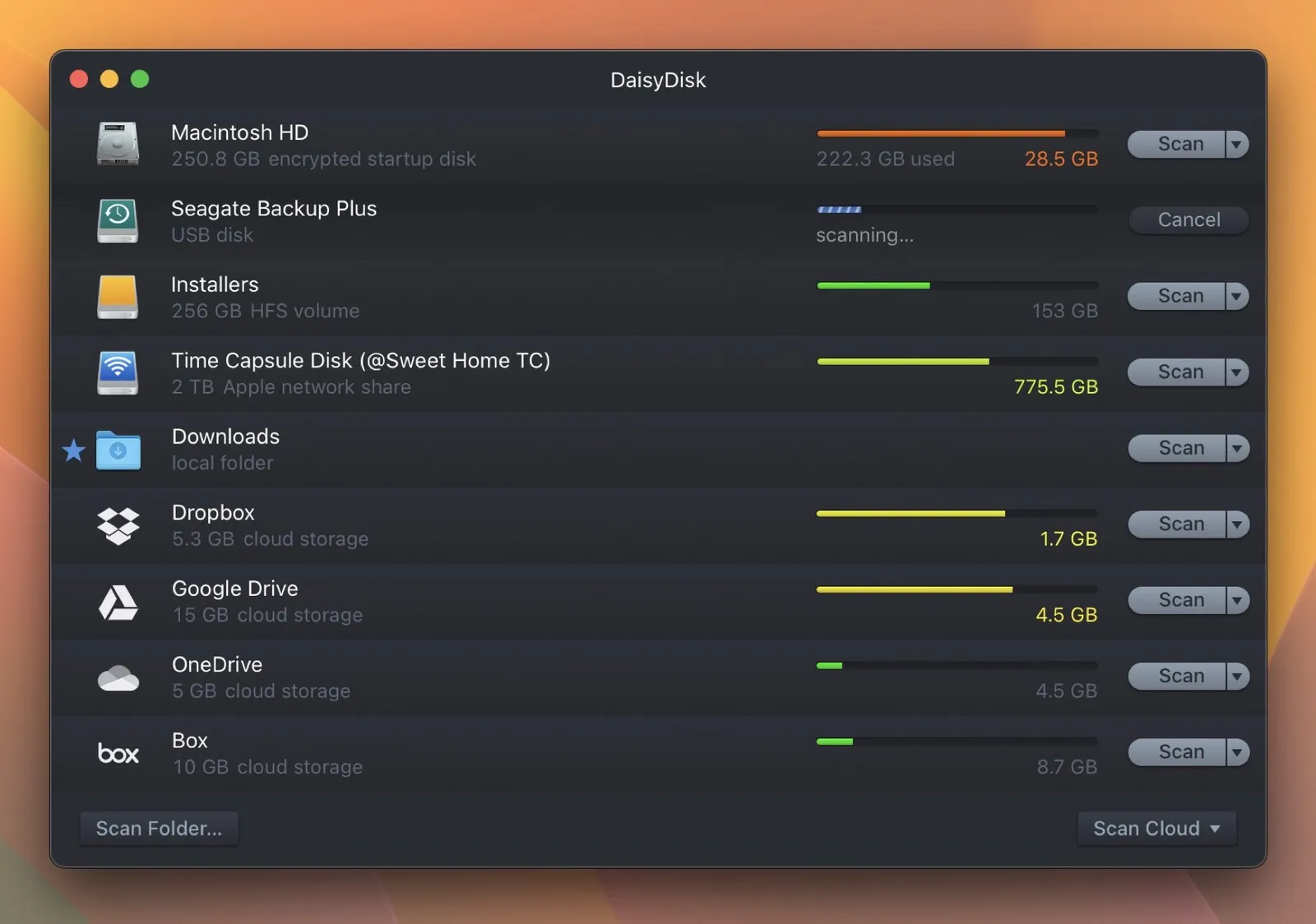
For most users, use AppCleaner for uninstalls plus DaisyDisk or GrandPerspective for disk scanning; power users should use Mole. The free tools cover all routine cleaning without a subscription, while paid suites add malware scanning and a unified dashboard but not more speed.
| Tool | Version (Date) | License / Price | Best For | Watch Out For |
|---|---|---|---|---|
| Mole | V1.53.0 (Aug 2026) | Open source, GPL-3.0, free | CLI power users wanting one tool for cleaning, uninstalling, and monitoring | Terminal-only, and it deletes things, so read what a command does before running it. Install from its GitHub repo, never from a search ad |
| Pearcleaner | 5.4.3 (Nov 2025) | Apache 2.0 with Commons Clause, free | Deep, safe app uninstalling with orphaned-file detection | Development paused since late 2025; still functional on Tahoe |
| OnyX | 5.0.2 (Jul 2026) | Freeware | Advanced system maintenance, APFS snapshot management | Strictly locked to macOS 26 Tahoe; wrong version won’t run |
| AppCleaner | 3.6.8 | Freeware | Simple drag-and-drop app uninstalls | Single-purpose only, no cache or disk analysis |
| GrandPerspective | 3.8.0 (Aug 2026) | Open source, free | Visual treemap for finding huge files | Interface is functional but dated. The Mac App Store copy lags the project’s own download; it was still on 3.7.2 when this was checked |
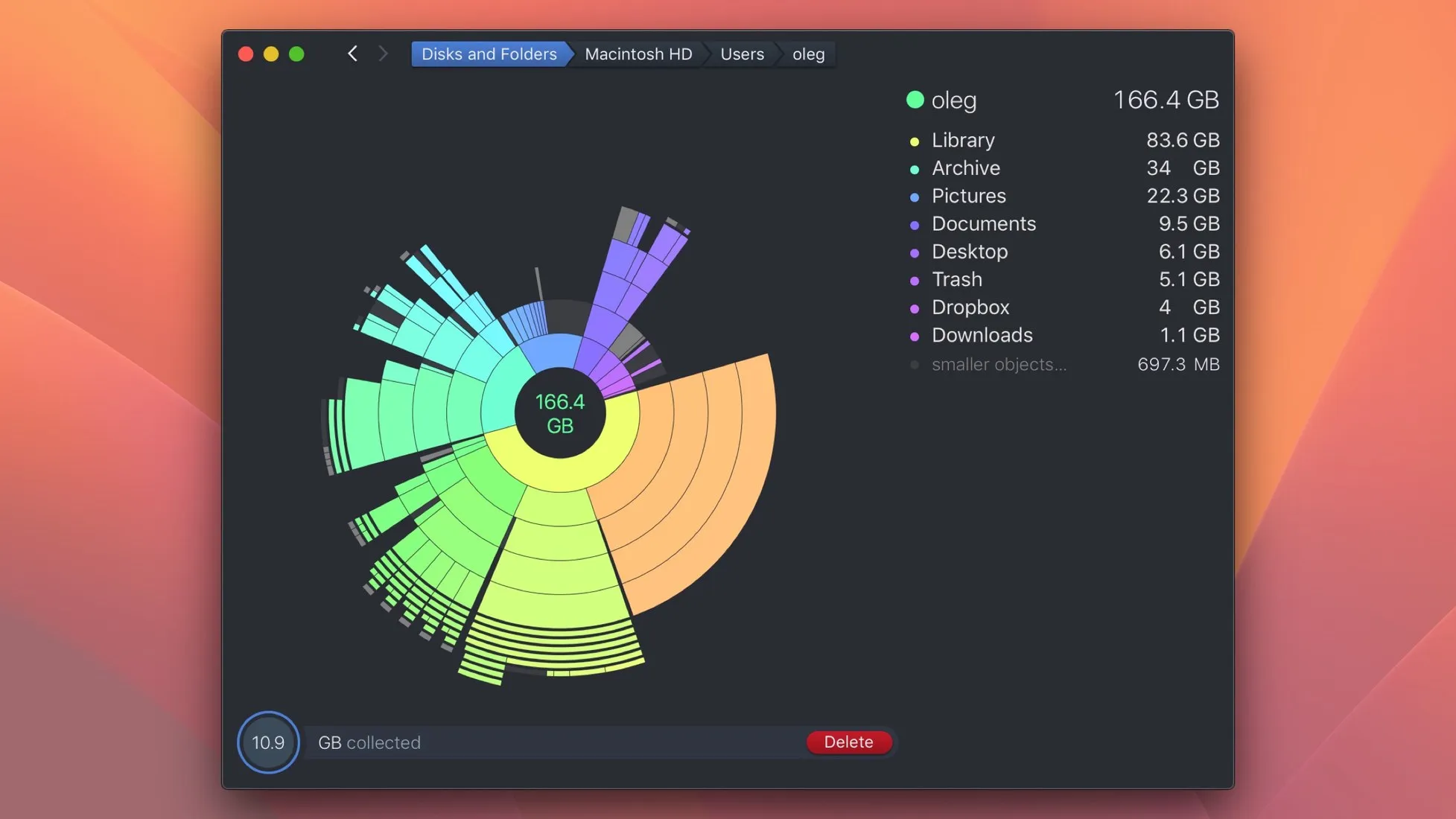
| DaisyDisk | 4.34.1 (Jul 2026) | Paid, one-time, about $10 | The most intuitive visual disk space scanner | Not free, though no subscription |
Community feedback across Mac forums consistently favors exactly this kind of lightweight, single-purpose stack over an all-in-one suite, and the OnyX plus AppCleaner deep maintenance combo has held up for years for a reason.
One caveat: caches deleted this way reappear after a reboot, because the app or OS rebuilds them on next launch. That’s expected behavior, not a sign the tool failed, though it explains why repeated manual cache-clearing is frustrating and pointless for anything beyond one-off troubleshooting.
Paid All-in-One Cleaners: Prices, Features, and Hidden Gotchas
Buy CleanMyMac as a direct download, read MacKeeper’s renewal terms before you commit, and if you choose Aiseesoft cancel the Blu-ray Player trial before day 7. CleanMyMac costs $39.95 per year for one Mac, or $119.95 once, though that one-time price covers only the current major version. MacKeeper is subscription-only at $71.40 per year for one Mac.
| Tool | Pricing Model | What You Actually Get | Gotcha |
|---|---|---|---|
| CleanMyMac 5 (MacPaw) | $39.95/year for one Mac, or $119.95 one-time | Cleaning, uninstaller, malware scan, unified dashboard | The one-time licence only covers the current major version, not future ones. The App Store build is sandbox-limited; full features need the direct download from MacPaw |
| Aiseesoft Mac Cleaner | $9.98/mo or $27/yr (1 Mac), $99.95 for 5 Macs | Cleaning, duplicate finder, uninstaller | Every purchase attaches a 7-day trial of Aiseesoft Mac Blu-ray Player that auto-renews at $31.20/month unless you cancel it |
| MacKeeper | $71.40/year for one Mac, $89.40/year for three, or $10.95/month. No lifetime licence | Cleaning, antivirus, VPN, identity monitoring | Subscription only, so the yearly cost keeps running. Its reputation problems date from before Clario took the product over, but read the refund policy yourself rather than trusting either the old complaints or the current marketing. Note that the vendor’s /pricing/ URL does not lead to a price list: it forwards to a personalized offer page, so the figure you see there may not be the one quoted here |
The Aiseesoft gotcha deserves its own sentence rather than a footnote: buying the Mac Cleaner automatically enrolls you in a Blu-ray Player trial that renews at $31.20 a month if you forget to cancel it. That’s a real, verified charge from the vendor’s own purchase page as of August 18, 2026, not a rumor, and it’s the kind of negative-option renewal this whole product category has been criticized for.
Our read: if you want a paid all-in-one dashboard and are fine with a subscription, CleanMyMac (downloaded directly, not from the App Store) is the most straightforward of the three. If you’re drawn to Aiseesoft’s lower headline price, buy it with a calendar reminder set for day six, because the upsell only becomes free money to them, not you, if you forget.

How to Safely Clear Caches and Reclaim “Missing” APFS Snapshot Space
APFS (Apple File System) local snapshots are the real reason your Mac’s free space looks different in Finder versus Disk Utility, and understanding this solves more storage confusion than any cleaner app. macOS creates these snapshots automatically before system updates and as part of Time Machine, and they can silently hold onto deleted files’ disk blocks. Finder counts this “purgeable” space as available; Disk Utility only counts truly free blocks, which is why the two numbers never match.
To see and reclaim this space manually, without installing anything:
- Open Terminal (Applications > Utilities > Terminal).
- Run
tmutil listlocalsnapshots /to see every local snapshot macOS is currently holding on your boot volume. - Review the dates; if you have working Time Machine backups elsewhere, older local snapshots are usually safe to remove.
- Use
tmutil deletelocalsnapshots <date>with the exact snapshot date from step 2 to remove a specific one, or let macOS’s own thinning process handle it over time if you’re not in a hurry.
For day-to-day cache clearing, the only cases worth acting on manually are a specific crashing app or a browser rendering broken pages. In those situations, quitting the app, deleting its folder inside ~/Library/Caches/[bundle id], and relaunching is safe and effective; community reports of this fixing a sluggish browser and improving typing responsiveness line up with how targeted cache resets are supposed to work. Wiping every cache on the system “just in case” is the part that’s counterproductive, not the targeted fix.
Choosing the Right Tool for Your Goal: Storage, Uninstall, or Speed
Match the tool to the symptom: nearly full disk? Use Storage settings and DaisyDisk. Leftover files after uninstall? Use AppCleaner or Pearcleaner. Slow Mac? Check Activity Monitor first. The table maps common symptoms to the exact tool.
| Symptom | Best Tool | Why |
|---|---|---|
| Drive nearly full (under 15% free) | macOS Storage settings + DaisyDisk or GrandPerspective | Reclaim purgeable space and find large files visually |
| Leftover files after dragging an app to Trash | AppCleaner or Pearcleaner | Detects orphaned files that Trash-dragging misses |
| Mac feels slow, not just full | Activity Monitor | Identifies real CPU/memory bottlenecks before blaming caches |
| Need to remove Homebrew casks/formulas | brew cleanup in Terminal | Removes outdated downloads and clears package cache |
| Want a lightweight resource monitor without a full cleaner suite | A menu-bar tool from our roundup of free Mac resource monitors | Provides ongoing visibility with minimal overhead |
Homebrew users occupy a slightly different lane: managing casks and formulas through brew cleanup blurs the line between package management and system cleaning, and it’s worth doing regularly if you already use Homebrew for anything else. Our own guide to properly uninstalling apps on Mac covers uninstall leftovers in more depth.
Key Takeaways
- Start with macOS’s own Storage settings and
tmutil listlocalsnapshots /; both are free and solve most “my Mac is full” complaints without installing anything. - AppCleaner (free) plus DaisyDisk (about $10, one-time) or the open-source Mole covers what most paid suites do, without a subscription.
- Mac App Store versions of cleaner apps are sandboxed and structurally can’t perform deep, automated system cleaning; buy direct from the vendor if you need that.
- Clearing caches speeds up nothing on a Mac with adequate free space; it only helps as a targeted fix for one misbehaving app.
- If you consider Aiseesoft Mac Cleaner, cancel the bundled Blu-ray Player trial before day seven or it renews at $31.20/month.
Image credit: DaisyDisk interface screenshot via its Mac App Store listing, used for editorial illustration.
Frequently Asked Questions
What is the best Mac cleaner overall in 2026?
There isn’t one app that wins every category. For most people, macOS’s own Storage settings plus AppCleaner for uninstalls and DaisyDisk (about $10, one-time) or the free open-source Mole for deep cleaning cover 95% of real needs. Paid suites like CleanMyMac only make sense if you specifically want a single dashboard with malware scanning included.
Is CleanMyMac worth the subscription?
CleanMyMac (MacPaw) is competently built and does what it claims, but it’s a recurring cost for tasks that free tools handle just as well. It earns its price mainly through malware scanning and a unified interface for less technical users. If you’re comfortable using two or three free single-purpose apps instead, you can skip the subscription entirely.
Are free Mac cleaners like OnyX and AppCleaner safe to use?
Yes. OnyX (Titanium Software) and AppCleaner have been maintained for years, are notarized or widely vetted by the Mac community, and don’t require subscriptions or aggressive upsells. OnyX is more advanced and strictly version-locked to your macOS release, so always download the build that matches your OS. AppCleaner is single-purpose and low-risk by design.
Do Mac cleaner apps actually speed up a Mac, or is it placebo?
Freeing disk space can help if your drive was nearly full, since macOS needs headroom for swap files and temporary data. But clearing caches on a Mac with plenty of free space usually does nothing for speed and can briefly slow things down as apps rebuild those caches. The biggest real speed gains come from removing genuine bloat: old backups, duplicate files, and abandoned app leftovers.
What’s the difference between the Mac App Store version and the direct-download version of a cleaner app?
Mac App Store apps run inside Apple’s App Sandbox, which blocks silent, automated access to system-wide caches, other apps’ containers, and root-owned files. Developers usually ship a separate, unsandboxed version for direct download that can perform deeper cleaning. If a cleaner you bought from the App Store seems to do very little, that’s the sandbox working as designed, not a bug.
Recommended reading
PDF Editors for Mac: What They Cost, and What Preview Already Does
What a Mac PDF editor really costs in 2026. Preview's exact limits, why every App Store listing says Free, and which tools are subscription, buy-once, or genuinely free.
Mac Activity Monitor: How to Read CPU, Memory Pressure and Energy Impact
Learn to read Mac Activity Monitor like a pro: CPU, Memory Pressure, Energy Impact, and which processes are safe to quit in macOS 26 Tahoe.
How to Free Up Space on Mac: System Data, Snapshots and Purgeable Space
Step-by-step methods to reclaim disk space on macOS Tahoe: System Data, APFS snapshots, purgeable space, and built-in tools. Updated for 2026.