Best Free Photo & Image Viewer for Mac in 2026
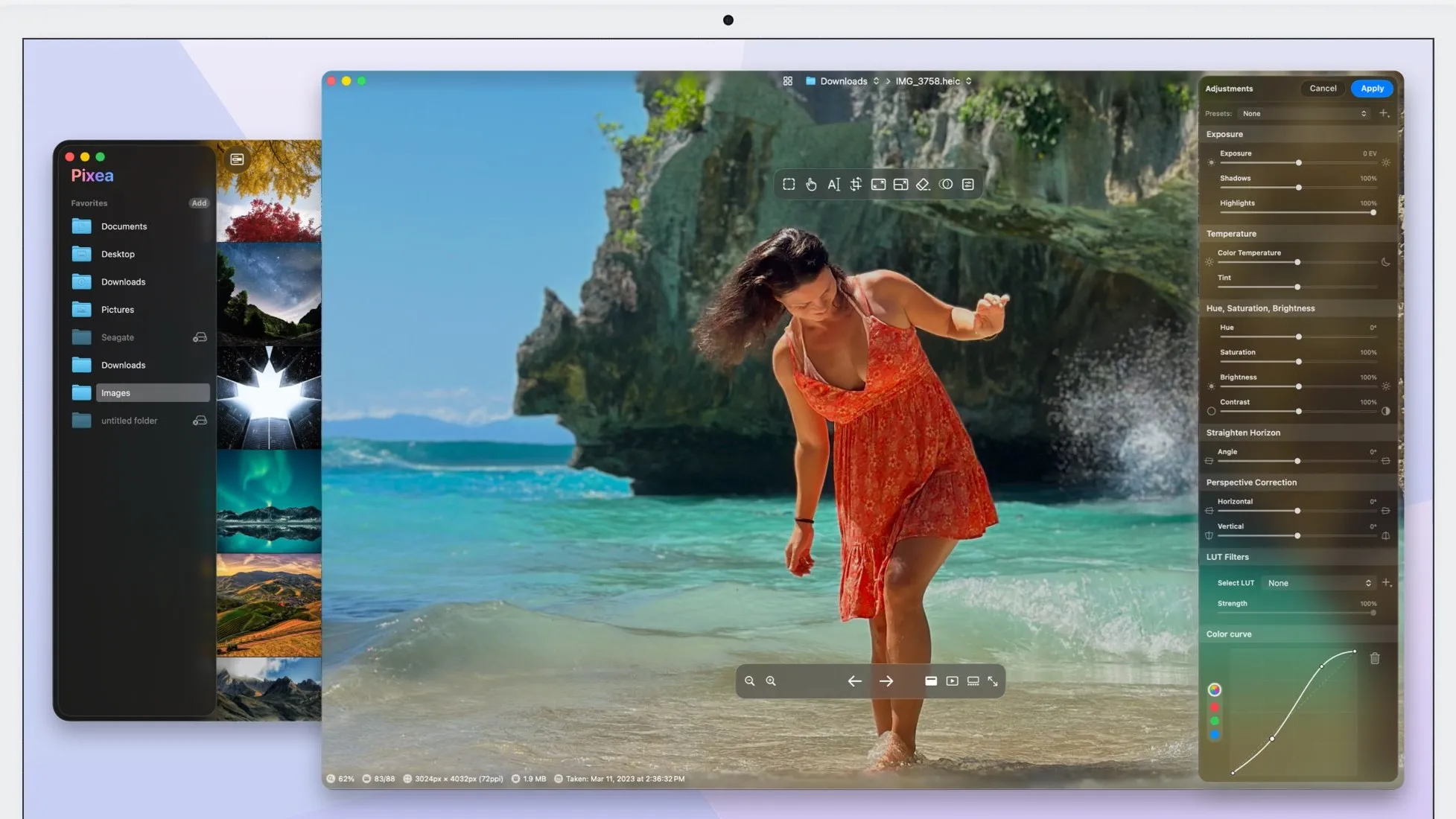
macOS ships with two built-in ways to look at images: Preview and Quick Look. Both are competent. Neither is fast enough for photographers flipping through 800 raw files from a weekend shoot, or for anyone who needs WebP, HEIC, or PSD support without converting files first. This guide ranks the best free photo and image viewers for Mac, explains exactly where each one wins, and gives you the steps to make any of them your default photo viewer on macOS.
Native macOS Image Viewers
macOS includes two built-in image viewing tools: Preview and Quick Look. Preview is the default image application, capable of opening JPEG, PNG, TIFF, PDF, HEIC, and a handful of RAW formats. Quick Look is a faster overlay: highlight one or more files in Finder and press Space (or Option + Space to open a multi-image Quick Look panel) to get an instant preview without launching a full app. Both are useful, but both have hard limits.
Preview does not pre-cache adjacent images, so pressing the arrow key to move to the next file in a folder triggers a fresh load each time. On an M3 MacBook Pro this is barely noticeable for JPEGs, but it becomes a real bottleneck on older Intel machines or with large RAW files. Quick Look is faster for a glance, but it offers no editing, no folder browsing, and no batch operations.
macOS does include one underused feature worth knowing: right-clicking an image in Finder and choosing Quick Actions > Convert Image lets you batch-convert files to JPEG or PNG without opening any app. It is not a viewer replacement, but it saves a trip to a heavier application for simple conversions.
Free Mac Image Viewers: Ranked
The table below covers the strongest free options available right now, scored across the criteria that matter most to different types of users.
| App | Price | RAW Support | WebP/HEIC | Folder Navigation | Batch Processing | Minimum macOS |
|---|---|---|---|---|---|---|
| Pixea | Free (paid features) | Yes | Yes (JPEG XL, PSD too) | Yes | Yes (paid) | 11 (13 for object removal) |
| XnView MP | Free (personal use) | Yes (500+ formats) | Yes | Yes | Yes | 11.3 |
| Phiewer Lite | Free (lite tier) | Yes | Yes | Yes | No (paid only) | 15.0 |
| qView | Free, open-source | No | Yes | Yes | No | 12 (10.13 legacy build) |
| Phoenix Slides | Free, open-source | No | Partial | Yes (subfolders) | No | 11.5 |
| Preview | Free (built-in) | Partial | Yes (HEIC) | Limited | No | Ships with macOS |
| DigiKam | Free, open-source | Yes | Yes | Yes | Yes | 11.3 Silicon, 10.15 Intel |
Minimum macOS is read off each vendor’s own download or requirements page, checked August 30, 2026. It replaces an “Apple Silicon native” column that could not be sourced: most of these vendors publish no architecture statement at all, and a column of guesses is worse than a column of facts. Note the outlier: Phiewer Lite needs macOS 15.0, so it is out of reach on any Mac that stopped at Sonoma, which is worth knowing before you go looking for it.
For photographers who need RAW support and a clean interface, Pixea or Phiewer Lite is the right call. For anyone who needs cross-platform batch processing and the widest possible format list, XnView MP wins outright. The sections below break down each app in detail so you can match the tool to your actual workflow.
Pixea: Best for Everyday Mac Users
Pixea is available on the Mac App Store and supports HEIC, JPEG XL, PSD, RAW, and WebP in its free tier. The interface is intentionally minimal: a single window, clean controls, and arrow-key navigation that moves through folder contents without reloading the app. Users on Apple Silicon report no perceptible delay with 24-megapixel JPEGs, and Pixea is one of only two picks here whose developer states native Apple Silicon support in writing. It runs on macOS 11 or later, though the AI object removal in the paid upgrade needs macOS 13. The paid upgrade also adds batch editing, but the free version covers viewing and basic adjustments for most users.
The main limitation is that some users report occasional friction when moving through very large folders (1,000+ files), and the batch editing features that would make it a true workflow tool are paywalled. Still, for a free App Store download with broad format support, it is the most polished option on this list.
XnView MP: Best for Power Users and Batch Processing
XnView MP is free for personal use and runs on Mac, Windows, and Linux. It supports over 500 file formats, making it the widest-net option on this list. The interface is denser than Pixea’s, closer to a file browser than a viewer, which suits photographers managing large archives. Pre-caching means browsing folders with arrow keys is noticeably faster than Preview on the same hardware. Batch renaming, batch conversion, and metadata editing are all available at no cost.
The trade-off is the interface. Compared to native macOS apps, XnView MP feels utilitarian, and anyone coming from macOS-native tools will find the UI less polished. Performance is harder to pin down than it looks. XnView ships a single macOS build and states nothing about which architectures it targets, so whether it runs natively on an M-series Mac or through Rosetta 2 is not something the vendor commits to in writing. If that matters to you, select the installed app in Finder, press Command-I, and read the Kind line: a universal binary says so there.
Phiewer Lite: Best for RAW Viewing Without Clutter
Phiewer positions itself as a speed-focused viewer for photos and RAW images. The free lite version covers viewing, basic editing, and RAW support. The interface is clean and macOS-native in feel. User reports suggest it handles RAW files from common Canon, Nikon, and Sony bodies without the sluggishness that Preview shows on Intel Macs. Batch processing and some advanced editing tools require the paid upgrade.
Check the system requirement before you get attached to it: Phiewer asks for macOS 15.0 or later, the steepest floor of anything in this guide, so a Mac that stopped receiving updates at Sonoma cannot run it at all. Every other pick here goes back to macOS 12 or earlier.
qView: Best Minimalist, Keyboard-Driven Viewer
qView is open-source, free, and built for users who want a viewer that stays out of the way. It is keyboard-driven: arrow keys move through folders, numbers adjust zoom, and there is no toolbar to distract from the image. It supports WebP, JPEG, PNG, GIF (including animated), and BMP, but it does not support RAW formats. If your workflow involves standard web or design formats and you want the lightest possible footprint, qView is the answer. The current build asks for macOS 12 or later, and there is a separate legacy download that goes back to 10.13 if you are keeping an older Mac in service.
Phoenix Slides: Best Open-Source Option for Folder Browsing
Phoenix Slides is free, open-source, and specifically built for slideshow-style folder browsing. Its standout feature is subfolder search: it can index and display images across nested folder structures, which makes it useful for anyone managing archives on external drives. Users consistently cite its speed on older hardware as a reason to keep it installed alongside a heavier tool. It does not support RAW files, and WebP support is partial, but for JPEG and PNG browsing of large folder trees it is hard to beat at the price.
It is also worth saying that this one is not abandonware, which is the reasonable assumption for a small open-source Mac viewer that has been around since 2005. Version 1.6.2 shipped on June 17, 2026, and its release notes deal with the Liquid Glass window edge in Tahoe’s full-screen slideshow, so the developer is tracking current macOS. It needs macOS 11.5 or later, and older builds are published for Macs going back to OS X 10.3.
DigiKam: Best for Massive Photo Libraries
DigiKam is open-source and free, and it is in a different category from the other apps here. It is a full photo management application capable of importing libraries of 100,000 photos, according to its official documentation. It supports RAW files, batch processing, face recognition, and geolocation tagging. The interface is functional rather than refined, but speed is no longer a caveat: digiKam has shipped a native Apple Silicon package since version 8.5 in November 2024. DigiKam is the right tool if you are managing a serious archive, not if you want to quickly flip through a folder of screenshots.
Key Features for a Free Mac Image Viewer
The criteria below are what actually separate fast, frustration-free viewing from the opposite. Use this as a filter before downloading anything.
- Format support: If you shoot RAW, confirm the app handles your specific camera’s RAW format, not just a generic RAW flag. HEIC is now standard from iPhone cameras, and WebP is ubiquitous on the web. Any viewer that cannot open these natively forces conversion steps that break your flow.
- Pre-caching and navigation speed: This determines how fast the next image loads when you press the arrow key. Preview does not pre-cache. XnView MP, Pixea, and Phoenix Slides all do, which makes folder browsing feel immediate rather than stop-start.
- Folder-level navigation: A good viewer treats a folder as a sequence, not just the single file you double-clicked. Preview requires you to select all files before opening them to get arrow-key navigation. Dedicated viewers handle this automatically.
- Integration with macOS Finder: You can set any app as the default opener via Get Info, but some apps also add Quick Actions or Services menu entries. customizing your Mac workflow extends beyond just image viewers, but setting a default viewer is one of the highest-impact single changes you can make to daily productivity.
How to Set a Third-Party Viewer as Your Default on macOS
Switching your default image opener takes under a minute on macOS Ventura and later, Tahoe 26 included.
- Right-click any JPEG (or whichever format you want to change) in Finder.
- Select Get Info from the context menu.
- Expand the “Open with” section in the Info panel.
- Choose your preferred app from the dropdown list.
- Click “Change All” and confirm when macOS prompts you.
Repeat this for each file type you want to redirect, such as PNG, HEIC, or WebP separately. macOS stores these associations per file type, not globally, so you can send RAW files to one app and JPEGs to another if your workflow calls for it.
RAW, HEIC, and Large Library Support
RAW files from modern cameras (Canon CR3, Nikon NEF, Sony ARW) require either native decoding support or macOS’s built-in RAW engine. Preview uses the macOS RAW engine, which means it supports a broad list of cameras but sometimes lags a version or two behind new bodies. XnView MP uses its own decoding and tends to add new camera support faster. Phiewer Lite also handles RAW files directly and is worth testing if you shoot with a recent body that Preview does not yet recognize.
HEIC files from iPhone cameras open natively in Preview and Pixea without any conversion. If you are using an older app that predates HEIC support, you will see an error or a blank preview. The macOS Quick Actions converter mentioned earlier can batch-convert a folder of HEICs to JPEG in a few clicks if you need compatibility with an older tool.
For libraries larger than a few thousand images, DigiKam is the only free option on this list built to handle that scale. Its import process indexes metadata and builds thumbnails in the background, so browsing a 100,000-image library stays responsive once the initial index is built. The interface requires some patience to configure, but the underlying performance is solid.
capturing your Mac screen for documentation is a related workflow need that pairs naturally with image management, particularly for designers and developers who screenshot frequently.
Quick Look and Finder Integration
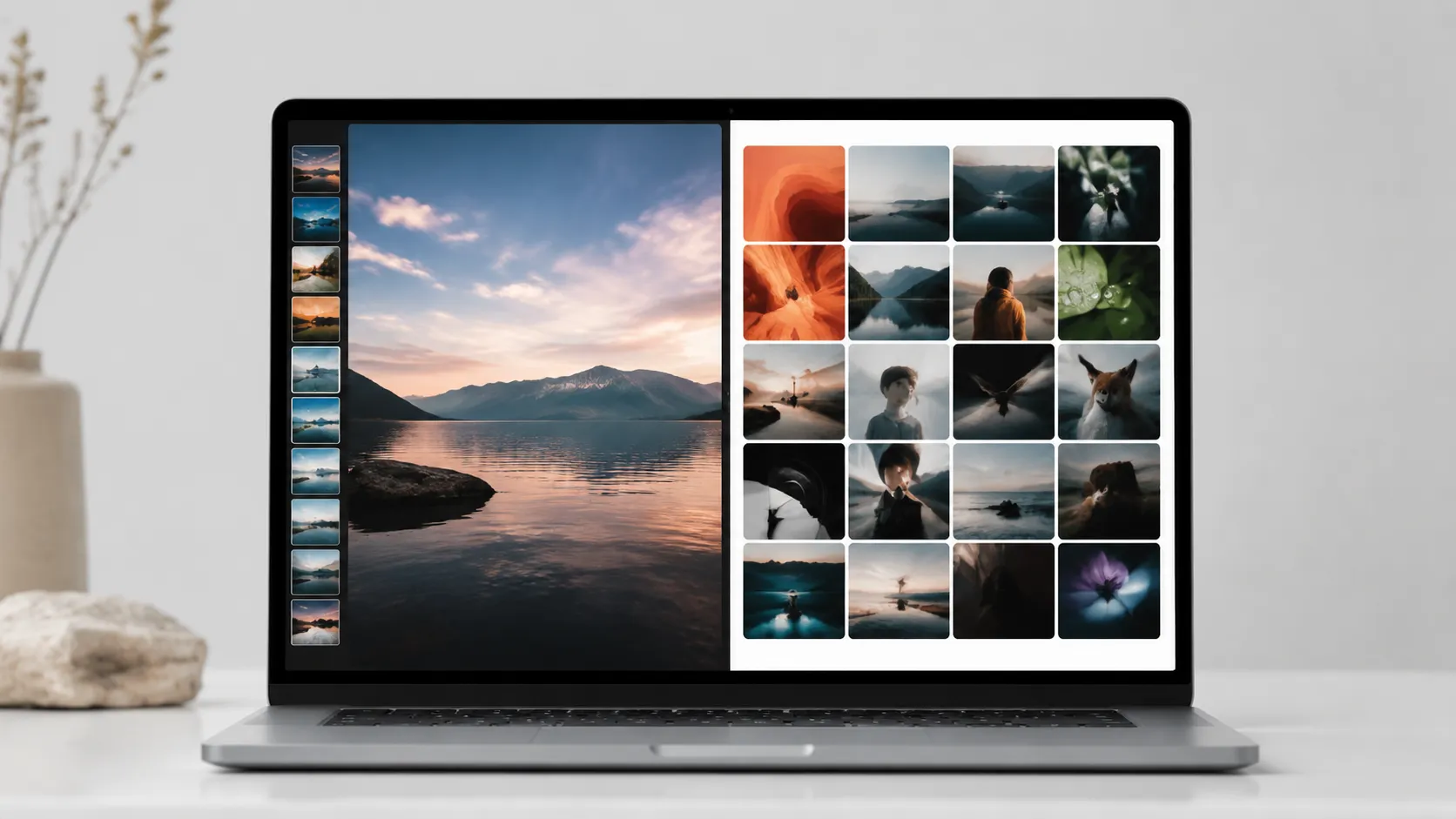
Quick Look (Space bar in Finder) and the Option + Space multi-image Quick Look are worth using alongside a dedicated viewer rather than replacing them. Quick Look is instant for a single check; a dedicated viewer is better for sequential browsing. The two tools complement each other.
Some third-party viewers add Finder extensions or Quick Actions. XnView MP can be set as a Send To target from the Services menu, which lets you right-click a batch of files in Finder and open them directly in XnView without making it your system default for that file type. This is useful if you want Preview for casual use and XnView for batch work.
For users managing photos on external drives, the combination of Phoenix Slides (for subfolder browsing) and XnView MP (for batch operations) covers most scenarios without spending anything. Users working with large external drives of nested album folders report that Phoenix Slides indexes and displays thumbnails faster than Finder’s own Gallery view for that case.
sharing image files between Mac and Windows becomes relevant when your photo archive spans multiple operating systems, and XnView MP’s cross-platform availability makes it a practical choice for mixed environments.
Mac Image Viewer Troubleshooting
The most common issues with image viewers on Mac fall into three categories: format errors, slow loading, and app crashes on large files.
| Issue | Likely Cause | Fix |
|---|---|---|
| ”Format not supported” error | App predates the format standard (WebP post-2020, newer RAW bodies) | Switch to an actively maintained viewer such as Pixea or XnView MP; check the developer’s supported camera list for RAW |
| Slow loading on Intel Macs | No pre-caching enabled | Enable pre-caching in XnView MP under Preferences > Browser > Thumbnails; in Preview, select all images in a folder before opening to load them as a sequence |
| App crashes on large files (50MB+ PSD or TIF) | Lightweight viewer not designed for layered or high-bit-depth files | Route large PSD and TIF files to Pixea or XnView MP, which handle them more reliably |
| Previously working viewer stops functioning after a macOS upgrade | Missing notarization update or 64-bit compatibility issue | Check for an app update; Xee (last updated December 2021) is no longer maintained and is a risky install on current macOS versions |
For Phoenix Slides, the initial load of a large folder is slow because it builds its cache on first launch. Subsequent browsing is fast once that index is complete.
Coming from Windows: The Closest Thing to Windows Photo Viewer
If you switched from a PC, the app you are missing is probably Windows Photo Viewer: open one picture, hold the arrow key, and move through a whole folder with no gallery, no import step, and no library. Preview does not work that way. Double-clicking a single picture on a Mac opens that picture alone, and the arrow keys do nothing until you select the whole folder first and open it as a group.
Two apps get closest to that behaviour. qView is the nearest match in spirit: one window, one picture, arrow keys move through the folder, and nothing else on screen. Pixea is the better pick if you also want HEIC and RAW files to open without a conversion step. Neither asks you to import anything first, which is the part most Windows switchers are actually looking for.
A note on wording, because it trips people up in search: on macOS, “picture viewer”, “photo viewer” and “image viewer” all describe the same category of app. Apple’s own documentation says “images”, most Mac apps say “photos”, and Windows switchers usually say “pictures”. They are the same thing, so do not assume an app is wrong for you because its description uses a different word than you do.
Which Free Viewer Is Right for You?
The right choice depends on what you actually do with images day to day. A designer working with WebP and PSD files needs different tools than a photographer culling RAW files from a camera card, and both need something different from a user who just wants to browse a folder of screenshots faster than Preview allows.
- Best for most people: Pixea. Free from the App Store, broad format support, and a clean interface that feels native to macOS.
- Best for batch processing and format coverage: XnView MP. Over 500 formats, free for personal use, cross-platform, and the widest reach at no cost, despite a less refined interface.
- Best minimalist, keyboard-driven viewer: qView. Open source and fast on standard formats, with almost no interface to learn.
- Best for folder and subfolder browsing: Phoenix Slides. Open source, and the strongest of these at walking a directory tree on an external drive.
- Best for large archives: DigiKam. Built for libraries up to 100,000 photos, and in a class of its own on this list.
- Best without installing anything: Preview and Quick Look, already on your Mac. Fine for casual use, but no pre-caching, no folder navigation, and no WebP or newer RAW.
Key Takeaways
- Preview and Quick Look are adequate for casual use, but lack pre-caching, folder navigation, and support for formats like WebP and newer RAW files.
- Pixea (free on the App Store) is the best starting point for most Mac users: HEIC, JPEG XL, PSD, RAW, and WebP support with a native macOS interface.
- XnView MP supports over 500 formats, is free for personal use, and includes batch processing, making it the strongest power-user option despite its utilitarian interface.
- qView and Phoenix Slides are open-source, lightweight, and fast for standard formats, with Phoenix Slides excelling at subfolder browsing on external drives.
- DigiKam handles libraries of up to 100,000 photos and is the only free option on this list built for serious archive management at scale.
Image credit: Pixea interface screenshot courtesy of Imagetasks, used for editorial illustration.
Frequently Asked Questions
Is macOS Preview good enough as an image viewer?
Preview handles common formats like JPEG, PNG, TIFF, and PDF well, and it opens quickly on Apple Silicon Macs. However, it lacks folder-level navigation with arrow keys, has no pre-caching for fast browsing, and struggles with some RAW formats and WebP files. For casual use it is fine; for photographers or anyone browsing large folders, a dedicated viewer is noticeably faster.
Which free Mac image viewer has the best RAW format support?
XnView MP and Phiewer Lite both handle a wide range of RAW formats. XnView MP supports over 500 file formats including most camera RAW files and is free for personal use. Phiewer’s free lite version also covers RAW viewing, though some advanced editing features are locked behind the paid tier.
Can I set a third-party image viewer as the default on macOS?
Yes. Right-click any image file in Finder, choose Get Info, expand the ‘Open with’ section, select your preferred app from the dropdown, then click ‘Change All’. macOS will prompt you to confirm the change for all files of that type. This works on macOS Ventura and later, Tahoe 26 included.
What is the fastest free image viewer for browsing large folders on Mac?
Across user reports, XnView MP and Phoenix Slides consistently load folder contents faster than Preview, largely because both pre-cache adjacent images. Phoenix Slides is open-source, free, and specifically praised for subfolder search and speed on older hardware.
Is there a picture viewer for Mac like Windows Photo Viewer?
qView is the closest free equivalent: it opens a single picture in one plain window and the arrow keys walk through the rest of the folder, with no library and no import step. Pixea is the better choice if you also need HEIC or RAW pictures to open directly. On macOS, “picture viewer”, “photo viewer” and “image viewer” all mean the same kind of app, so search results using any of those words apply equally.
Which free image viewers are native on Apple Silicon?
Fewer publishers answer this than you would expect. Two state it outright: Pixea’s requirements say “native Apple Silicon and Intel based Macs support”, and digiKam ships separate builds, one for Apple Silicon needing macOS 11.3 and one for Intel needing 10.15. Preview is Apple’s own app, so the question does not arise. The rest, XnView MP, Phiewer, qView and Phoenix Slides, publish a macOS version requirement and say nothing about architecture, which is not evidence either way. If it matters to you, the answer is on your own Mac rather than on any of these websites: select the installed app in Finder, press Command-I, and read the Kind line, where a universal binary says so.
Does qView work on Apple Silicon Macs?
It runs on any Mac on macOS 12 or later, which includes every Apple Silicon model. What the project does not say anywhere is whether the build is a universal binary or an Intel one running under Rosetta 2, so we will not tell you it is native when the developer has not. There is also a separate legacy download covering macOS 10.13 and up. qView is keyboard-driven, extremely lightweight, and supports common formats including WebP, but it does not support RAW files, so it suits users who want a minimal, distraction-free viewer for standard formats.
Recommended reading
PDF Editors for Mac: What They Cost, and What Preview Already Does
What a Mac PDF editor really costs in 2026. Preview's exact limits, why every App Store listing says Free, and which tools are subscription, buy-once, or genuinely free.
Mac Cleaner Apps in 2026: What Each One Costs and Removes
Mac cleaner apps in 2026 compared on price and on what they actually delete: the macOS built-in tools, free apps like OnyX and Mole, and the paid suites, including the checkout terms.
Mac Activity Monitor: How to Read CPU, Memory Pressure and Energy Impact
Learn to read Mac Activity Monitor like a pro: CPU, Memory Pressure, Energy Impact, and which processes are safe to quit in macOS 26 Tahoe.