How to Uninstall Apps on Mac and Remove What Trash Leaves Behind
Every price in this guide was checked against the vendor’s own page on August 26, 2026, and every version number against the vendor’s own download or App Store listing on August 30, 2026. Many vendors in this category run a permanent discount countdown, so the figure at checkout is a promotional one and moves; where a vendor publishes no price on its own site, this guide says so rather than guessing.
Why Dragging to Trash Isn’t Enough
Dragging an app to the Trash removes the .app bundle sitting in /Applications, but macOS applications are not single files. They scatter frameworks, preference files, caches, and background service definitions across multiple hidden directories the moment they first launch.
Those orphaned files accumulate silently. A Mac used for three years with regular software churn can carry several gigabytes of what macOS labels “System Data” or “Other” in storage panels, most of it application residue. App leftovers are only one of the things hiding in that category, and how to free up space on Mac works through the rest of it. The native System Settings > General > Storage > Applications deletion path, introduced to look more thorough, performs identically to a Finder drag: it removes the bundle and ignores everything else.
macOS 26 Tahoe (released September 2025) made this worse in one specific way. Apple removed Launchpad entirely and replaced it with an iOS-style App Library. The App Library has no delete option at all, so users who relied on the Launchpad’s jiggling-icon delete workflow now have to go back to Finder manually. Community reports confirm significant frustration with this change, and it’s understandable: the process is now less discoverable than it was in macOS 12.
Basic Uninstall Methods: Finder and System Settings
The two native deletion paths cover the majority of straightforward third-party apps, and they’re worth knowing before reaching for any additional tool. Apple’s own documentation (Delete or uninstall apps on Mac) describes both methods and stops there, with no mention of the files they leave behind.
Method 1: Finder drag-to-Trash
- Open Finder and click Applications in the sidebar.
- Locate the target app.
- Drag it to the Trash in the Dock, or press Command + Delete.
- Right-click the Trash icon and select Empty Trash.
For immediate permanent deletion without the Trash step, select the app and press Option + Command + Delete. This bypasses recovery entirely.
Method 2: System Settings Storage
- Open System Settings > General > Storage.
- Wait for the list to populate, then click Applications.
- Select the app, click the information (i) button, then Delete.
Both methods leave behind ~/Library/Application Support, ~/Library/Preferences, ~/Library/Caches, and potentially ~/Library/Containers entries. For apps you plan to reinstall, that’s actually useful: your settings survive. For apps you’re removing permanently, those directories are dead weight.
monitor Mac storage and identify leftover app data
Finding and Removing Leftover Files Manually
The hidden Library folder at ~/Library is where macOS stores nearly all per-user application data. It is not visible in Finder by default, but you can reach it by holding Option and clicking the Go menu in Finder, then selecting Library.

The directories worth checking after any manual uninstall are listed below. Each entry notes what it contains and whether deletion is safe.
| Directory | What It Stores | Safe to Delete After App Removal? |
|---|---|---|
| ~/Library/Application Support/ | Databases, user-generated content, persistent settings | Yes, if parent app is gone |
| ~/Library/Preferences/ | .plist configuration files | Yes, app reverts to defaults on reinstall |
| ~/Library/Caches/ | Temporary accelerator data | Yes, system rebuilds automatically |
| ~/Library/Logs/ | Crash reports and diagnostics | Yes, purely informational |
| ~/Library/Containers/ | Sandboxed app data (App Store apps) | Yes, identify by bundle ID |
| ~/Library/Group Containers/ | Shared data across one developer’s apps | Caution if other apps from same dev remain |
| ~/Library/LaunchAgents/ | Background process .plist files per user | Unload via launchctl first |
| /Library/LaunchDaemons/ | System-level root services, run at boot | High caution, unload with sudo launchctl |
| ~/Library/Saved Application State/ | Window layout cache for Resume feature | Yes, only affects window restore |
For LaunchAgent and LaunchDaemon entries, deletion without first unloading the service can produce system errors. The correct sequence is:
- Run
launchctl unload ~/Library/LaunchAgents/com.developer.app.plistin Terminal. - Delete the .plist file.
- For system-level daemons, prefix with
sudo.
Searching by the app’s bundle identifier (visible inside the .app bundle under Contents/Info.plist as the CFBundleIdentifier key) is more reliable than searching by app name, since developers sometimes use abbreviations or legacy naming in their support directories.
Fixing “App Is Open” Errors and Daemon Relaunch Loops
The “application is open” error when trying to trash an app is one of the most common Mac frustrations, and the cause is almost always a background process that survived after the main app window closed. Activity Monitor is where you find and identify that process, and our guide covers which ones are safe to quit and which are not.
The diagnostic flow is straightforward:
- Open Activity Monitor, located in /Applications/Utilities.
- Type the app’s name in the search field in the top-right corner.
- Select every process that appears, including helpers and agents.
- Click the Force Quit button (the X icon in the toolbar) for each.
- Attempt the deletion again.
Adobe Creative Cloud applications are a documented worst case. The Adobe Crash Processor can enter a relaunch loop consuming up to 33% of CPU. Terminating it via Activity Monitor sometimes causes another open Adobe application to immediately restart it. The only reliable fix is to terminate all Adobe processes simultaneously before attempting removal, then use Adobe’s own Creative Cloud desktop uninstaller rather than a manual drag.
A more severe variant was documented with the Codex macOS desktop app (build 26.601). A flawed watchdog caused the app binary to attempt execution tens of times per second. macOS Gatekeeper (syspolicyd) blocked each attempt, but the flood exhausted syspolicyd’s default file-descriptor limit of 256, triggering an EMFILE (errno 24) error. The result: no application on the machine could launch. The fix required running sudo killall syspolicyd in Terminal to flush the descriptor tables before any uninstallation could proceed.
If Activity Monitor shows no matching processes but the error persists, the culprit is likely a LaunchAgent or LaunchDaemon that relaunches the app automatically. Check ~/Library/LaunchAgents for .plist files referencing the app and unload them as described in the previous section.
Third-Party Uninstaller Tools Compared (2026)
Third-party uninstallers work by reading an app’s bundle identifier from its Info.plist, then scanning known Library paths for matching strings. The best ones also check .pkg receipts, plugin directories, and system service registrations that manual searches miss.
| Tool | Version | Price | macOS Support | Standout Feature |
|---|---|---|---|---|
| AppCleaner | v3.6.8 | Free | 10.14 Mojave to Tahoe | SmartDelete Trash monitoring, ~4 MB footprint |
| PearCleaner | v5.4.3 | Free, open-source | Ventura to Tahoe | App Lipo for Universal Binary slimming, Homebrew management |
| App Cleaner & Uninstaller | Current | Freemium (2-day trial) | Big Sur to Tahoe | 20,000+ app database, LaunchDaemon manager |
| TrashMe 3 | v3.7.5 | $17.99 on the App Store | 10.13 to Tahoe | Steam game uninstall, Tahoe UI widgets, telemetry filtering |
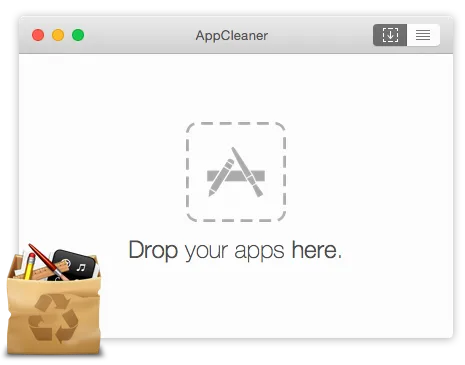
For most users, AppCleaner v3.6.8 is the correct answer. It is genuinely free (not a trial), weighs around 4 MB, and its SmartDelete feature intercepts any manual Finder drag to Trash and offers to remove associated files simultaneously. Its pattern matching is deliberately conservative: it reliably catches Application Support, Preferences, and Caches entries, at the cost of occasionally missing obfuscated files or deeply nested LaunchDaemons.
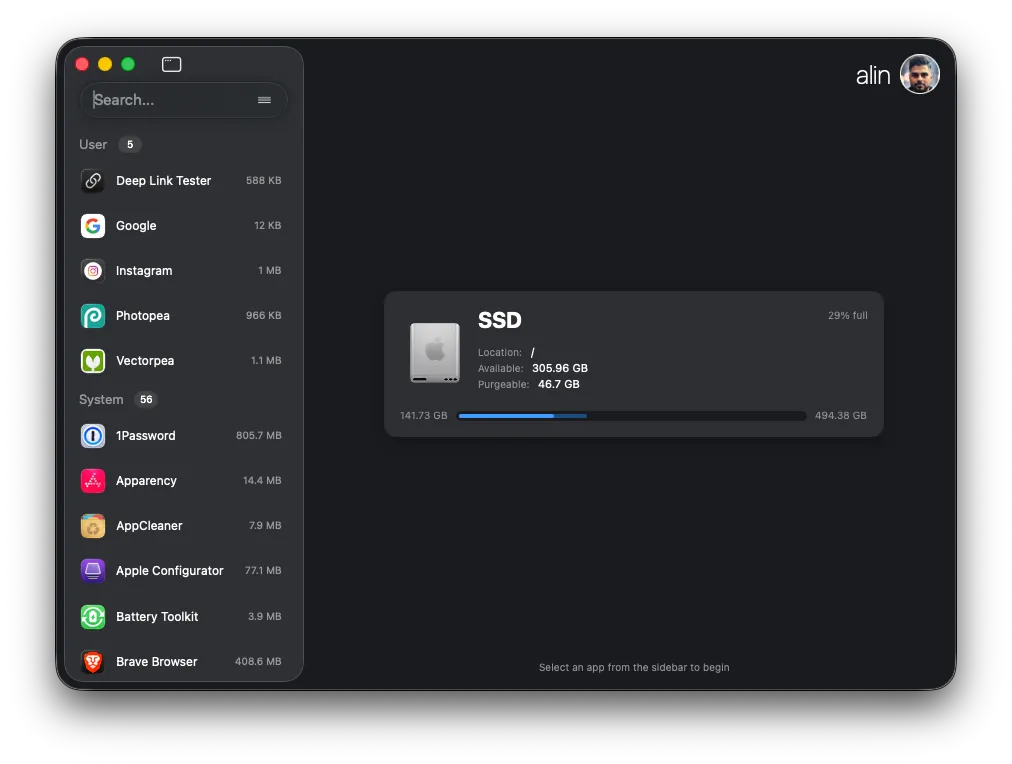
PearCleaner v5.4.3 is the better choice for developers or power users who also manage Homebrew packages, or who want to strip Intel architecture slices from Universal Binaries to reclaim disk space on Apple Silicon. Its App Lipo feature is unique among free tools. The project moved to maintenance-only status in early 2026, but v5.4.3 runs fine on Tahoe. One important warning: a counterfeit site at pearcleaner.com was distributing a Lumma-class infostealer in 2026, using the xattr -c command to strip Gatekeeper quarantine flags and silently extracting Keychain credentials. Download PearCleaner only from its GitHub repository or via brew install --cask pearcleaner.
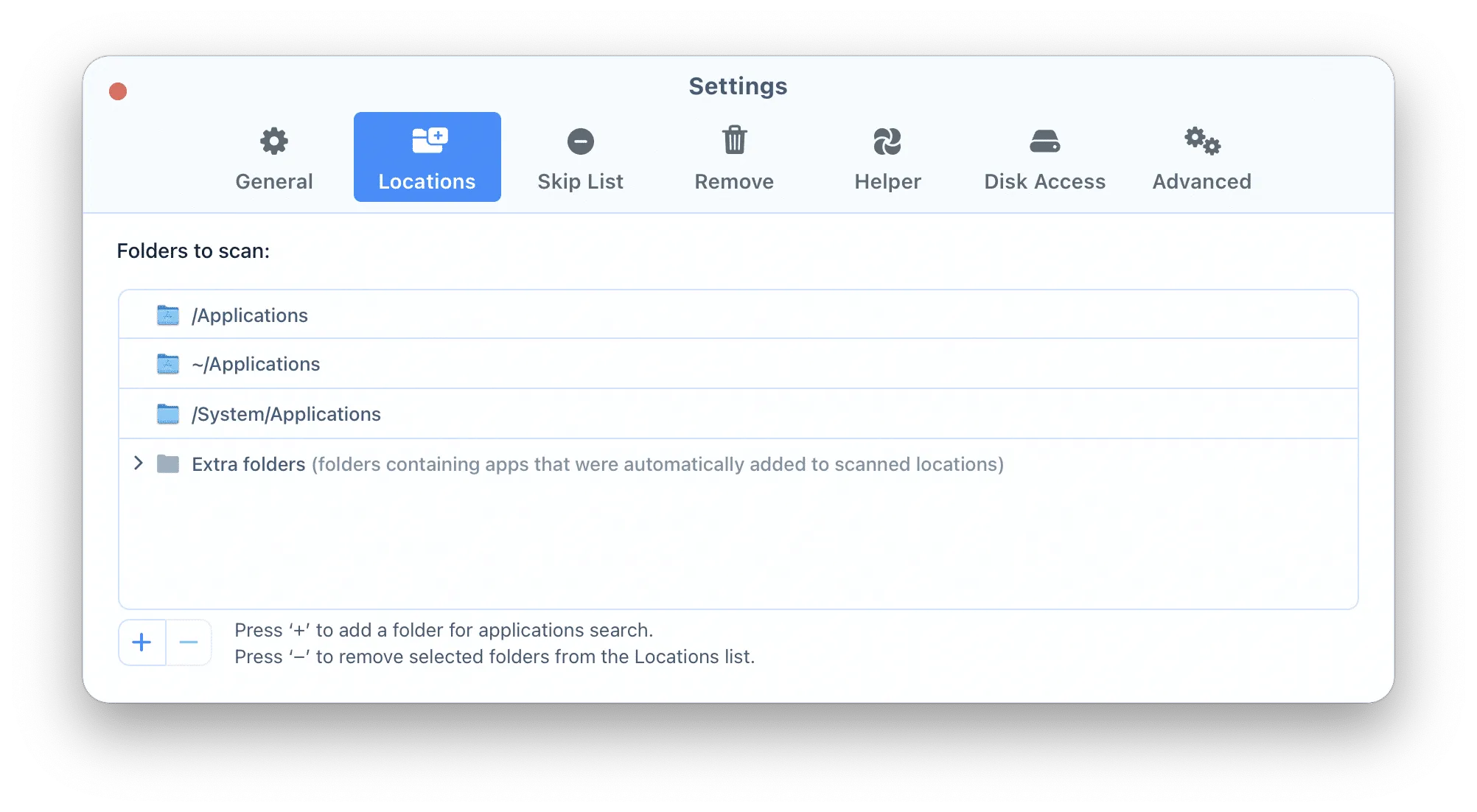
App Cleaner & Uninstaller by Nektony suits IT administrators managing fleets, given its structured database approach and extension auditing. Watch the licensing, though: after the 2-day trial, the free tier only scans; actually removing anything requires a licence: $24.95 a year, or $49.95 once, for one Mac. TrashMe 3 is worth considering specifically if you uninstall Steam games frequently, as it handles game-specific data structures that general tools miss.
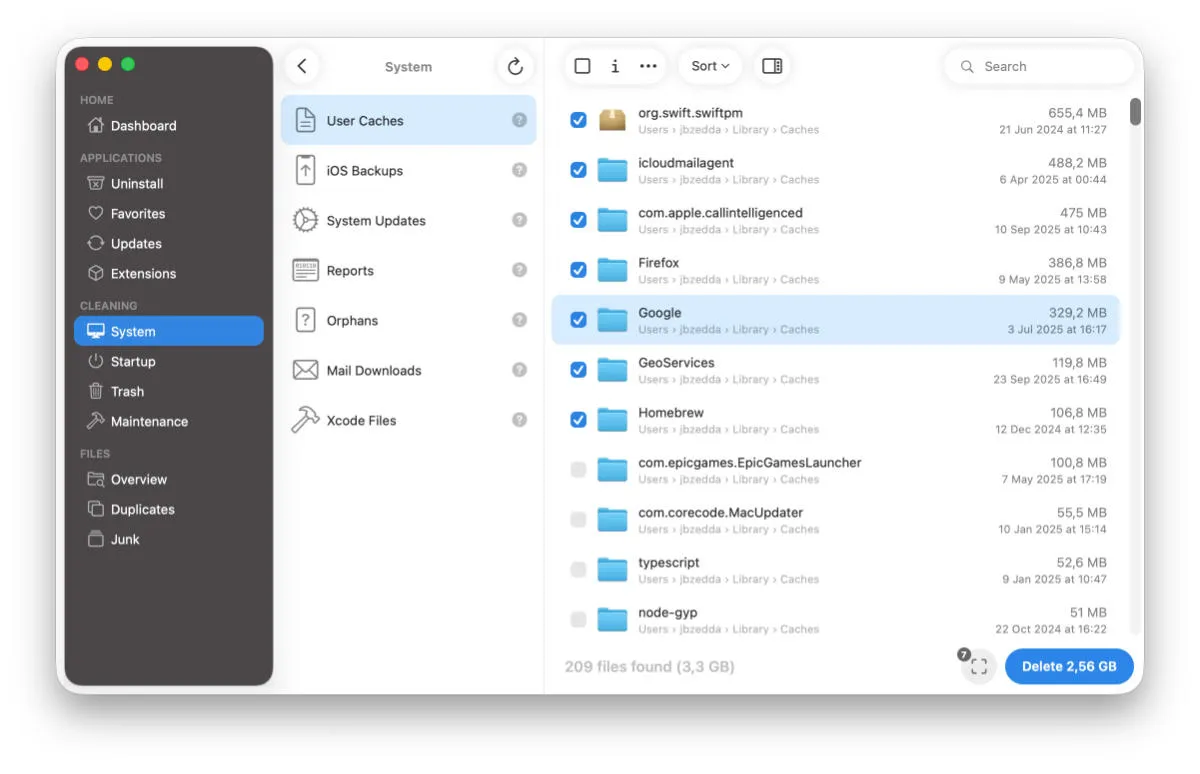
Verdict: AppCleaner wins for personal Mac users due to its zero cost and reliable SmartDelete integration. PearCleaner wins for developers who need Homebrew management and architecture trimming in one tool.
Uninstalling is only one of the jobs the all-in-one suites bundle together. If you are weighing whether one of them is worth paying for, our Mac cleaner comparison prices them against the free stack and explains why the Mac App Store build of a cleaner cannot reach the files this article is about.
clean up Mac disk space by removing unused video editing apps
Uninstalling System Apps and the SSV Limitation
Apple ships macOS with a set of built-in applications: Stocks, Chess, News, Maps, and others. Many users want to remove them. On Apple Silicon Macs running macOS 11 Big Sur through macOS 26 Tahoe, this is not possible without breaking the operating system.
The reason is the APFS Signed System Volume (SSV). The SSV is a cryptographically sealed read-only volume that contains the entire macOS root file system. Apple’s boot process verifies the cryptographic hash of every file on this volume before allowing the system to start. Any modification to /System/Applications, including deletion of a built-in app, invalidates that hash and causes the Mac to refuse to boot.
On older Intel Macs running macOS 10.14 Mojave or 10.15 Catalina, users could disable System Integrity Protection in Recovery Mode and remount the root filesystem as read-write to delete system apps. That path is closed on Apple Silicon. The practical options are:
- Remove the app from the Dock by right-clicking and selecting Remove from Dock.
- Hide it from Spotlight results via System Settings > Siri & Spotlight > Search Results.
- Restrict access using Screen Time under System Settings > Screen Time > App Limits.
None of these reclaim meaningful storage, since built-in apps are stored on the sealed volume and don’t contribute to the user-accessible storage total anyway.
Terminal Commands for Complete App Removal
First, a correction. Several high-ranking guides claim macOS ships a native uninstall command, usually written as sudo uninstall file:///Applications/AppName.app. That command does not exist. There is no uninstall binary anywhere in macOS, and typing it into Terminal returns “command not found”. The package tools Apple actually ships are installer and pkgutil, and neither one removes an application for you. Any guide recommending sudo uninstall copied it from another guide instead of testing it.
The Terminal sequence that actually works for a thorough manual removal:
- Quit the app and terminate its background processes (use Activity Monitor, or
pkill -i appname). - Read the bundle identifier:
defaults read /Applications/AppName.app/Contents/Info.plist CFBundleIdentifier - Delete the bundle:
sudo rm -rf /Applications/AppName.app - Search for related files:
find ~/Library -name "*com.developer.appname*" 2>/dev/null - Review each result before deleting. Remove confirmed matches with
rm -rf. - Check /Library/Application Support and /Library/LaunchDaemons with
sudo findfor system-level artifacts. - If the app arrived as a .pkg installer, clear its receipt:
pkgutil --pkgs | grep -i appname, thensudo pkgutil --forget <package-id>. - For LaunchAgents and Daemons, unload before deleting:
launchctl unload ~/Library/LaunchAgents/com.developer.app.plist
Terminal removal gives full control and no safety net. rm -rf does not ask for confirmation and does not use the Trash. If you are not comfortable reviewing each path before deleting it, a tool like AppCleaner reaches the same result with far less risk.
customize macOS appearance after cleaning up installed apps
macOS Tahoe App Library: What Changed for App Deletion
macOS 26 Tahoe introduced the App Library as a direct replacement for Launchpad. Understanding the difference matters for anyone following older uninstall guides.
Launchpad displayed all installed applications in a grid and allowed deletion of App Store apps by clicking a jiggling X icon, the same gesture used on iPhone and iPad. That workflow is gone. The App Library in Tahoe functions more like a categorized Spotlight index than a folder. There is no delete option within the interface, and you cannot drag apps out of it to the Trash.
Tahoe also deepened iOS integration, pulling iPhone app widgets and search results into the macOS environment. Users cleaning up their Mac sometimes mistake mirrored iPhone apps for native Mac software. These are not stored in /Applications and cannot be deleted from the Mac side. To remove them from macOS search results, go to System Settings > Siri & Spotlight > Search Results and uncheck iPhone Apps.
The practical takeaway: any guide written before September 2025 that instructs you to delete apps via Launchpad is outdated. The only native deletion path in Tahoe is Finder > Applications > Command + Delete, followed by emptying the Trash.
upcoming macOS changes that may affect app management workflows
Key Takeaways
- Dragging an app to Trash, or using System Settings > Storage, removes only the .app bundle. Caches, .plist files, and Application Support directories remain until manually deleted or swept by a tool like AppCleaner v3.6.8.
- AppCleaner v3.6.8 (free, from freemacsoft.net) handles complete removal for most apps via drag-and-drop. Its SmartDelete feature intercepts manual Trash drags automatically.
- Stubborn “app is open” errors are almost always caused by background daemons or relaunch loops. Open Activity Monitor, terminate every process associated with the app, then delete.
- Apple Silicon Macs cannot permanently delete built-in Apple apps (Stocks, Chess, News, etc.) because the APFS Signed System Volume cryptographically seals /System/Applications. Attempting to modify it prevents the Mac from booting.
- macOS 26 Tahoe removed Launchpad. The App Library that replaced it has no delete function. All native deletion now goes through Finder > /Applications.
Image credits: interface screenshots courtesy of FreeMacSoft (AppCleaner), the open-source PearCleaner project, Nektony (App Cleaner & Uninstaller), and Jibapps (TrashMe 3), used for editorial illustration.
Frequently Asked Questions
Does deleting an app from the Mac App Store remove all its files?
No. Deleting an App Store app via Finder or System Settings removes the .app bundle but leaves behind data in ~/Library/Containers and ~/Library/Group Containers. Use AppCleaner v3.6.8 or PearCleaner v5.4.3 after removal to sweep those directories. The App Store itself offers no deep-clean option.
Why can’t I delete apps like Stocks, News, or Chess on my Mac?
Apple Silicon Macs running macOS 11 Big Sur through macOS 26 Tahoe use an APFS Signed System Volume (SSV) that cryptographically seals the root file system. Any modification to /System/Applications breaks that seal and prevents the Mac from booting. You can hide these apps from the Dock or restrict them via Screen Time, but you cannot permanently delete them.
What changed about app deletion in macOS 26 Tahoe?
macOS 26 Tahoe, released September 2025, removed Launchpad entirely and replaced it with an iOS-style App Library. Unlike Launchpad, the App Library has no delete option, so you must open Finder, navigate to /Applications, and delete from there. The App Library also surfaces iPhone app widgets, which can be confused with native Mac apps.
Is PearCleaner safe to download?
The legitimate version of PearCleaner v5.4.3 is safe and open-source under Apache 2.0. However, a fraudulent site at pearcleaner.com was distributing a Lumma-class infostealer in 2026. Only download PearCleaner directly from its GitHub repository (github.com/alienator88/Pearcleaner) or via Homebrew using ‘brew install —cask pearcleaner’.
How do I uninstall an app on Mac that keeps saying it’s open?
Open Activity Monitor (in /Applications/Utilities), search for the app’s name, select every matching process, and click the Force Quit (X) button. For Adobe apps specifically, the Adobe Crash Processor can consume up to 33% CPU in a relaunch loop; you must terminate it and all other Adobe processes before the uninstall will proceed. Then delete the app bundle and use AppCleaner to remove leftovers.
Recommended reading
PDF Editors for Mac: What They Cost, and What Preview Already Does
What a Mac PDF editor really costs in 2026. Preview's exact limits, why every App Store listing says Free, and which tools are subscription, buy-once, or genuinely free.
Mac Cleaner Apps in 2026: What Each One Costs and Removes
Mac cleaner apps in 2026 compared on price and on what they actually delete: the macOS built-in tools, free apps like OnyX and Mole, and the paid suites, including the checkout terms.

Mac Activity Monitor: How to Read CPU, Memory Pressure and Energy Impact
Learn to read Mac Activity Monitor like a pro: CPU, Memory Pressure, Energy Impact, and which processes are safe to quit in macOS 26 Tahoe.