Best Free Mac Resource Monitors in 2026

Every price in this guide was checked against the vendor’s own page on August 26, 2026. Many vendors in this category run a permanent discount countdown, so the figure at checkout is a promotional one and moves; where a vendor publishes no price on its own site, this guide says so rather than guessing.
Your Mac ships with enough processing power to handle almost anything, but knowing what is consuming that power at any given moment requires the right tools. Whether you are chasing a thermal throttle on an M3 MacBook Pro or hunting a background process that is draining your battery on a flight, a free Mac resource monitor gives you the visibility to act.
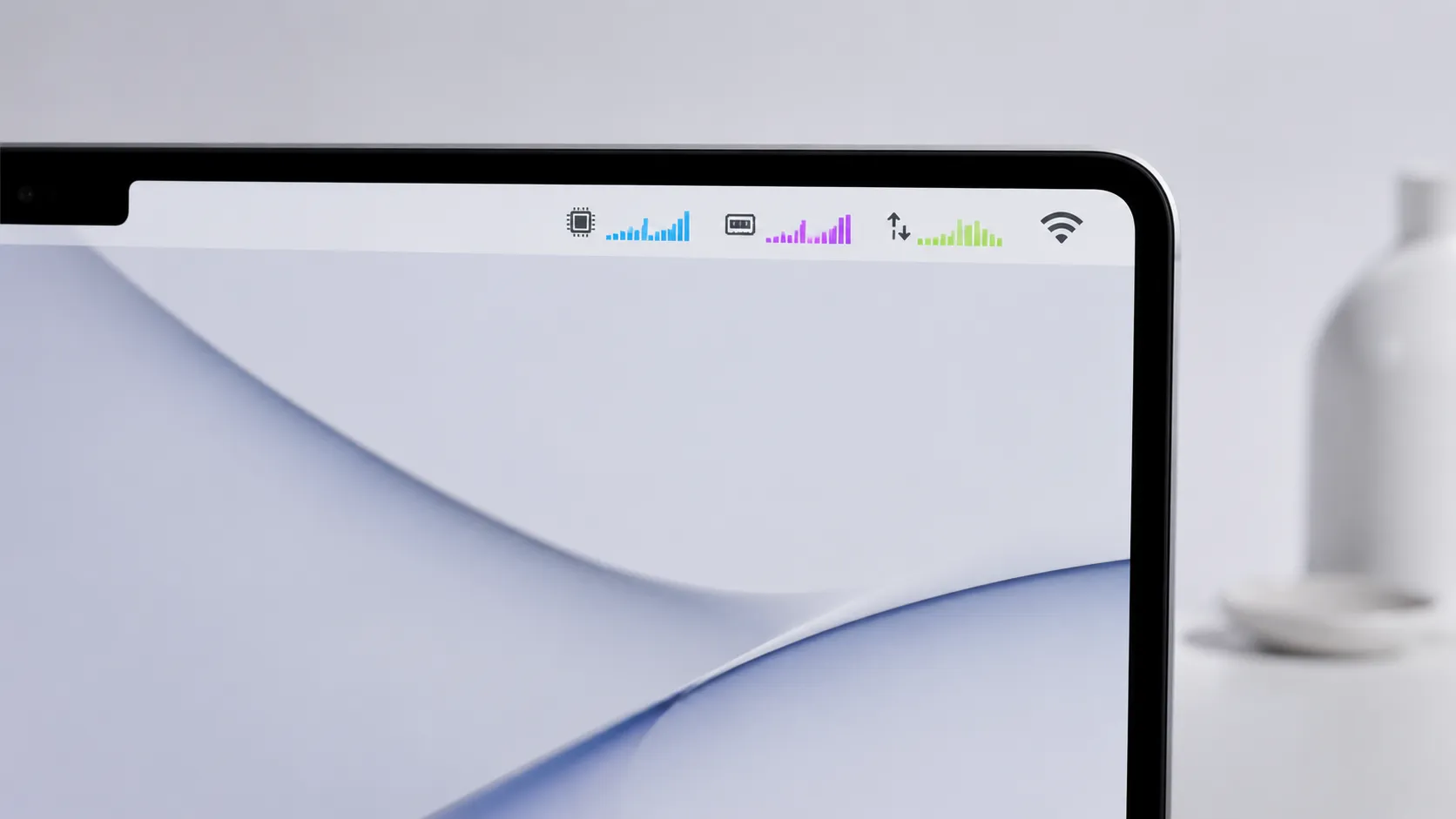
Why Mac Resource Monitoring Matters
A Mac resource monitor is any tool that tracks CPU load, RAM pressure, disk activity, network throughput, or battery state in real time. Without one, diagnosing slowdowns means guessing. With one, you can pinpoint a runaway process in under 30 seconds.
The stakes are higher on Apple Silicon. M-series chips use unified memory, meaning the CPU, GPU, and Neural Engine all draw from the same pool. A single memory-hungry app can starve the GPU mid-render. Monitoring tools make that contention visible before it becomes a problem.
This guide covers the strongest free options available in 2026, from menu bar apps to terminal commands, and includes battery management tools that most roundups skip entirely.
Top Free Mac Resource Monitors at a Glance
The table below compares the six most useful free options across the criteria that matter most.
| Tool | Type | CPU/RAM | Disk/Net | Battery | Open Source |
|---|---|---|---|---|---|
| Stats | Menu bar app | Yes | Yes | Yes | Yes (MIT) |
| Monit | Menu bar / widget | Yes | Yes | Yes | No |
| Activity Monitor | Built-in GUI | Yes | Yes | Yes | No |
| Better Resource Monitor | Sandboxed GUI | Yes | Yes | Yes | No |
| htop | Terminal | Yes | No | No | Yes (GPL) |
| AlDente (Free tier) | Menu bar | No | No | Yes (charge cap) | No |
An “Admin Required” column used to end this table, answering No for all six. None of these six vendors states its privilege requirements anywhere we could find, so the column was six assertions with no source behind them, and it distinguished nothing even if they were all right. What the AlDente developer does document is the free tier’s real boundary: AlDente Free cannot control charging while the Mac is asleep or shut down, which is exactly when a laptop sits plugged in overnight. That limit is worth more than the column was.
For pure menu bar monitoring, Stats wins on depth and transparency. For users who want zero configuration and no admin prompts, Better Resource Monitor is the privacy-first pick.
Stats: The Open-Source Menu Bar Champion
Stats is a free, open-source macOS menu bar application hosted on GitHub that monitors CPU, GPU, RAM, disk, network, sensors, and battery from a single, modular interface. It matters because it is the closest free equivalent to paid tools like iStat Menus (which carries a CPC of $2.23, reflecting genuine commercial demand).
Stats is a lightweight, no-nonsense monitor that stays out of the way. Each module is independently toggleable, so you can show only CPU percentage and RAM pressure if that is all you need, keeping the menu bar clean on smaller displays.
Installing Stats takes three steps:
- Open Terminal and run
brew install stats(requires Homebrew; install from brew.sh if needed). - Launch Stats from Applications or Spotlight.
- Click the menu bar icon and choose Preferences to enable or disable individual modules.
The open-source nature of Stats means technically inclined users can audit the code on GitHub before running it, which builds a level of trust that closed-source tools cannot match. Community contributors have added M-series efficiency-core awareness and GPU sensor support for recent MacBook Pro models.
One honest limitation: the sensor readout for fan speed and die temperature is less polished than iStat Menus on certain Mac Pro configurations. If thermal data is your primary concern on a desktop Mac, that gap is worth knowing.
Customise your macOS menu bar beyond monitoring with these Mac theme options
Monit: A Clean, All-in-One Dashboard
Monit (available on the Mac App Store) is a completely free system monitor with no ads, no in-app purchases, and no paywalled features. It presents CPU, memory, disk, network, and battery data in a compact widget-style layout that suits users who prefer a single glance over a row of menu bar icons.
Where Stats excels through configurability, Monit wins on immediacy. The default layout requires no setup and works the moment you launch it. The most common praise from users who switch from cluttered alternatives is that the interface is clean enough that it does not feel like a free tool.
The trade-off is customisation. Monit offers fewer display options than Stats, and there is no Homebrew install path. It is also not open-source, so users who want to audit the code before granting it access to system data should consider Better Resource Monitor or Stats instead.
Built-In macOS Tools You Might Be Overlooking
Activity Monitor is a full-featured process viewer built into macOS that ships with every Mac. It covers CPU, Memory, Energy, Disk, and Network tabs, and it is the tool Apple’s own support documentation references when diagnosing performance issues. Reading it correctly is its own skill, and our guide to Activity Monitor works through what each tab actually measures and which processes you must never force quit.
Most users open Activity Monitor once during a crisis and then forget it exists. That is a mistake. The Memory tab’s memory pressure graph is particularly useful on M-series Macs: a sustained yellow or red pressure reading means macOS is compressing or swapping memory, which signals a genuine bottleneck regardless of how much unified memory the chip has.
To reach Activity Monitor quickly, press Command + Space, type “Activity Monitor”, and press Return. Sorting by CPU% or Memory descending immediately surfaces the heaviest processes.
The Energy tab deserves special mention for laptop users. It lists the 12-hour power impact of each app, which is more actionable than a raw CPU percentage when you are trying to extend battery life on a long flight.
See how unified memory affects real-world performance in the M5 Max MacBook Pro
How to Monitor Battery Health for Free
Battery health monitoring is the most overlooked category in free Mac resource guides. macOS exposes raw battery data at no cost, and one third-party free tool adds proactive charge management that can meaningfully extend battery lifespan.
Reading Battery Data from macOS Directly
To check your battery’s cycle count and condition without any third-party app:
- Hold the Option key and click the Apple menu in the top-left corner.
- Select System Information.
- In the left sidebar under Hardware, click Power.
- Read the Cycle Count, Full Charge Capacity (mAh), and Condition fields.
Apple considers most MacBook batteries healthy up to 1,000 cycles, after which capacity may have dropped to 80% of the original rating.
AlDente: Proactive Battery Management
AlDente is a menu bar utility whose free tier allows you to cap the maximum charge percentage, commonly set at 80%, to reduce electrochemical stress on the lithium cells. According to the developer’s documentation and consistent user reports, limiting charge to 80% and avoiding frequent full cycles noticeably extends battery health over time.
The logic is straightforward: lithium-ion batteries degrade faster when held at 100% charge for extended periods. AlDente intercepts the charging signal before the battery reaches the cap. The free tier covers the charge limit feature; a paid Pro tier adds heat protection and sailing mode, but the core functionality costs nothing.

Advanced Terminal-Based Resource Monitoring
Terminal tools are the leanest way to monitor a Mac because they consume minimal system resources themselves and require no installation beyond what ships with macOS or Homebrew. Many advanced users prefer command-line tools like htop over GUI apps precisely because the overhead is near zero.
Key Terminal Commands
Three commands cover the vast majority of terminal-based monitoring needs:
top is built into macOS and requires no installation. Run top in Terminal to see a live-updating list of processes sorted by CPU usage. Press o to change the sort column; press q to quit.
htop is an enhanced version of top with colour coding, mouse support, and per-core CPU bars. Install it with brew install htop, then run htop. On Apple Silicon, it displays all performance and efficiency cores individually, which top does not.
vm_stat reports virtual memory statistics in a single snapshot. Run vm_stat in Terminal to see page-ins, page-outs, and pages occupied by compressor. A high “Pages swapped out” number on a Mac with 8GB unified memory is a reliable indicator that a RAM upgrade (or a less memory-hungry workflow) is needed.
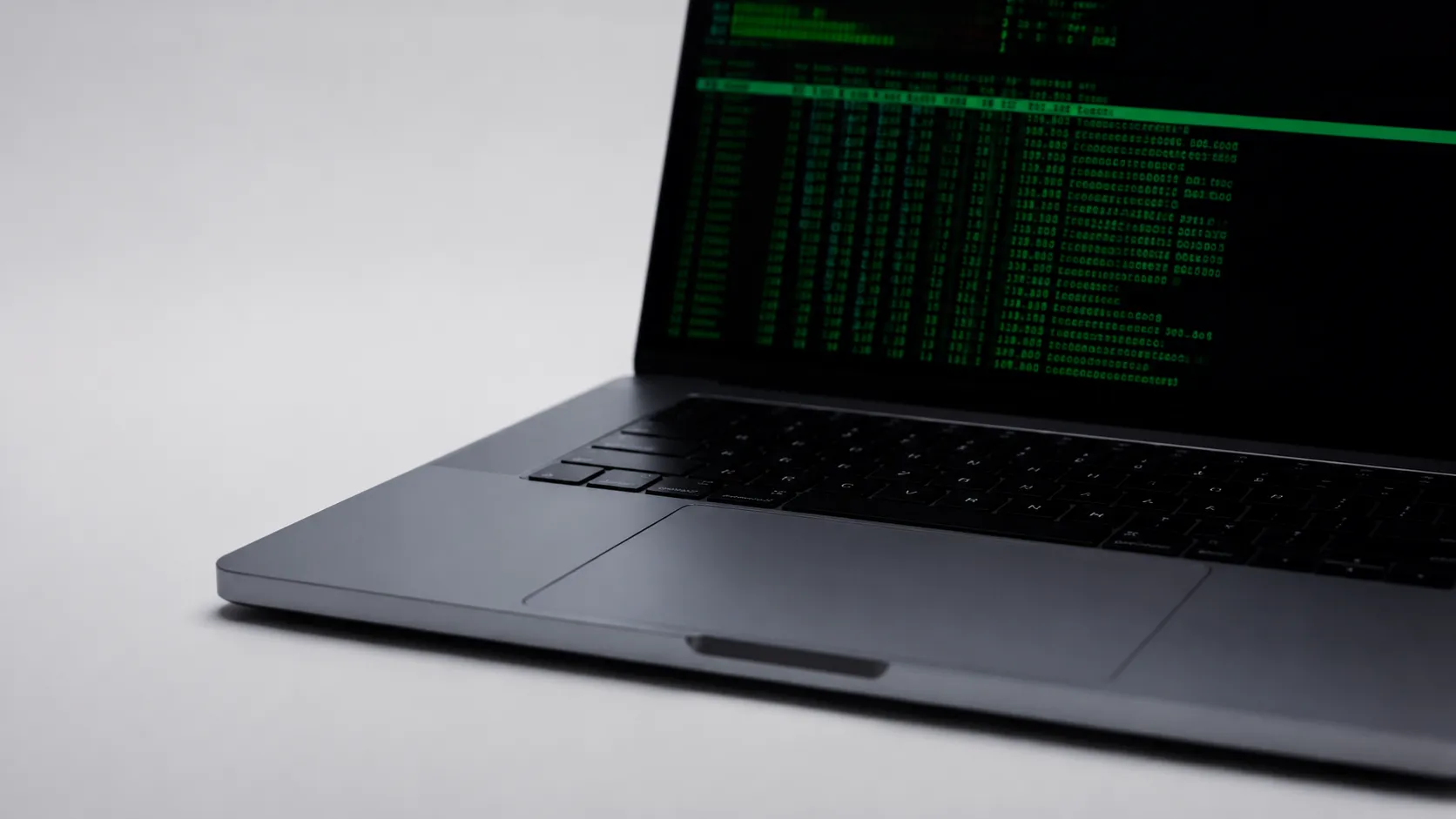
Using vm_stat for Memory Pressure Analysis
To get a continuous vm_stat readout every 5 seconds:
- Open Terminal.
- Run
vm_stat 5. - Watch the “Pages wired down” and “Pages occupied by compressor” columns. Rising compressor pages indicate memory pressure.
- Press Control + C to stop.
This approach gives you the same data as Activity Monitor’s memory pressure graph but with timestamps you can log to a file by appending > ~/Desktop/vm_log.txt to the command.
Essential Tips for Keeping Your Mac Running Smoothly
Monitoring is only useful if you act on what you see. These four practices address the most common causes of sustained high resource usage. A nearly full disk belongs on that list too, because macOS starts swapping harder and behaving strangely once free space runs out; how to free up space on Mac covers the reclaim methods that actually work.
Remove app leftovers with AppCleaner. When you drag an app to the Trash, macOS leaves behind preference files, caches, and support directories. AppCleaner (free, from freemacsoft.net) finds and deletes those associated files during uninstallation. Users routinely report it surfacing 50-200MB of orphaned data per uninstalled app, which accumulates quickly on a system that has been in use for several years.
Audit login items. Open System Settings, navigate to General, then Login Items and Extensions. Any app listed under “Open at Login” runs at startup and may continue consuming CPU or RAM in the background. Remove anything you do not actively use.
Use Rectangle for window management. This is a free Mac resource in a different sense: Rectangle (rectangleapp.com) adds keyboard-driven window snapping to halves, quarters, thirds, and sixths. Reducing the time spent manually resizing windows is a small but genuine productivity gain, and the frustration that macOS still lacks this natively is a common complaint among power users.
Check Privacy and Security sensor access. Some monitoring apps request access to location, contacts, or full disk access without a clear reason. Better Resource Monitor is sandboxed, works offline, and does not require a root helper or admin password, making it the most privacy-conservative GUI option in this category.
If you are capturing your monitoring workflow, see the best free screen recorders for Mac
Managing disk usage across platforms? This guide covers file sharing between Mac and Windows
Key Takeaways
- Stats is the strongest free menu bar monitor for macOS: open-source (MIT licence), Homebrew-installable (
brew install stats), and covers CPU, GPU, RAM, disk, network, sensors, and battery with no cost. - Monit offers a polished, no-ads dashboard with zero setup, making it the better choice for users who want immediate results without configuration.
- macOS Activity Monitor and the System Information app cover battery cycle count, memory pressure, and process-level energy impact at no cost and with no installation.
- AlDente’s free tier caps battery charging at a user-defined percentage (commonly 80%), which real-world reports consistently associate with slower battery degradation over time.
- Terminal tools (
top,htop,vm_stat) provide the lowest-overhead monitoring available and are particularly useful for diagnosing memory pressure on M-series Macs with 8GB unified memory.
Frequently Asked Questions
Is Stats for Mac completely free?
Yes. Stats is free and open-source under the MIT licence, hosted on GitHub. You can install it via Homebrew with brew install stats or download the binary directly. There are no paid tiers, no ads, and no in-app purchases.
Does running a system monitor slow down my Mac?
Lightweight tools like Stats and Better Resource Monitor add negligible overhead. Some heavier GUI apps poll sensors frequently and can themselves consume 1-3% CPU continuously. If overhead is a concern, terminal tools like top or htop are the leanest option since they run only when you need them.
How do I check battery cycle count on a Mac for free?
Hold Option and click the Apple menu, then choose System Information. Under Hardware, select Power to see the current cycle count and full charge capacity. No third-party app is required, though AlDente adds proactive charge-limiting to slow future cycle accumulation.
What is the difference between Stats and iStat Menus?
iStat Menus (search volume 1,900/month, CPC $2.23) is a polished paid app with weather integration, a more detailed GPU sensor readout, and dedicated support. Stats covers CPU, GPU, RAM, disk, network, sensors, and battery for free, with open-source code you can audit. For most users who only need core metrics, Stats closes the gap substantially.
Can I monitor M-series unified memory separately from regular RAM?
macOS does not expose a separate API for efficiency-core versus performance-core memory allocation. Stats and Activity Monitor both report total unified memory pressure and usage. For M-series Macs, memory pressure colour (green, yellow, red) in Activity Monitor is the most actionable signal, since unified memory is dynamically shared between CPU and GPU.
Recommended reading
PDF Editors for Mac: What They Cost, and What Preview Already Does
What a Mac PDF editor really costs in 2026. Preview's exact limits, why every App Store listing says Free, and which tools are subscription, buy-once, or genuinely free.
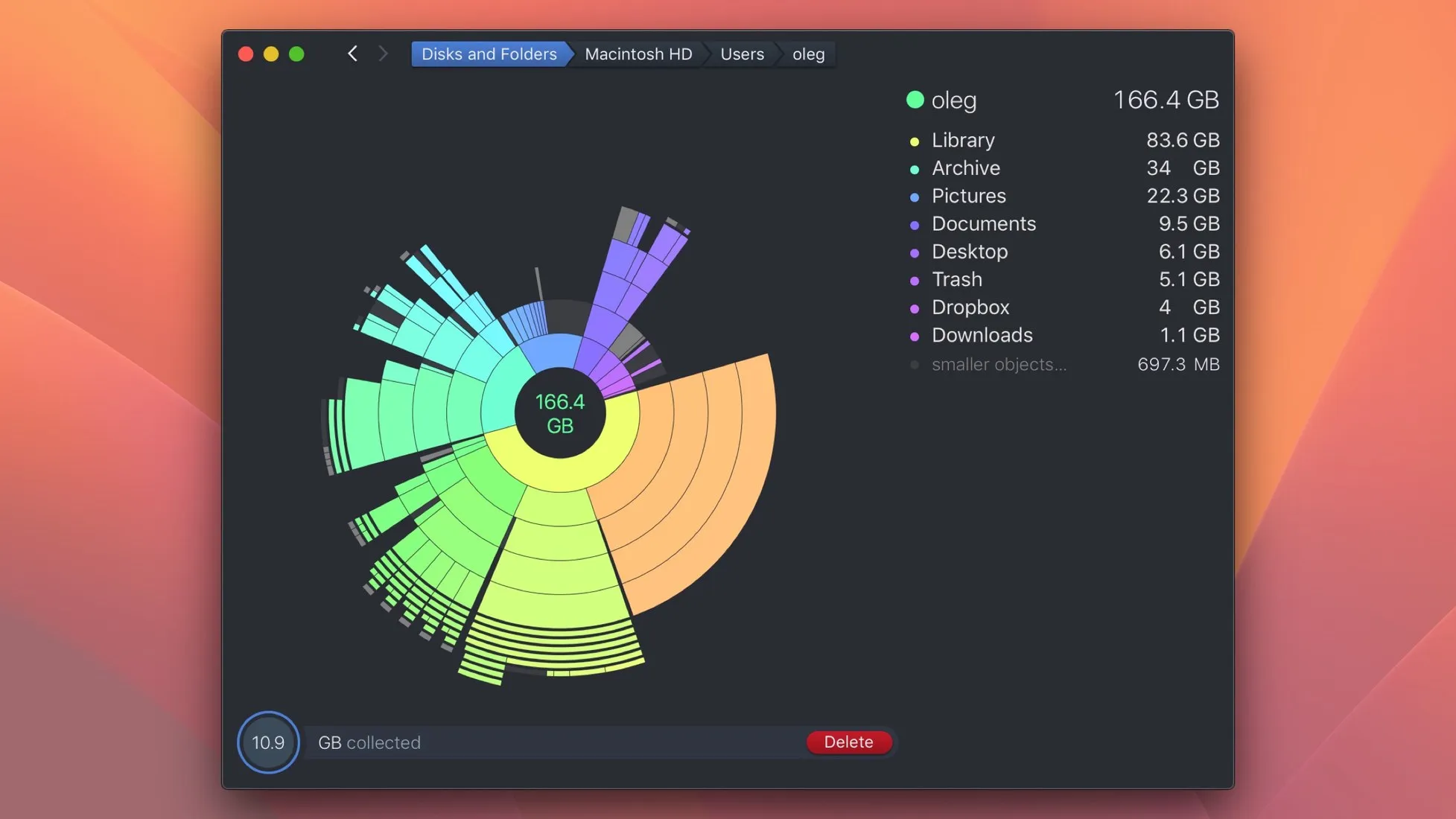
Mac Cleaner Apps in 2026: What Each One Costs and Removes
Mac cleaner apps in 2026 compared on price and on what they actually delete: the macOS built-in tools, free apps like OnyX and Mole, and the paid suites, including the checkout terms.
Mac Activity Monitor: How to Read CPU, Memory Pressure and Energy Impact
Learn to read Mac Activity Monitor like a pro: CPU, Memory Pressure, Energy Impact, and which processes are safe to quit in macOS 26 Tahoe.