Best AI Photo Enhancer for Mac in 2026: 9 Tools Compared
Every price in this guide was checked against the vendor’s own page on August 26, 2026, and every version number against the App Store listing on August 30, 2026. Many vendors in this category run a permanent discount countdown, so the figure at checkout is a promotional one and moves; where a vendor publishes no price on its own site, this guide says so rather than guessing.
AI photo enhancement has moved from a niche post-processing trick to a practical workflow tool for photographers, archivists, and casual Mac users alike. The category now splits into distinct segments: general-purpose editors with AI features, dedicated upscalers, and restoration-focused tools. Choosing the wrong one wastes money or produces results that look worse than the original.
Why AI Photo Enhancement Matters on Mac in 2026
AI photo enhancement is the process of using machine-learning models to increase resolution, reduce noise, restore damage, or retouch portraits without manual pixel-level editing. On Mac, the combination of Apple Silicon’s Neural Engine and dedicated GPU cores means these models run faster locally than they did even two years ago. An M3 MacBook Pro can process a 24-megapixel upscale in well under two minutes in tools that use Metal acceleration, a job that took far longer on older Intel hardware where GPU acceleration was limited or unavailable.
The practical stakes are real. Print labs now routinely require 300 DPI at final print size, which means a 12-megapixel phone photo only covers a clean 8x10 inch print. AI upscaling closes that gap without the blurring that bicubic interpolation produces. For anyone digitising family archives, the restoration angle is equally compelling.
Best free photo viewers for Mac to preview enhanced images
Top 9 AI Photo Enhancers for Mac in 2026
The tools below are compared across four criteria: upscaling quality, restoration capability, privacy (on-device vs. cloud), and value. Ratings draw on vendor documentation and published user comparisons, not on testing we ran ourselves.
1. Luminar
Luminar, developed by Skylum and sold until recently as Luminar, is the most complete AI-assisted photo editor in this comparison. Its Upscale AI module can increase resolution by up to 6x, and the GenErase tool (powered by generative AI) removes unwanted objects convincingly on complex backgrounds. It balances AI automation with the manual controls professionals still need, which is why it is the top recommendation for most Mac users who want a single editor rather than a collection of single-purpose apps.
Skylum has retired the Neo name; the product is now branded simply Luminar. It sells as a one-time purchase in three tiers: $129 for Desktop Only, $159 for All Platforms (desktop plus mobile, with cross-device editing), and $199 for Max, which includes a year of Luminar Prime. Those are promotional prices. Skylum runs a discount countdown more or less permanently, so the list prices behind the upper two tiers ($259 and $399) are rarely what anyone actually pays. The app runs natively on Apple Silicon and supports RAW files from Canon, Nikon, Sony, and Fujifilm cameras.
2. Pixelmator Pro
Pixelmator Pro’s ML Upscale feature uses a Core ML model trained on millions of images, and user comparisons consistently describe sharper edge detail than bicubic upscaling at equivalent magnifications. Users who compare it with cloud-based tools note it gives more fine-grained control over enhancement intensity, which matters when you want to preserve film grain rather than erase it.
Two important caveats in 2026: Apple, which acquired the Pixelmator team in late 2024, now ships the current Pixelmator Pro, at version 4.3 as of June 2026, only through its Creator Studio subscription ($12.99 per month or $129 per year), and that listing requires macOS 26. The older standalone version on the Mac App Store remains a $49.99 one-time purchase, but its last update was version 3.8 in April 2026, which added support for new camera RAW formats and refreshed templates. So the “buy once” route still exists, on a listing that has not moved since the subscription one launched. The other limitation is that Pixelmator Pro is not a dedicated upscaler; you reach ML Upscale through Image > Image Size, which is less discoverable than a purpose-built tool.
3. Aiarty Image Enhancer
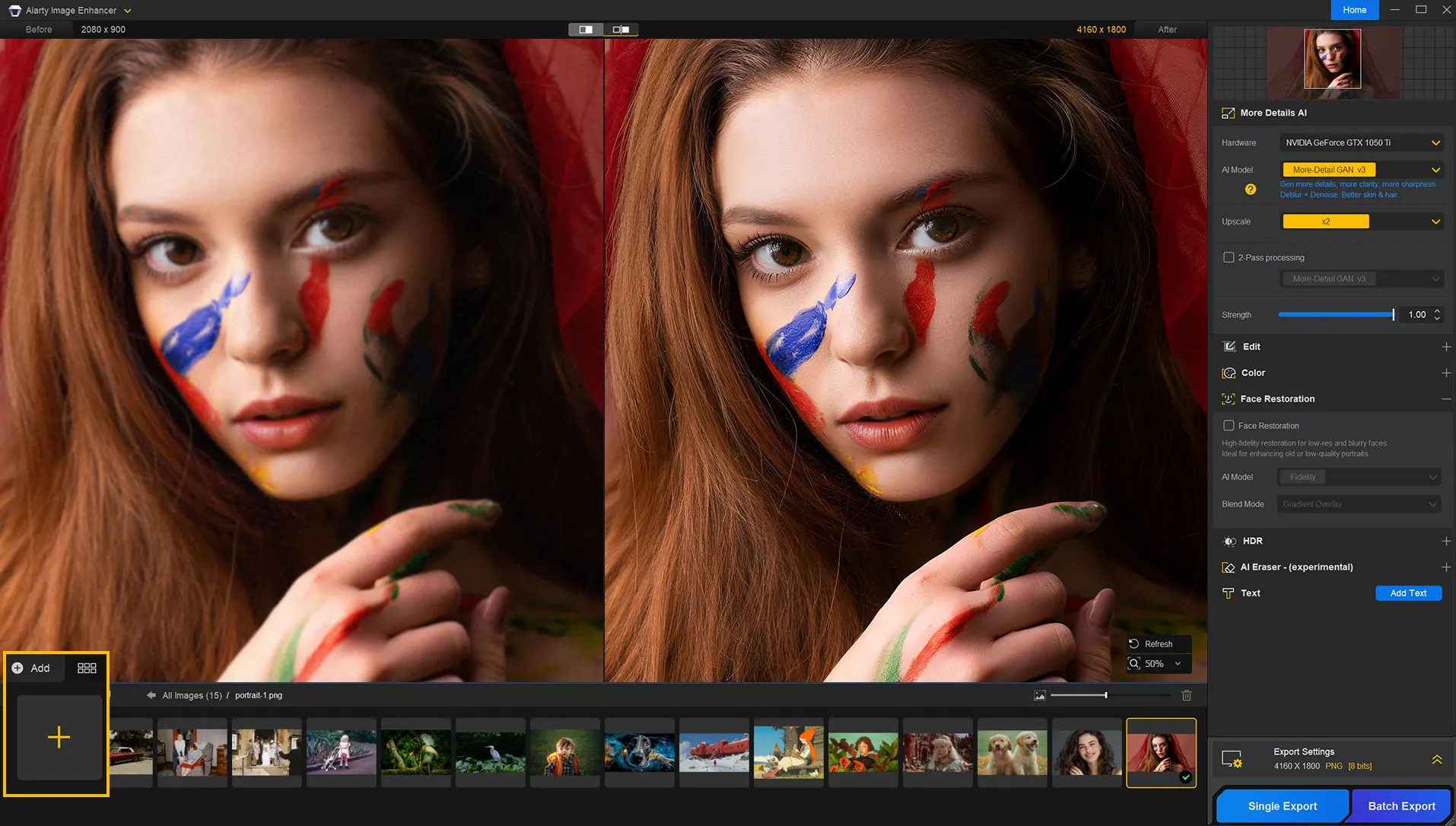
Aiarty Image Enhancer, from Digiarty, is the dedicated upscaler to look at if you want strong results without a subscription and without sending photos to the cloud. It runs its AI models locally on your Mac to sharpen, denoise, deblur, restore faces, and remove distractions. It upscales to 1K, 2K, 4K, or 8K presets, or by x2 / x4 / x8 factors, reaching up to 32K on suitable sources. Because everything is processed on-device, your images never leave the machine, and performance stays consistent regardless of your internet connection.
The pitch is simplicity plus ownership: Aiarty deliberately avoids the layered editing complexity of Luminar in favour of a fast enhance-and-export workflow. Licensing is a genuine one-time purchase. The lifetime license starts at $99 and covers up to three devices with lifetime updates; a one-year license, also for three devices, starts at $75. Both were read off Aiarty’s purchase page on August 31, 2026, where each sits beneath a struck-through higher figure. A free trial lets you test output quality on your own photos before paying.
4. Upscayl (Free, Open-Source)
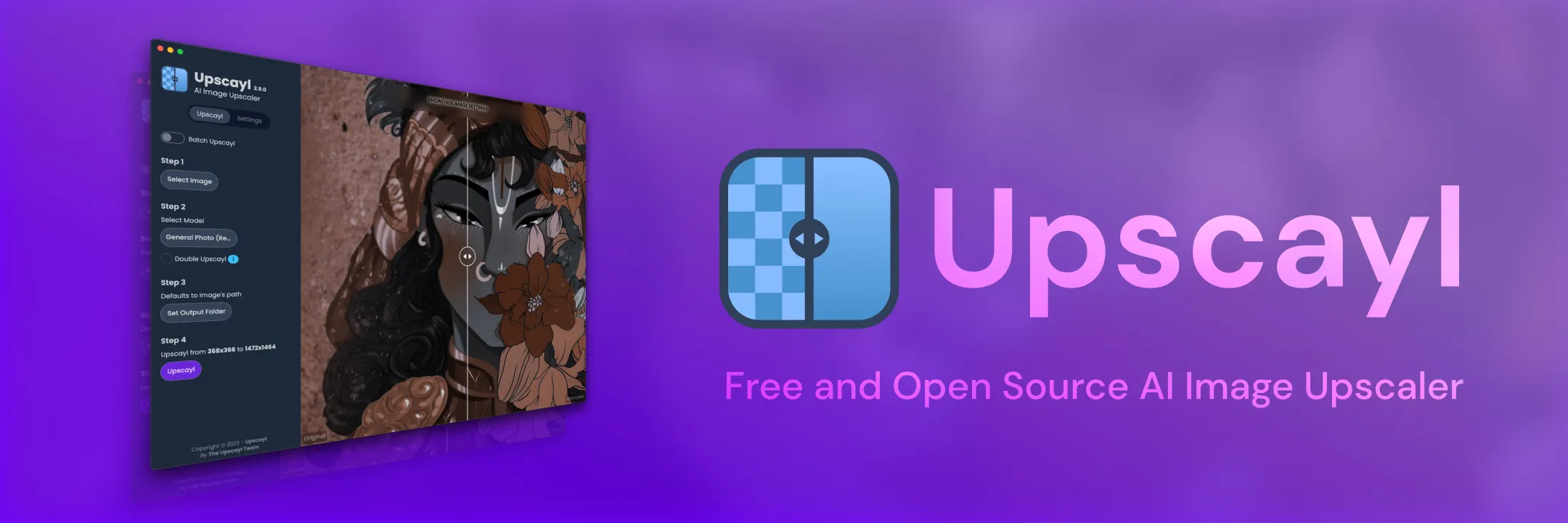
Upscayl is a free, open-source AI upscaler that processes images entirely on your Mac using GPU acceleration, with no network connection required. It supports models including Real-ESRGAN, UltraSharp, and several community-trained variants downloadable from its model library. The privacy argument is straightforward: your photos never leave the device.
The main documented limitation is line artifacts on certain architectural or synthetic images, particularly those with hard diagonal edges. This is a known characteristic of the Real-ESRGAN model family rather than a bug specific to Upscayl. Switching to the UltraMix Balanced model reduces artifacts in most cases. Processing speed on an M2 MacBook Air runs roughly 60-90 seconds per image at 4x scale for a 12-megapixel source.
5. HitPaw FotorPea
HitPaw FotorPea positions itself as an AI enhancer for Mac, with specific models for portrait sharpening, old photo restoration, and colorisation. According to HitPaw’s official product page, it supports upscaling to 4K resolution using AI. The restoration pipeline is one of the better-integrated options for users who want a single app to handle both upscaling and damage repair without switching tools.
Pricing uses a tiered model with monthly, annual, and perpetual license options. The perpetual license avoids the subscription trap that frustrates many Mac software buyers.
6. Chainner (Free, Open-Source, Node-Based)
Chainner is a free, open-source node-based compositing tool designed specifically for batch AI upscaling. It is the most powerful option for users who need to process hundreds of images with custom model chains. You can load any ONNX or PyTorch model from Hugging Face, chain it with sharpening or noise-reduction nodes, and run the entire pipeline on a folder of images overnight.
The learning curve is steep. Chainner is not a point-and-click tool, and new users should expect to spend two to three hours understanding the node graph before getting useful results. For archivists or developers processing large image datasets, that investment pays off.
7. MemoryPanda
MemoryPanda is a cloud-assisted restoration tool specifically designed for old, damaged, or faded photographs. Community reports consistently recommend it for scratches, torn edges, and severe fading where general-purpose upscalers produce muddy results. The trade-off is that images are processed on remote servers, so it is not suitable for sensitive material.
8. Topaz Photo
Topaz Photo, renamed from Topaz Photo, is an all-in-one AI toolkit covering noise reduction, sharpening, and upscaling in a single interface. It is a common choice among professional photographers who previously subscribed to three separate Topaz apps. One change matters more than the feature set: Topaz has moved to subscription only. The Personal plan is $39 per month, and Topaz Studio, which bundles the full app collection, is $69 per month. The perpetual license is gone.
9. YouCam Enhance
YouCam Enhance, highlighted in Setapp’s 2026 AI photo editor roundup, focuses on portrait enhancement, selfie polishing, and AI avatar creation rather than general upscaling. It is the right tool for social media content creators but not for scenery photographers or archivists. It is available through Setapp’s subscription, which starts at $14.99 per month for the Mac tier.
Head-to-Head Comparison Table
| Tool | Price | On-Device Processing | Best For | Max Upscale |
|---|---|---|---|---|
| Luminar | $129+ one-time, three tiers | Yes (mostly) | All-round editing + AI | 6x |
| Pixelmator Pro | $49.99 one-time (v3.8) or $12.99/mo | Yes (fully) | Manual control | 4x |
| Aiarty Image Enhancer | $99 lifetime / $75 a year | Yes (fully) | No-subscription upscaling | Up to 32K |
| Upscayl | Free | Yes (fully) | Privacy-first upscaling | 4x (model-dependent) |
| HitPaw FotorPea | Subscription or perpetual | Yes (mostly) | Restoration + upscaling | 4K output |
| Chainner | Free | Yes (fully) | Batch power users | Unlimited (model-dependent) |
| MemoryPanda | Free tier + paid | No (cloud) | Old/damaged photo repair | N/A |
| Topaz Photo | $39/mo, subscription only | Yes (mostly) | Pro noise + sharpening | 6x |
| YouCam Enhance | Setapp (from $14.99/mo) | Partial | Portrait/selfie polish | N/A |
Verdict: For general editing, Luminar or Topaz Photo deliver the most complete feature set. For a dedicated upscaler you buy once and run offline, Aiarty Image Enhancer is the pick. For zero cost, Upscayl handles most privacy-conscious upscaling well.
Free vs. Paid AI Photo Enhancers: What’s Worth Your Money
Free tools have closed the quality gap considerably since 2023. Upscayl using the UltraSharp model produces results that are difficult to distinguish from Topaz Gigapixel at 4x magnification on natural photographs. The difference becomes visible at 6x and above, where paid models trained on larger datasets handle fine hair and fabric texture more accurately.
The real cost of free tools is time and technical comfort. Chainner requires model management and node configuration. Upscayl occasionally needs a model swap to avoid artifacts. Paid tools like Luminar, Aiarty, and Topaz Photo abstract that complexity into a near one-click workflow, which justifies the price for working photographers billing by the hour.
One practical hybrid approach observed in community discussions: use a free tool like Upscayl for device screenshots and web images where privacy matters, and switch to a paid tool for client work where output quality is non-negotiable. Because Aiarty also runs entirely on-device, it fits the privacy-sensitive side of that split while still giving you the higher-end model quality of a paid app.
Capture sharper source images with the best iPhone camera app before enhancing
How to Choose the Right AI Photo Enhancer for Your Mac
Four questions narrow the field quickly:
- Do you need offline processing? If yes, Upscayl, Chainner, Aiarty, Pixelmator Pro, or Topaz Photo are your options.
- Is this for old photo restoration specifically? MemoryPanda or HitPaw FotorPea handle cracked emulsion and fading better than general upscalers.
- Do you need batch processing? Chainner is the only free option with a proper batch pipeline. Aiarty, Topaz Photo, and Luminar all support folder-level processing.
- What is your budget model? Upscayl at $0 and Aiarty at a one-time $99 cover most casual and prosumer use cases without a recurring subscription.
Step-by-Step: Restoring Old or Damaged Photos with AI on Mac
This workflow uses HitPaw FotorPea for restoration, but the general steps apply to MemoryPanda and similar tools.
- Scan the original print at a minimum of 600 DPI using a flatbed scanner. Save as TIFF for maximum quality. If you only have a phone photo of the print, shoot in the best available light with no flash.
- Open HitPaw FotorPea and select the “Old Photo Restoration” model from the AI model dropdown.
- Import the scanned file by dragging it into the import area. The app will display a processing queue.
- Select enhancement intensity. For heavily faded images, use the maximum setting. For lightly aged photos with mostly grain issues, a mid-level setting preserves more original character.
- Preview the result using the split-view comparison. Check for face reconstruction accuracy if portraits are present, as AI face models occasionally introduce generic features that don’t match the subject.
- Export as TIFF or high-quality JPEG at the upscaled resolution. For print orders, confirm the output DPI matches your lab’s requirements (typically 300 DPI at final size).
- Run a second pass through Upscayl or Aiarty if you need additional resolution beyond what the restoration step produced.
Open-Source and Privacy-Focused AI Upscalers for Mac
For users handling sensitive material, medical images, legal documents, or simply anyone who objects to uploading personal photos to third-party servers, the on-device options deserve a dedicated look. Upscayl and Chainner both process data entirely on your Mac, using its GPU through Metal or Vulkan backends, and Aiarty does the same for anyone who wants that privacy in a paid, more polished app.
Upscayl is the most accessible of the free options. Installation is a standard DMG drag-to-Applications process, and the interface is a single window with a model selector, scale factor, and output format picker. The model library includes Real-ESRGAN x4plus, Real-ESRGAN x4plus Anime (optimised for illustrated or animated content), UltraSharp, and UltraMix Balanced. Downloading additional community models from the Upscayl GitHub repository takes under five minutes.
Chainner requires more setup but offers capabilities that no GUI tool matches. You can chain a noise-reduction model before an upscale model, then apply a sharpening pass, all in a single automated pipeline. Models from Hugging Face’s image restoration collection drop directly into Chainner’s model folder. For archivists processing hundreds of digitised slides or negatives, this is the only free tool that handles the job without manual intervention per image.
The documented trade-off for Upscayl is the line artifact issue on architectural photos and images with hard synthetic edges. Switching from Real-ESRGAN x4plus to UltraMix Balanced resolves this in most cases. If artifacts persist, Chainner lets you blend model outputs at adjustable opacity, which is not possible in any single-model GUI tool.
Move your iPhone photos to the Mac before running AI enhancement
Real-World Performance: What the Community Reports
Community discussions across Mac-focused forums and video comment sections surface a few consistent patterns worth noting.
Upscayl’s privacy argument resonates strongly with users who have tried cloud alternatives and found the upload step either slow or uncomfortable for personal photos. Multiple users report switching their entire upscaling workflow to Upscayl after a single session, citing the offline processing as a deciding factor rather than output quality alone. The same on-device appeal drives interest in Aiarty for people who want that privacy but prefer a paid app with a more guided workflow.
Pixelmator Pro’s ML Upscale is consistently praised for giving users control over enhancement intensity, which matters when preserving the intentional grain of a film photograph. The complaint most often raised is that the feature is buried in the Image Size dialog rather than surfaced as a dedicated AI tool, which means new users often miss it entirely.
For old photo restoration specifically, MemoryPanda draws consistent recommendations for images with physical damage like tears, water stains, and severe fading, where standard upscalers produce blurry or smeared results. The cloud processing requirement is the main objection, and users handling family archive material should weigh that trade-off carefully.
How Apple Silicon hardware accelerates local AI workloads including photo enhancement
Common Problems and How to Fix Them
Artifacts on diagonal lines or architecture: Switch from Real-ESRGAN x4plus to UltraMix Balanced in Upscayl, or reduce the scale factor from 4x to 2x and run two passes.
AI face reconstruction looks generic: This is a known limitation of face-enhancement models that reconstruct missing detail rather than infer it from the original. Use the minimum face enhancement setting, or disable face enhancement entirely and rely solely on the upscale model.
Processing takes over 30 minutes: On Intel Macs, GPU acceleration may not be available for all models. Check that your tool is using GPU rather than CPU in its settings. On Apple Silicon, ensure the app is running natively (not under Rosetta 2) by checking Activity Monitor > Kind column.
Output file is too large for web use: Export at 85% JPEG quality rather than 100%. For a 4K output image, 85% quality typically produces a file under 4 MB with no visible quality loss at screen viewing distances.
Batch processing stalls mid-queue: Chainner and Upscayl both write temp files during processing. If your startup drive is nearly full, the process will stall. Ensure at least 10 GB of free space before running large batches.
Key Takeaways
- Luminar (sold until recently as Luminar) is the best all-round AI photo enhancer for Mac users who want one app to handle editing, upscaling, and object removal, from a one-time $129.
- Upscayl is the best free, private option: open-source, fully offline, and capable of 4x upscaling using Real-ESRGAN and UltraMix models on Apple Silicon.
- Aiarty Image Enhancer is the strongest no-subscription dedicated upscaler: fully on-device, up to 32K output, and a one-time $99 lifetime license.
- Chainner is the only free tool with a proper batch pipeline and custom model support, making it the right choice for archivists and power users despite its steep learning curve.
- For old photo restoration, MemoryPanda and HitPaw FotorPea outperform general upscalers on images with physical damage, scratches, and severe fading.
Image credits: interface screenshots courtesy of Aiarty (Digiarty Software) and the open-source Upscayl project, used for editorial illustration.
Frequently Asked Questions
Which AI photo enhancer for Mac works completely offline without uploading photos to the cloud?
Upscayl, Chainner, and Aiarty Image Enhancer all process images entirely on-device using your Mac’s GPU, meaning no photos ever leave your machine. Pixelmator Pro’s ML Upscale is also fully local. HitPaw FotorPea and Luminar perform most operations locally but may require a cloud connection for license verification or certain AI models.
Can AI photo enhancers on Mac upscale images to 4K or higher?
Yes. Aiarty Image Enhancer upscales to 8K presets and up to 32K on suitable sources. HitPaw FotorPea explicitly supports 4K output, and Upscayl can upscale images by 4x, which pushes many photos well past 4K depending on the source size. Luminar’s Upscale AI also targets high-resolution output suitable for print.
Is there a one-time purchase AI photo enhancer for Mac, or are they all subscriptions?
Several options avoid subscriptions. Aiarty Image Enhancer sells a lifetime license for $99 (one year for $75). Upscayl and Chainner are completely free and open-source. Luminar sells one-time licenses from $129. Pixelmator Pro still has a $49.99 one-time version on the Mac App Store, though its newest 4.0 release now requires Apple’s Creator Studio subscription. Topaz, which used to sell a perpetual license, has moved to subscription only.
How do I restore old or damaged photos using AI on a Mac?
MemoryPanda and HitPaw FotorPea are the most cited tools for scratch removal, fading correction, and face restoration on damaged prints. You typically import a scanned JPEG or TIFF, select a restoration model, and export the result. For best results, scan originals at 600 DPI or higher before processing. See the step-by-step section in this article for a full walkthrough.
Does Aiarty Image Enhancer run on Apple Silicon Macs?
Yes. Aiarty runs its AI models locally on Apple Silicon Macs and uses the GPU for processing, so images are enhanced on-device without uploading them anywhere. It offers a free trial before you buy a one-time license, so you can confirm output quality on your own photos first.
Recommended reading
PDF Editors for Mac: What They Cost, and What Preview Already Does
What a Mac PDF editor really costs in 2026. Preview's exact limits, why every App Store listing says Free, and which tools are subscription, buy-once, or genuinely free.
Mac Cleaner Apps in 2026: What Each One Costs and Removes
Mac cleaner apps in 2026 compared on price and on what they actually delete: the macOS built-in tools, free apps like OnyX and Mole, and the paid suites, including the checkout terms.
Mac Activity Monitor: How to Read CPU, Memory Pressure and Energy Impact
Learn to read Mac Activity Monitor like a pro: CPU, Memory Pressure, Energy Impact, and which processes are safe to quit in macOS 26 Tahoe.