Voice Recording on a Mac in 2026: 7 Apps Compared by Cost and Format
Every price in this guide was checked against the vendor’s own page on August 26, 2026. Many vendors in this category run a permanent discount countdown, so the figure at checkout is a promotional one and moves; where a vendor publishes no price on its own site, this guide says so rather than guessing.
Whether you are capturing a lecture, cutting a podcast episode, or laying down a vocal take, the Mac has more recording options than most users realise. The challenge is not finding an app; it is matching the right one to your actual workflow without paying for features you will never touch.
Built-in Tools You Already Have on Your Mac
Apple ships three capable recording tools with every Mac: Voice Memos, GarageBand, and QuickTime Player, which is covered further down alongside the other free options. All three are free, all are updated with macOS, and together they cover the majority of use cases without a single App Store purchase.
Voice Memos
Voice Memos is Apple’s lightweight recorder, available on macOS Mojave 10.14 and later. It records to M4A (AAC) automatically, stores files in iCloud, and surfaces them instantly on any signed-in iPhone or iPad. For interviews, meeting notes, and quick voice drafts, it is genuinely hard to beat on speed.
The workflow is minimal by design. Open the app, press the red button, press stop. Your recording appears in the sidebar, named by location if Location Services is on. You can trim the clip inside the app, but that is the extent of editing.
The limitation is real: there are no bit-depth or sample-rate controls, no input gain slider, and the M4A container can cause compatibility headaches when you need to hand a file to a Windows user or import it into a non-Apple editor. Users who have tried to extract M4A files for professional use consistently report friction, particularly with older DAWs that expect WAV or AIFF.
GarageBand
GarageBand is pre-installed on every Mac and is completely free, which makes it one of the most underused professional tools in the Apple ecosystem. It records at up to 24-bit / 96 kHz, supports multiple simultaneous inputs if you have an audio interface, and gives you a full non-destructive multi-track environment.
For podcasters recording two or three guests on separate USB microphones, GarageBand handles the routing cleanly. You assign each mic to its own track, record simultaneously, then edit independently. Exporting to MP3 or AAC requires one extra step through the Share menu, but the output quality is broadcast-ready.
Free Voice Recorder Apps for Mac
Beyond Apple’s own tools, a handful of free applications offer meaningfully different capabilities, particularly around format support and editing depth.
Audacity
Audacity is a free, open-source audio recorder and editor that has been the default recommendation for budget-conscious creators for over two decades. The current release (3.x series) runs natively on Apple Silicon and Intel Macs, exports to WAV, MP3, FLAC, AIFF, and OGG, and includes a non-destructive effects chain with noise reduction, compression, and EQ.
Audacity’s interface looks dated next to modern apps, but the workflow is logical once you learn it. The noise reduction tool is particularly strong for voice: capture two seconds of room tone, apply the noise profile, and background hiss drops cleanly without the artefacts you get from cheap plugins.
One practical trick worth knowing: clap once sharply at the start of any recording session. The clap creates a tall, narrow spike in the waveform that is immediately visible during editing, letting you snap to the true start of usable audio without scrubbing. This is a niche but time-saving habit for anyone doing regular long-form recording.
Best Free Screen Recorder for Mac in 2026
QuickTime Player
QuickTime Player, pre-installed on every Mac, doubles as a no-frills audio recorder. Go to File, then New Audio Recording, select your input device from the dropdown next to the record button, and hit the red circle. QuickTime exports directly to high-quality .aiff or .m4a, making it useful when you need a quick uncompressed capture without opening a full DAW.
It has no editing tools and no multi-track support, but for a single-take voice memo at higher quality than the Voice Memos app, it is a legitimate option that requires zero installation.
Paid Mac Voice Recorders, and What the Money Buys
Some workflows genuinely need more than free tools provide. System audio capture, AI transcription, and complex routing are the three scenarios where paid apps earn their price.
Audio Hijack (Rogue Amoeba, from $69)
Audio Hijack is the standard solution for recording system audio on Mac. macOS does not expose a native loopback interface, so capturing audio playing through your speakers (streaming music, video calls, browser audio) requires either a virtual driver or a dedicated app. Audio Hijack uses a block-based visual routing system: drag a source block (Safari, Spotify, a microphone), connect it to a recorder block, and hit record. Output goes to WAV, AAC, MP3, FLAC, or Apple Lossless.
At $69 for a perpetual single-user licence, read off Rogue Amoeba’s own purchase page on August 31, 2026, it is the most direct solution for podcasters who interview guests over Zoom and need to record both sides cleanly on separate tracks.
Reaper ($60 discounted / $225 commercial)
Reaper is a digital audio workstation aimed at music production, but its efficiency and stability make it a favourite among voice-over artists and podcast editors who have outgrown GarageBand. The discounted license costs $60 (for individuals earning under $20,000 annually from Reaper use) and the commercial license is $225. Both include all future updates within the same major version.
Reaper’s CPU footprint is noticeably lower than competing DAWs at the same session size. Users who work with long-form content (two-hour interview recordings, audiobook chapters) report that Reaper handles large sessions without the sluggishness that sometimes appears in heavier applications. The learning curve is steep, but the customisation depth is unmatched at this price point.
SuperWhisper (Subscription)
SuperWhisper is a Mac app that runs OpenAI’s Whisper transcription model on-device, meaning your audio is processed locally and never sent to a cloud server. It integrates with macOS automation tools, so you can set a hotkey, dictate, and have transcribed text pasted directly into any active text field. For journalists, researchers, and writers who capture spoken notes throughout the day, the automation removes friction that even Voice Memos cannot match.
Subscription pricing applies, which some power users consider steep for what is essentially a Whisper wrapper. The on-device processing also means transcription speed depends on your Mac’s Neural Engine: an M3 or later chip handles it noticeably faster than an Intel Mac.
How to Pick the Right Recorder for Your Use Case
Choosing the right app comes down to three variables: what you are recording, who else needs the file, and whether you need to edit it afterward. The table below maps common scenarios to the best-fit tool.
| Use Case | Best Tool | Cost | Key Format | Limitation |
|---|---|---|---|---|
| Quick voice notes | Voice Memos | Free | M4A | No quality controls |
| Podcast (solo) | GarageBand | Free | WAV/AAC | No system audio |
| Podcast (multi-guest Zoom) | Audio Hijack | From $69 | WAV/MP3/FLAC | Mac only |
| Lecture capture | Audacity | Free | WAV/MP3/FLAC | Dated UI |
| Music / voice-over | GarageBand or Reaper | Free / $60 | WAV/AIFF | Reaper has steep learning curve |
| System audio capture | Audio Hijack + BlackHole | From $69 / Free | WAV/AAC | Requires routing setup |
| AI transcription | SuperWhisper | Subscription | Text output | Speed tied to chip generation |
- Best built-in, and best for most people: Voice Memos. Already on the Mac, records to M4A, syncs to iPhone and iPad through iCloud, and needs no setup at all.
- Best built-in for a clean single take: QuickTime Player. Also pre-installed, exports uncompressed AIFF, and offers no editing whatsoever.
- Best free multi-track recorder: GarageBand. Pre-installed, 24-bit / 96 kHz, and it puts two or three USB microphones on separate tracks.
- Best free editor: Audacity. Cross-platform, exports WAV, MP3, FLAC and AIFF, and its noise reduction is the strongest of the free tools on voice.
- Best for recording system audio: Audio Hijack from Rogue Amoeba, from $69. macOS blocks native loopback, so this or the free BlackHole driver is the only route.
- Best for AI transcription: SuperWhisper, on a subscription.
Only move to a paid app when you hit a specific wall, and for most people that wall is system audio capture or transcription rather than recording quality.
Convert and Edit Video on Mac: Best Tools and Methods
Recording System Audio and Advanced Scenarios
Capturing audio playing through your Mac’s speakers is the most common advanced scenario, and it requires a workaround because macOS blocks direct loopback access for privacy reasons. There are two practical approaches.
The first is BlackHole, a free open-source virtual audio driver from Existential Audio. After installation, BlackHole appears as an audio device in System Settings. You create a Multi-Output Device in Audio MIDI Setup that combines your speakers and BlackHole, set it as your system output, then select BlackHole as the input in Audacity or QuickTime. It works reliably and costs nothing, but the setup takes about ten minutes and requires comfort with macOS audio routing.
The second is Audio Hijack, described above. It handles the routing internally, so you skip the Multi-Output Device configuration entirely. For users who record system audio regularly, the price pays for itself in saved setup time within a few sessions.
Troubleshooting Common Mac Recording Problems
Mac recording issues fall into a predictable set of categories. Here are the most common problems and their fixes.
- No input signal detected. Open System Settings, go to Privacy and Security, then Microphone, and confirm the recording app has permission. On macOS Ventura 13 and later, each app requires explicit microphone access, and the toggle resets after some system updates.
- M4A file won’t open in Windows or older software. Export a copy as WAV from QuickTime (File, Export As, Audio Only, then change the format in the save dialog) or use Audacity to convert: File, Export Audio, choose WAV. The original M4A stays intact.
- Recording sounds hollow or echoey. This is almost always room acoustics, not a software problem. Record closer to the microphone (6-8 inches for most USB mics), and place soft furnishings or a foam panel behind the mic to reduce reflections. No app fixes a bare-walled room.
- Recovered a lost Voice Memos recording. If a recording disappeared after a crash, check the Recently Deleted folder inside Voice Memos. Recordings stay there for 30 days. If it is gone from there, check iCloud.com under Voice Memos while signed in with your Apple ID.
- Input gain is too low or too high. Voice Memos has no gain control. Switch to GarageBand or Audacity, where you can set input level before recording, and aim for peaks around -12 dB to leave headroom for editing.
Expert Tips for High-Quality Audio Capture
Hardware and environment matter more than software choice for voice recording quality. These five practices make a measurable difference regardless of which app you use.
- Record at 24-bit / 44.1 kHz minimum. This is the standard for professional voice work. 24-bit gives you 144 dB of dynamic range, which means you can recover a quiet take in post without audible noise floor.
- Use a dedicated USB or XLR microphone. The built-in Mac microphone is adequate for video calls. For anything you will edit or publish, a USB condenser microphone in the $80-150 range captures significantly more detail and rejects background noise more effectively.
- Monitor with headphones while recording. Headphone monitoring lets you catch problems (cable noise, room echo, mic proximity) in real time rather than after a 45-minute session.
- Use iCloud sync intentionally. Voice Memos syncs automatically across Apple devices, which is useful for capturing on iPhone and editing on Mac. Be aware that large recordings (over 1 GB) can take several minutes to sync on slower connections.
- Name files immediately after recording. Both Voice Memos and GarageBand default to date-based names. Renaming files right after capture saves significant time when you return to a project days or weeks later.
Best Free Photo & Image Viewer for Mac in 2026
Key Takeaways
- Voice Memos is the fastest option for casual recording and syncs across Apple devices via iCloud, but offers no quality controls or format flexibility.
- GarageBand is pre-installed and free on every Mac, supports 24-bit / 96 kHz recording, and handles multi-track podcast production without any additional cost.
- Audacity is the strongest free cross-platform editor, exporting to WAV, MP3, FLAC, and AIFF, and its noise reduction tool is particularly effective for voice.
- System audio capture on Mac requires either the free BlackHole virtual driver or Audio Hijack (from $69), since macOS blocks native loopback access.
- Before paying for any App Store voice recorder, verify it offers something the free tools do not: one paid app noted at £5.99 provided no features beyond the stock Voice Memos app.
Frequently Asked Questions
Does Mac have a built-in voice recorder?
Yes, and there are three of them. Voice Memos ships with every Mac running macOS Mojave 10.14 or later, records in M4A, syncs across Apple devices via iCloud, and requires no setup. QuickTime Player is also pre-installed and records a single uncompressed AIFF take. GarageBand, likewise pre-installed, is the one to open when you need multiple inputs or real editing. All three are free.
Does a Mac have a built-in screen recorder too?
Yes, and it is separate from the audio tools above. Press Command + Shift + 5 to open the Screenshot toolbar, which records the full screen or a selected window, and QuickTime Player offers the same thing under File, then New Screen Recording. If screen capture is what you were actually after, the best free screen recorders for Mac covers the tools that go further than the built-in one.
How do I record system audio on a Mac?
macOS does not expose a native system-audio loopback. The standard solution is to install BlackHole, a free open-source virtual audio driver, then route your Mac’s output through it as a recording input. Rogue Amoeba’s Audio Hijack (from $69, one-time) does the same thing with a polished drag-and-drop interface and no manual routing required.
What is the best free voice recorder app for Mac?
For simple captures, Voice Memos is the fastest option. For editing and multi-track work, Audacity is the strongest free choice: it is open-source, exports to WAV, MP3, FLAC, and AIFF, and has a full non-destructive effects chain. GarageBand wins if you need multiple mic inputs or want to produce a polished podcast.
Can I get AI transcription inside a Mac voice recorder?
Several apps now bundle on-device or cloud transcription. SuperWhisper uses OpenAI’s Whisper model locally, which means audio never leaves your Mac. Otter.ai and Descript offer cloud-based transcription with speaker identification, though both use subscription pricing that some users find expensive for occasional use.
What audio format should I use when recording on Mac?
For archiving, record to WAV (PCM) or AIFF at 44.1 kHz / 24-bit: both are lossless and universally compatible. M4A (AAC) is fine for voice memos and podcasts where file size matters. Avoid MP3 as a recording format because it applies lossy compression at capture time, which limits post-production flexibility.
Recommended reading
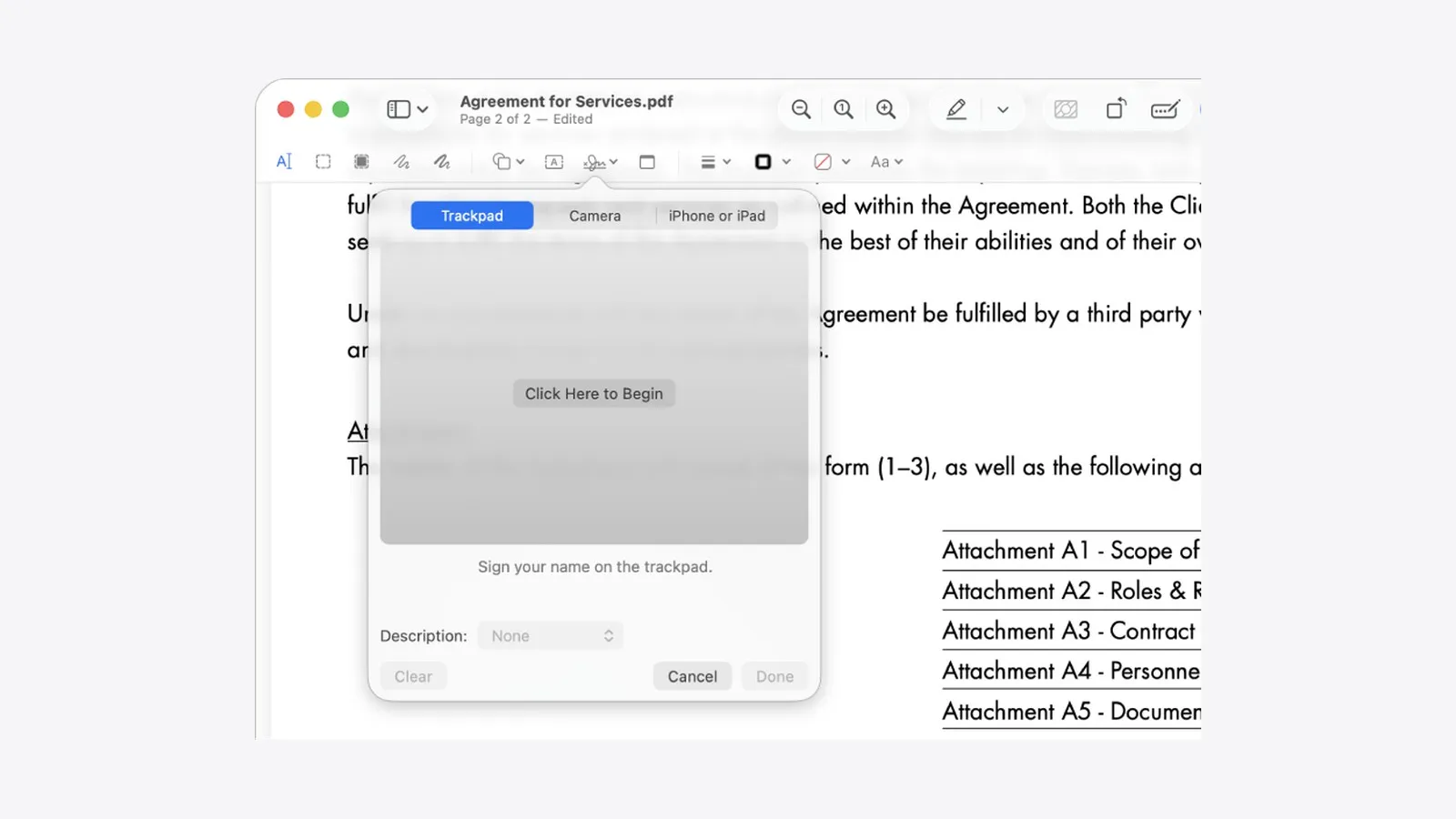
PDF Editors for Mac: What They Cost, and What Preview Already Does
What a Mac PDF editor really costs in 2026. Preview's exact limits, why every App Store listing says Free, and which tools are subscription, buy-once, or genuinely free.
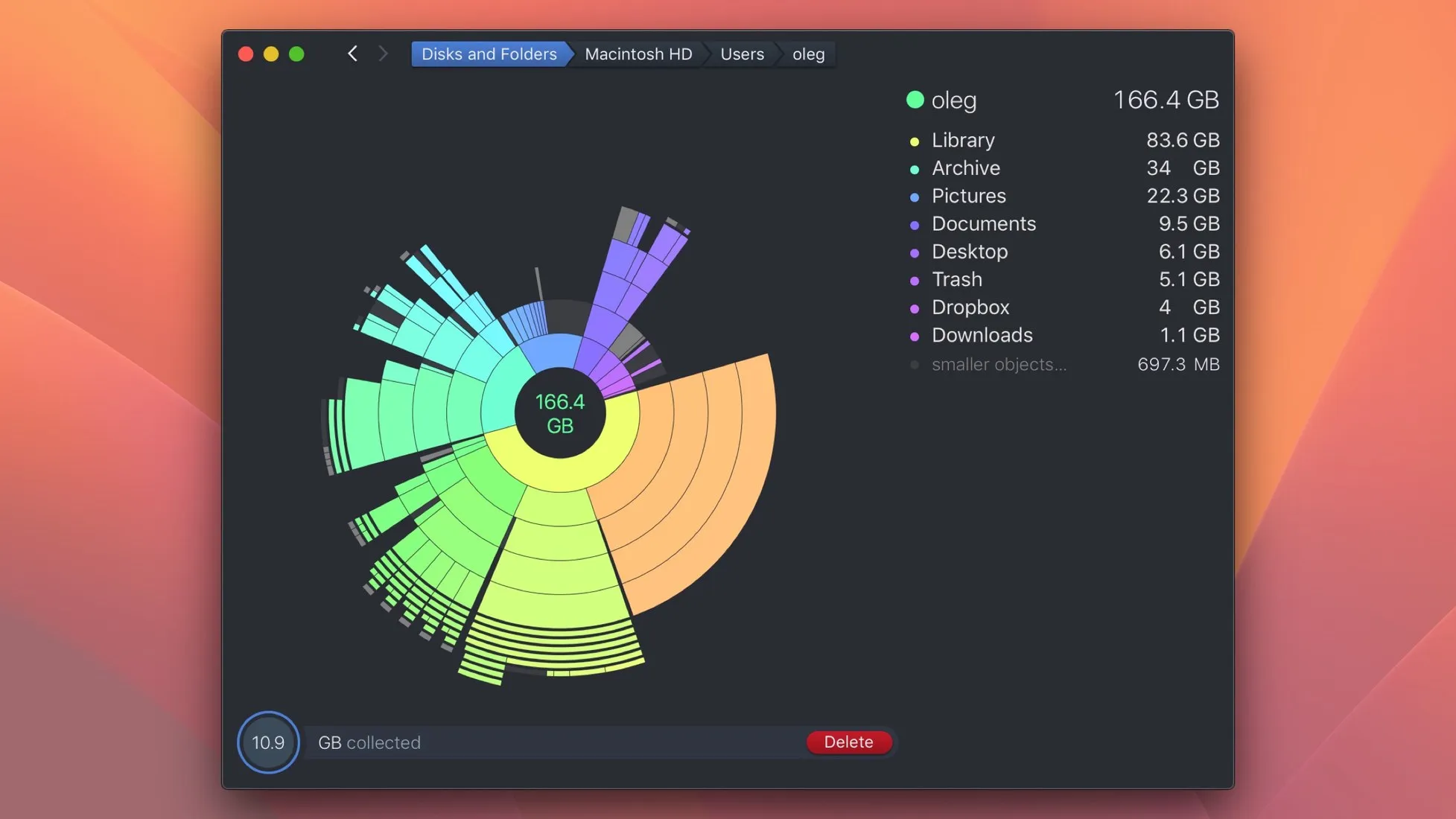
Mac Cleaner Apps in 2026: What Each One Costs and Removes
Mac cleaner apps in 2026 compared on price and on what they actually delete: the macOS built-in tools, free apps like OnyX and Mole, and the paid suites, including the checkout terms.
Mac Activity Monitor: How to Read CPU, Memory Pressure and Energy Impact
Learn to read Mac Activity Monitor like a pro: CPU, Memory Pressure, Energy Impact, and which processes are safe to quit in macOS 26 Tahoe.