How to Copy a Home DVD to a USB Drive on a Mac
If the DVD holds ordinary photos or videos, you can copy them straight to a USB stick in Finder. For a home movie with a DVD menu, first ask how the recipient will watch it. A relative watching on a computer may want the original menu. Someone using the USB port on a TV usually wants a video file they can select with the remote.
Connect a drive that can read the DVD and a USB drive with room for the copy. In Finder, confirm both appear under Locations. This guide covers data discs and home-authored, unprotected DVD-Video. Apple’s guide to external storage
Identify what Finder shows on the disc
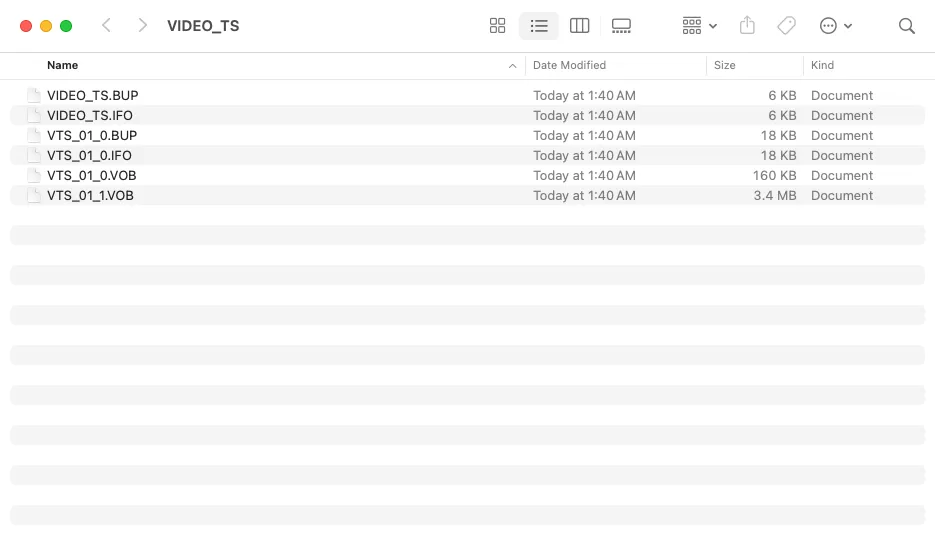
Open the disc in Finder and look at its top level. A VIDEO_TS folder containing .IFO, .BUP and .VOB files identifies a DVD-Video layout. IFO files contain playback instructions, BUP files back up those instructions, and VOB files carry menu or movie material. JPGs, PDFs, MOVs or MP4s in ordinary folders can be copied directly. A disc can contain both a movie and a separate photo album.
The Finder screenshot above shows the six files in a small DVD authored for this guide. Its two titles are Ceremony (about 18 seconds) and Reception (about 24 seconds). A separate PHOTOS folder holds a JPEG. Picking the longest title would give this family the reception and leave out the ceremony.
| What is on the disc | What you want on USB | What to do |
|---|---|---|
| Ordinary photos or videos | The original files | Copy the files and folders in Finder. Encoding them again is unnecessary. |
| A home movie inside VIDEO_TS | The authored titles, chapters and menus for a compatible computer player | Copy the full DVD folder structure into its own folder on USB. Open the VIDEO_TS folder with a player that supports DVD folders. |
| The same home movie | A movie selectable from a TV or computer file browser | Encode the wanted title to MP4, check the audio and copy the finished file to USB. |
| Both family photos and an authored movie | Photos plus an easy-to-play video | Copy the photos directly. Encode only the movie title. |
If the Mac cannot see the disc, solve the read problem first. Try a known-good DVD in the same drive. If the disc is a small camcorder DVD, check the recorder and drive manuals before loading it. External DVD drives for Mac
Copy files or preserve the DVD menu
- Open the USB drive in a second Finder window and create a folder named for the recording, such as
Family DVD. Keep each disc in its own folder because DVD files frequently share the same names. - Select the files on the DVD. For a menu-preserving copy, select all the visible items at the root of the home-authored disc, including the complete
VIDEO_TSfolder and any accompanying folders. - Press Command-C. Click inside the destination folder on the USB drive, press Command-V and wait for the Finder copy indicator to finish.
- For a data disc, open two or three representative files from the USB drive. For a DVD folder, open the copied
VIDEO_TSdirectory in a compatible DVD player and choose a chapter from the menu. On Macs with Apple’s DVD Player, the app’s File > Open DVD Media command accepts a VIDEO_TS folder. Apple’s DVD Player instructions for macOS Tahoe
Copying a single VOB may give you just one piece of a recording. The navigation files tell a DVD player how to join pieces and display the menu. A television that only lists loose video files over USB may ignore the DVD folder completely.
Make an MP4 for a TV or another computer
- In HandBrake, choose Open Source and open the home DVD or the copied DVD folder. Wait for its titles to appear. HandBrake’s supported sources · Opening a source
- Choose the wanted recording from Title. Check its duration and use Preview to identify the scene. A ceremony and reception may be separate titles. Give each its own filename if you want both.
- Match the TV’s manual. For a standard-definition NTSC DVD going to a device that accepts MP4, H.264 and AAC, Fast 480p30 is a starting preset. For a PAL DVD, look at Fast 576p25. Check Summary for the container and Audio for the track you want. For example, Sony lists H.264 with AAC-LC in MP4 for USB playback on the BRAVIA models in its guide. HandBrake preset specifications · Sony’s USB video formats
- Make a file you can take to the TV. Set Range to Seconds, choose a short interval, and give the output a distinct name such as
USB test.mp4. Select a destination on the Mac and start the encode. Copy the finished sample to USB and try it on the receiving device. Choose a scene with speech to check the selected audio track. HandBrake’s Live Preview plays a trial inside the app. A range encode gives you the standalone file to copy. Encoding a range · Live Preview - Restore the full range. Select Chapters and choose the first through the last chapter of the wanted title. Set a new filename, such as
Ceremony.mp4, and start the full encode. Copy it to USB. If the finished “movie” is only as long as your test clip, return to the range setting before encoding again.
An MP4 carries the tracks you select. The original clickable DVD menu stays with the DVD folders. The Mac DVD ripping guide covers encoder settings and alternate audio tracks in more detail.
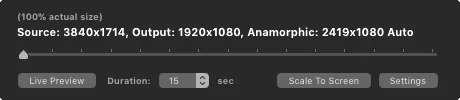
The Live Preview button plays a trial inside HandBrake. Use the main window’s Range controls in step 4 to save a file for the TV. This unmodified screenshot shows an earlier macOS interface and a different video source. HandBrake Team documentation · CC BY-SA 4.0
If Finder says the file is too large
Select the USB volume in Finder and choose File > Get Info. Check Format and Available. A FAT32 volume can have plenty of free space and still reject a single file of 4 GiB or more. Two smaller files can fit if their combined size is within the available space. A 5 GB film, for example, exceeds the FAT32 per-file limit even on an otherwise empty 32 GB stick. Microsoft’s file system limits
For a Mac-to-Windows handoff, both systems support exFAT. For a TV, look up the exact model’s supported USB file systems as well as its video codecs. If the TV requires FAT32, a smaller encode or separate files for individual titles may fit. If you use a different USB drive, check what is already on it. Reformatting a drive erases its contents. Apple’s disk format guide
Verify the copy before shelving the disc
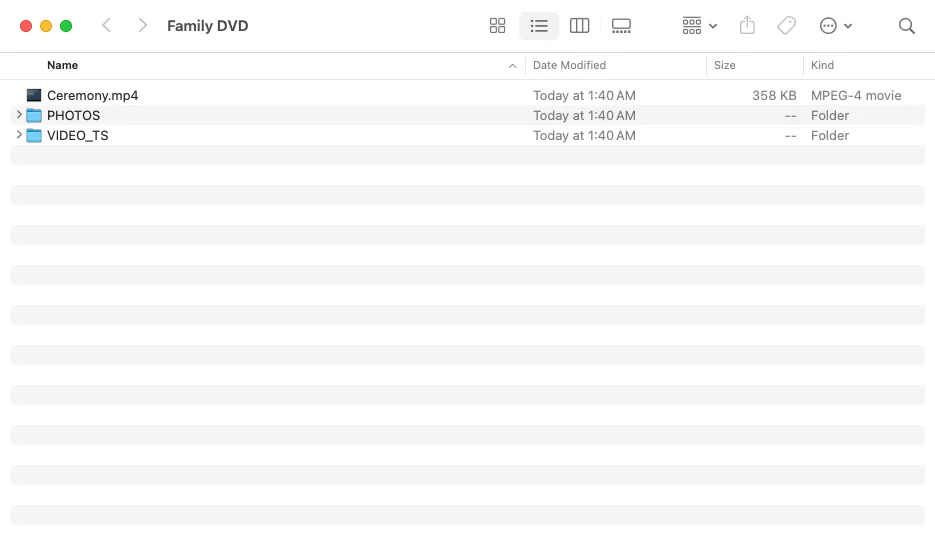
In the destination folder, Ceremony.mp4 is the file you can select on a compatible TV. PHOTOS holds the original JPEG, and VIDEO_TS holds the movie and its menu.
| Symptom on the receiving device | What to check first |
|---|---|
| The TV sees the USB drive but shows no movie | Check whether the TV can open DVD folders. Try the short MP4 sample in a format named in the TV manual. |
| The USB drive opens on the Mac but the TV cannot see it | Check the TV’s supported USB file systems and storage limits. Confirm another compatible stick works before changing this one. |
| The movie ends early or plays the wrong event | Compare the USB file’s runtime with the source title. Check for a second title on the disc. |
| The picture plays but the dialogue is missing | Check the selected source audio track, the exported audio codec and the TV’s audio support. |
Click the eject icon next to the USB volume in Finder. When the volume disappears, unplug it, reconnect it, and open the file from the USB drive itself. Check the beginning, a later scene and the end, plus a chapter or subtitle if you meant to keep it. For a playable DVD folder, choose a second title from its menu as well. Keep the original DVD and a separate copy of irreplaceable recordings.
If a relative also needs a physical disc for a DVD player, the Mac DVD toolkit includes the guide to burning a playable DVD.
What the sample transfer preserved
The sample above ran on macOS Sequoia 15.8.2 and HandBrake 1.11.2. Finder copied from a read-only UDF DVD image to a mounted exFAT disk image. The file and menu checks below ran after ejecting and remounting the destination. Optical-drive behavior, physical USB connections and playback on a particular television still depend on the equipment you use.
| Check on the remounted destination | Result |
|---|---|
| DVD folder and ordinary photo | Each of the six DVD files and the separate JPEG matched its source SHA-256 checksum. |
| Original menu | A DVD navigation reader selected both menu buttons. The first opened title 1, the ceremony. The second opened title 2, the reception. |
| Portable test file | A five-second range encode produced its own playable MP4. Its bytes matched the Mac copy after remounting. |
| Full ceremony title | The MP4 was about 18 seconds long, contained 720 × 480 H.264 video, stereo AAC audio and two chapters, and matched the Mac copy. Its complete video and audio streams decoded without error. |
To try this before handling a family disc, download the sample DVD folder (ZIP, 2.3 MB) and unzip it on the Mac. Open VIDEO_TS to try the menu, or copy the five-second TV test (MP4, 45 KB) to a USB drive to check picture and sound. The sample uses title cards and a tone. The two Finder screenshots show MAC-DVD Editorial’s own transfer.
Recommended reading
External DVD Drive for Mac in 2026: What Actually Works
Apple stopped selling the USB SuperDrive in 2024 and now sells nothing that reads a disc. What Apple still documents, what the drive makers actually promise, and where their promises stop.
How to Play Blu-Ray on Mac: The Drive, the Software and What It Costs
Learn how to play Blu-ray on Mac with the right external drive and software. Free VLC method, paid apps, and ripping compared for macOS Tahoe 26.
Best Blu-Ray Ripper for Mac in 2026: Free & Paid
Compare the Blu-ray ripping software available on Mac in 2026: MakeMKV, HandBrake, DVDFab and EaseFab, what an external drive costs, and where the law draws the line.