How to Copy or Rip a DVD on Mac: Free Software
Every price in this guide was checked against the vendor’s own page on August 26, 2026. Many vendors in this category run a permanent discount countdown, so the figure at checkout is a promotional one and moves; where a vendor publishes no price on its own site, this guide says so rather than guessing.
Modern Macs have no optical drive, yet millions of people still own discs worth preserving: wedding and family videos, school plays, camcorder transfers a shop burned for them, training and conference discs, out-of-print material nobody has reissued. Copying those to a file is straightforward, and this guide covers it end to end: hardware, software, output formats, and the failures that actually stop a rip.
What this guide does not cover. Most commercially released films carry CSS encryption, and getting past that encryption is a separate act with its own legal status. In the United States the DMCA anti-circumvention provision (17 U.S.C. section 1201) prohibits it even for a disc you bought, and no court has established a personal-backup exemption. This guide does not walk you through it, and it does not say which tool or library defeats which protection. Everything below assumes a disc you are entitled to copy. The legal position is set out in full at the end.
What Hardware You Need Before You Start
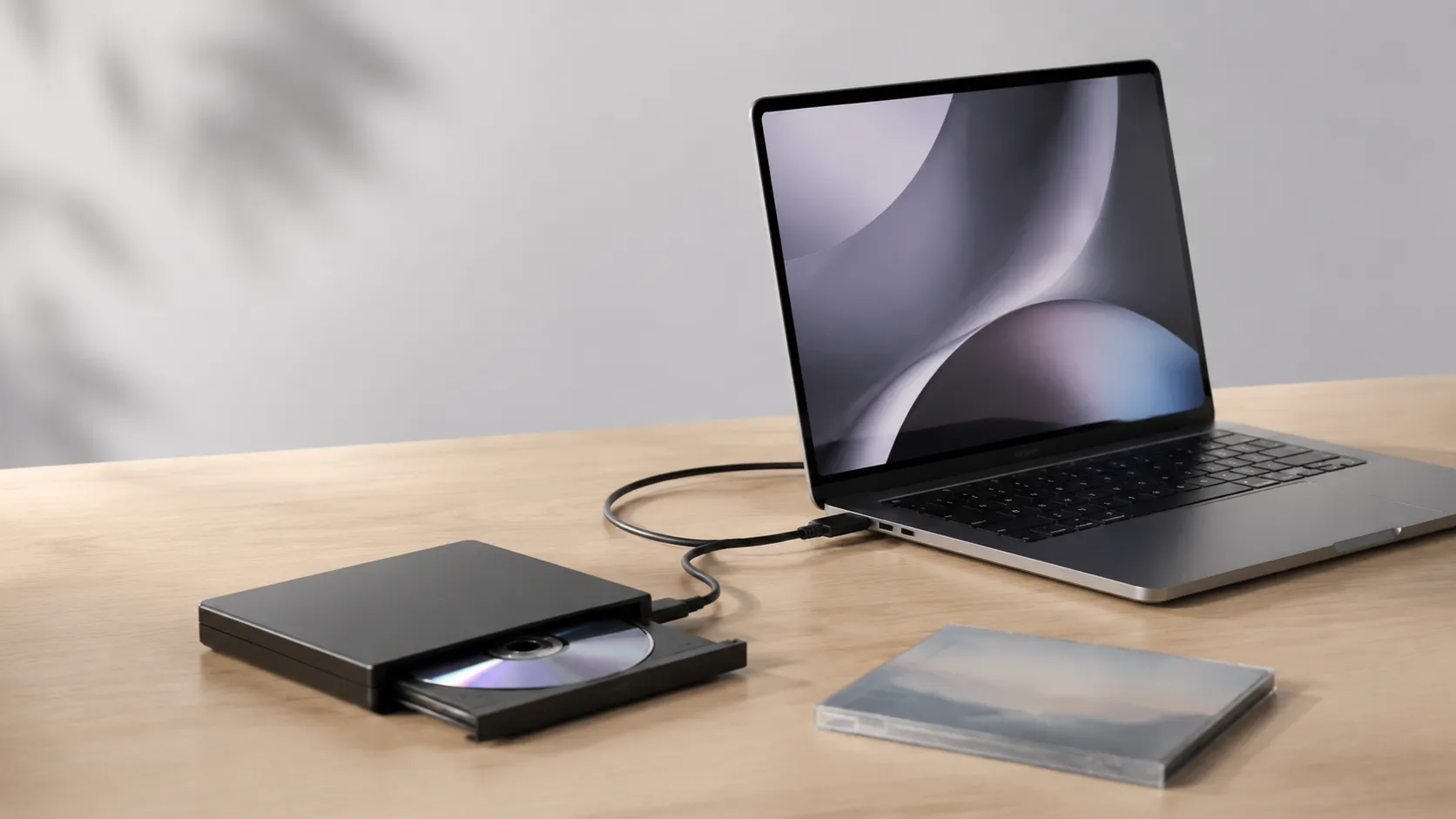
Every Mac sold after 2012 lacks a built-in optical drive, so an external drive is the non-negotiable first purchase. USB-A models connect directly to older MacBooks; USB-C models work natively with any Mac from 2016 onward. Bus-powered drives (those drawing power from the USB port rather than a separate adapter) are convenient, but user reports describe occasional mid-rip failures on discs with heavy read errors, because the drive demands more current than a single port supplies.
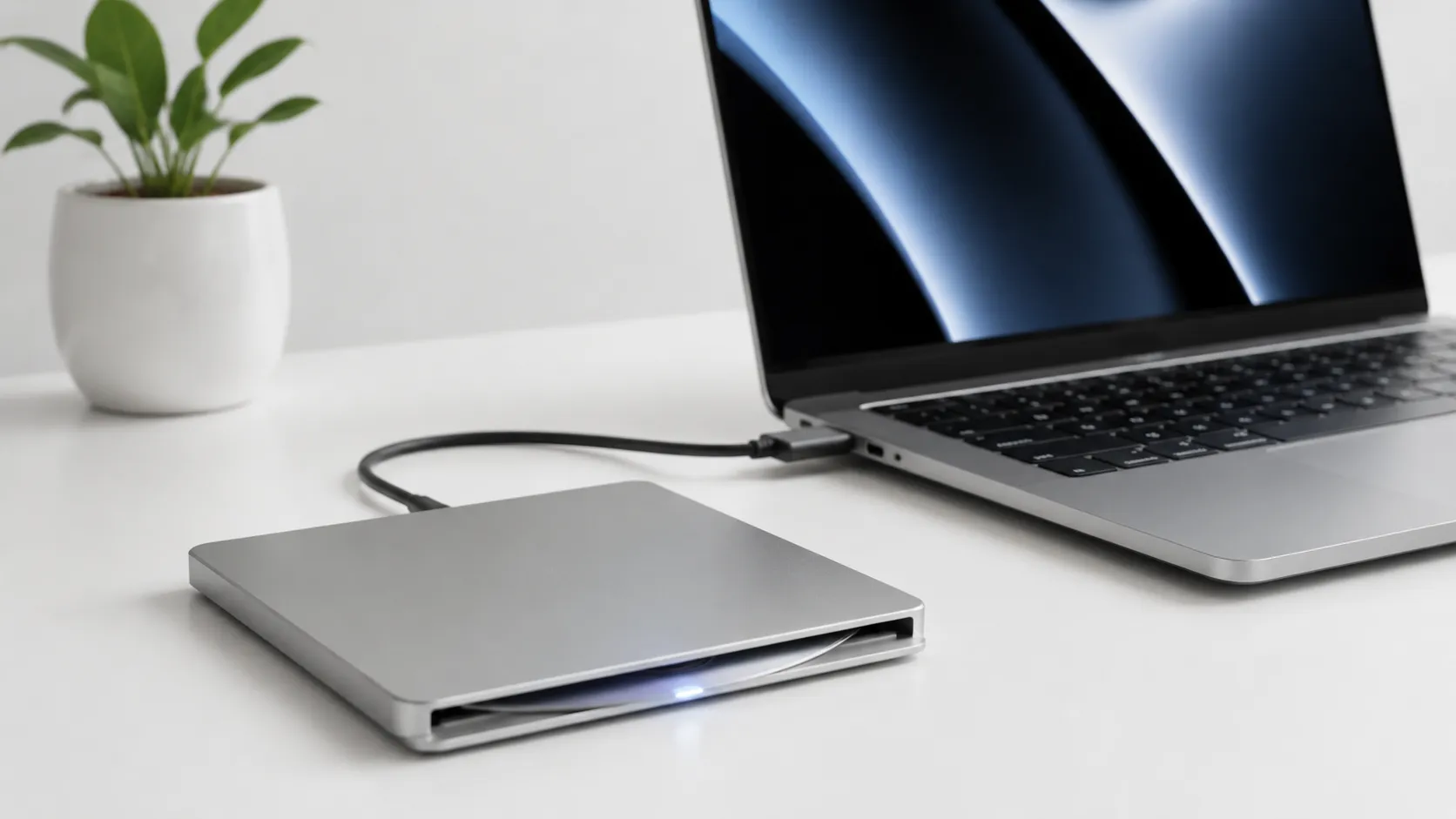
Apple stopped selling its own USB SuperDrive in August 2024, so the practical choices are third-party: the LG GP60NB50 (USB-A, around $25-35) and the LG GP65NB60 (USB-A with a USB-C adapter, around $30-40). Leftover SuperDrive stock still turns up on Amazon at roughly $78, which is more than a current drive costs and worth skipping. For M-series Macs with only USB-C ports, pair any USB-A drive with a powered hub rather than a bare dongle adapter. This single step eliminates the majority of mid-rip power errors that users report.
The current HandBrake is 1.11.2, shipped as a single universal build the project marks “For 10.13 and later”, so it runs on anything back to High Sierra even though the documentation only calls macOS 14 and later supported. MakeMKV could not be quoted here for a while, because its site was down from mid-August 2026 through at least August 31 and neither its version nor its requirements could be read off the vendor. That has cleared. Rechecked September 6, 2026: the current build is 1.18.4 and the download page states “Requires x64 or ARM64 Mac OS X 10.7 or later”, which also answers the architecture question, since ARM64 is Apple Silicon.
Top DVD Copy & Ripping Software for Mac: Free vs. Paid
The software market divides cleanly into free open-source tools that cover 95% of use cases and paid apps that add convenience features. The table below covers the tools most relevant to Mac users in 2025-2026.
| App | Price | Output Formats | Minimum macOS | Best For |
|---|---|---|---|---|
| HandBrake 1.11.2 | Free | MP4, MKV | 10.13 (14+ supported) | Compressed encodes for iPhone/Apple TV |
| MakeMKV | Free (beta) / $50 permanent | MKV, ISO | 10.7, x64 and ARM64 stated | Full-quality copies with menus intact |
| VLC 3.0.23 | Free | Multiple | 10.7.5 | Quick one-off rips, no re-encode |
| MacX DVD Ripper Pro | Starts at $59.95 lifetime, one Mac | MP4, MKV, ISO, 300+ | 10.13 | Batch ripping with GUI presets |
| iSuper DVD Ripper 6.3.15 | Free on the App Store | MP4, MOV, AVI | 10.10 | Sandboxed App Store convenience |
| FFmpeg | Free | Any | Not stated | Command-line automation and scripting |
The last column used to read “Apple Silicon Native” and every row in it said “Yes”. A column with one answer is not a column, and two of those six could not be backed up: MacX publishes a nine-release macOS list with no mention of Apple Silicon anywhere, and FFmpeg ships no official Mac binary at all, pointing instead at third-party static builds. Minimum macOS is the fact each of them does publish, checked on August 31, 2026 against HandBrake, VLC, MacX and the App Store listing for iSuper, which is where an App Store app’s facts belong.
MacX’s price used to read “not published on product page” here, and that was our error rather than the vendor’s. It is published, on the buy page rather than the product page: a lifetime single-Mac licence starts at $59.95, a one-year subscription covering three Macs at $39.95, and a three-app bundle at $79.95, read on August 31, 2026. Treat the countdown timer and the struck-through figures beside them as furniture. The Internet Archive holds this page carrying the identical set of prices in August 2025, February 2026 and May 2026, so nothing has moved in a year and the sale is not a sale. The product page is also worth a warning for anyone else checking it: its structured data still contains an unedited schema.org example block, priced $29.95 with a priceValidUntil of 2021 and a URL pointing at example.com, which a machine reading the page would quote as MacX’s price.
Two of those rows changed more than a column. iSuper DVD Ripper is at 6.3.15 and the listing shows it free rather than unpriced, and VLC still supports Mac OS X 10.7.5, which is far older than anything else here and the reason it keeps turning up on ageing hardware.
- Best free, and best for most people: HandBrake. Compresses a disc into MP4 or MKV that plays on an iPhone or an Apple TV, and it is the tool the step-by-step below uses.
- Best for a full-quality copy: MakeMKV, free while it stays in beta. Produces a complete copy with menus, chapters and subtitle tracks intact, and reads the disc once rather than twice, which matters on old media.
- Best for a quick one-off with nothing to set up: VLC. No re-encode, runs back to Mac OS X 10.7.5, and lower output quality than HandBrake.
- Best for scripting a large collection: FFmpeg. The steepest learning curve here, and the only one you can put in a loop.
- Best paid option: MacX DVD Ripper Pro, from $59.95 for a lifetime single-Mac licence. It buys a batch queue and 300-plus device presets, not a better rip.
- Not covered here: encrypted commercial films. HandBrake reports no valid source on one, and getting past that encryption is a separate act under the DMCA, set out in full at the end of this guide.
On that paid row, the premium does not guarantee a smoother run: users in community discussions report occasional incomplete rips and subtitle rendering problems on certain discs, so test it on a few before committing to a bulk project.
convert and edit video files on Mac
Step-by-Step: Copy a DVD on Mac with HandBrake
HandBrake is a free, open-source video encoder. It reads a readable DVD and writes out compressed video. It has no facility for encrypted discs: on one it reports that it found no valid source, which is correct behavior rather than a fault to be worked around.
Preparation
- Download HandBrake for Mac from handbrake.fr (1.11.2 as of August 31, 2026; the download page always serves the current build). Open the DMG, drag HandBrake to Applications, and launch it.
- Insert your DVD into the external drive and give macOS a few seconds to mount it.
Ripping the DVD
- In HandBrake, click “Open Source” and select the DVD drive from the sidebar (it appears as a disc icon).
- HandBrake will scan all titles. For a feature film, select the longest title, which is almost always the main movie. For TV discs, use the “Chapters” dropdown to identify individual episodes.
- Choose a preset. “Fast 1080p30” works well for Apple TV and Mac playback. For iPhone storage, “Super HQ 480p30 Surround” keeps file size under 1.5 GB for a 2-hour film. For the best quality-to-size ratio, select H.265 (HEVC) encoding in the Video tab.
- Set the output file path under “Save As” at the bottom of the window.
- Click “Start Encode”. Encode time depends on the preset, the encoder and the machine. HandBrake documents its VideoToolbox encoders as the hardware-accelerated option on Apple Silicon, much faster than the software x264 and x265 encoders at some cost in compression efficiency, so choose a VideoToolbox preset if wall-clock time matters more to you than file size.
Subtitle and Audio Tips
Before encoding, click the “Subtitles” tab and add any subtitle tracks you want embedded. For MP4 output, use “Burned In” if you always want them visible, or “Soft” if you want to toggle them in playback. The “Audio” tab lets you include multiple audio tracks (useful for foreign-language versions). HandBrake drops extra tracks by default, so check this tab before starting a long encode.
Full-Quality Backups with MakeMKV
MakeMKV is the tool of choice when you want a complete, uncompressed backup of a disc including menus, bonus features, and all audio tracks. It is distinct from HandBrake in one important way: it does not re-compress the video, so the output MKV file is large (typically 4-8 GB for a feature film) but pixel-for-pixel identical to the source.
MakeMKV’s beta version has been free for years. The developer periodically issues a new registration code on their forum, which extends the free period. A permanent license costs $50, a price the developer has held without a discount for over a decade. To use it:
- Download MakeMKV from makemkv.com and install it. That site was down from mid-August 2026 through at least August 31, returning a Cloudflare 525 with no word from the developer, and this step told you to wait or use HandBrake instead. Rechecked September 6, 2026: it is back, serving version 1.18.4 for Mac. The beta key is still posted on the forum rather than the main site.
- Insert your DVD. MakeMKV auto-detects the drive and shows a large disc icon. Click it to scan.
- After scanning, check the titles and tracks you want to back up. Deselect bonus content you do not need to reduce file size.
- Choose an output folder and click “Make MKV”.
Many experienced users treat MakeMKV as the first step and HandBrake as the second: copy to MKV first for a safe master, then run HandBrake on that MKV to produce a compressed version for daily use. It also means the disc is read once rather than twice, which matters if it is old or scratched.
transfer media files between iPhone and Mac
Choosing an Output Format
The choice comes down to intended use:
- MP4 (H.264 or H.265): Best for iPhones, iPads, Apple TV, and Plex. Widely compatible. H.265 at the same visual quality runs about 40-50% smaller than H.264.
- MKV: Best for media servers and archiving. Supports more subtitle formats (including PGS/image-based subs from DVDs) and unlimited audio tracks.
- ISO image: An exact clone of the disc, including menus and all content. Requires a player that supports ISO mounting (VLC, Infuse, or a Plex plugin). File sizes match the original disc (4-8 GB for single-layer, up to 8.5 GB for dual-layer).
For Apple TV 4K playback, MP4 with H.265 at 2500-4000 kbps video bitrate delivers quality indistinguishable from the source DVD. For archiving on a NAS, MKV from MakeMKV is the safer long-term choice because it preserves everything without quality loss.
Troubleshooting Common Ripping Problems on Mac
DVD ripping fails in predictable ways. Here are the most common issues and their fixes.
HandBrake shows “No Valid Source Found”: On a home-burned or unencrypted disc this usually means a bad burn, a dirty lens, or a disc that was never finalized; try it in a second drive before blaming the software. On a commercial film it means the disc is encrypted, which is where this guide stops. See the legal section below.
Rip stops partway through or produces a corrupted file: This is almost always a disc read error caused by scratches or a power-starved drive. Clean the disc with a lint-free cloth from the center outward. Move the drive to a powered USB hub. If errors persist, MakeMKV has better error recovery than HandBrake and may complete the rip where HandBrake fails.
Subtitles are missing or display incorrectly: DVD subtitles are stored as bitmap images, not text. HandBrake can burn them in or pass them through as a VOBSUB track. If subtitles look wrong in your player, switch from “Soft” to “Burned In” in HandBrake’s Subtitles tab and re-encode.
MacX DVD Ripper Pro only outputs MP4 or stops mid-rip: This is a documented complaint in user reports. The app’s ISO Clone function is also inconsistent on newer macOS versions. If you hit these walls, switching to the free MakeMKV plus HandBrake workflow resolves them without additional cost.
Drive not recognized by macOS: Some USB-A to USB-C adapters do not supply enough power. Use a powered hub. Also check System Information (Apple menu, About This Mac, System Report, USB) to confirm the drive appears at all before blaming the software.
customize your Mac setup for media playback
Alternatives Worth Knowing
Beyond HandBrake and MakeMKV, a few other tools fill specific gaps.
VLC 3.0 can rip directly: File, Convert/Stream, then select the DVD source. Output quality is limited compared to HandBrake, but it requires no additional setup and works for quick one-off rips.
FFmpeg is a command-line tool that handles virtually any format conversion. The learning curve is steep, but it is the right choice for scripted batch work across a large collection of readable discs. A basic FFmpeg command to rip a DVD title looks like: ffmpeg -i dvd:// -map 0 output.mkv.
iSuper DVD Ripper is available on the Apple App Store, which makes it the only sandboxed option in this list. The sandbox limits its ability to access certain disc structures, so it works reliably on unprotected discs but struggles with commercial titles. It is hard to justify over the free alternatives for most users.
MacX DVD Ripper Pro offers a polished batch workflow and 300+ output presets. It is worth considering if you are ripping a large collection and want preset profiles for specific devices without manual HandBrake configuration. The caveat: test it on a few discs before committing to a bulk project.
which Mac hardware handles heavy encoding workloads best
Legal Considerations
Most guides on this topic blur two different acts into one question. Separating them is the whole answer.
Copying a disc is one act. Breaking its encryption is another. Putting your own wedding video, an unencrypted disc, or anything whose rights holder permits copying onto your Mac raises no circumvention question at all, because there is nothing to circumvent. That is the entire subject of this guide. Defeating the CSS encryption on a commercial film is a separate act, and in the United States it is separately prohibited by the Digital Millennium Copyright Act (17 U.S.C. section 1201) regardless of whether you own the disc and regardless of what you do with the copy afterwards. The Copyright Office renews and grants targeted exemptions on a three-year cycle, currently 22 classes listed at 37 CFR 201.40(b), and personal backup of a film has never been one of them. The four motion-picture classes that do exist cover educational use and documentary film-making, accessibility captioning, text and data mining by non-profit researchers, and preservation by libraries, archives and museums of discs that are already damaged where no fair-priced replacement exists.
So the “grey area” people describe is narrower than it sounds. Whether a personal copy is a fair use is genuinely unsettled, and fair use is a defence argued case by case rather than a permission you hold in advance. But that argument only ever arrives after the circumvention question, which under US law is not unsettled.
Elsewhere the picture differs. In the United Kingdom a personal copying exception was introduced in 2014 and quashed by the High Court in 2015, leaving no private-copying right. Several EU states, France and Germany among them, allow private copies under conditions, though national anti-circumvention rules implementing the EU Copyright Directive sit alongside those allowances. Australia, Canada and Japan each land somewhere different again.
None of this is legal advice, and none of it turns on how likely you are to be sued. If you want the film rather than the disc, the licensed digital copy is the route with no ambiguity in it at all.
Key Takeaways
- Every modern Mac requires an external USB or USB-C optical drive to read DVDs. Use a powered hub to avoid mid-rip failures.
- HandBrake (free) handles compressed encodes. MakeMKV (free in beta) is the better choice for a full-quality copy of the whole disc, and reading the disc once instead of twice is easier on old media.
- For Apple device compatibility, MP4 with H.265 encoding at 2500-4000 kbps delivers source-quality output at roughly half the file size of H.264.
- This guide covers discs you are entitled to copy. Commercial films are encrypted, HandBrake will report no valid source on one, and defeating that encryption is outside what is covered here.
- In the United States the DMCA prohibits circumventing copy protection even on a disc you own. Distributing copied content is illegal everywhere, with no grey area at all.
Frequently Asked Questions
Do I need an external DVD drive to rip DVDs on a Mac?
Yes. No Mac model sold since 2012 includes a built-in optical drive. You need a USB or USB-C external drive. Apple stopped selling its own USB SuperDrive in August 2024, so the practical options are third-party drives from LG, Samsung and similar; leftover SuperDrive stock is usually priced above a current drive. Bus-powered models can struggle for current on some USB-C hubs, so a powered hub is the safer pairing.
Can HandBrake rip copy-protected DVDs on Mac?
No. HandBrake has no facility for decrypting a disc, and on a CSS-encrypted commercial film it reports that it found no valid source. That is the intended behavior. Circumventing the encryption is prohibited under the DMCA in the United States even for a disc you own, so this guide does not cover ways around it. HandBrake is the right tool for material you are entitled to copy: home recordings, unencrypted discs, and files you already have.
What is the best output format when ripping a DVD on Mac?
MP4 with H.264 encoding is the safest choice for broad compatibility across iPhones, Apple TV, and Mac. MKV is better if you want to preserve multiple audio tracks, subtitles, or chapters without re-encoding. For a lossless full-disc backup with menus intact, ISO or an MKV created by MakeMKV is the right call.
Is ripping a DVD for personal use legal?
This is genuinely unsettled in most jurisdictions. In the United States, the DMCA prohibits circumventing copy protection even for personal use, which technically covers CSS-encrypted discs. The practical enforcement risk for personal archiving is low, but the legal grey area is real. Laws differ in the UK, EU, and Australia, so check your local rules before proceeding.
How long does it take to rip a DVD on a Mac with Apple Silicon?
It depends on which step you mean, and the two behave differently. Copying with MakeMKV does not re-encode anything, so it runs at whatever speed the drive reads the disc, and a slow bus-powered drive or a scratched disc is the limit rather than the Mac. Encoding with HandBrake is the part the Mac affects: HandBrake documents its VideoToolbox encoders as the hardware-accelerated path on Apple Silicon and the x264/x265 encoders as the slower, more efficient software path. We do not publish timings of our own here, because we have no Mac to measure them on.
Recommended reading
External DVD Drive for Mac in 2026: What Actually Works
Apple stopped selling the USB SuperDrive in 2024 and now sells nothing that reads a disc. What Apple still documents, what the drive makers actually promise, and where their promises stop.
How to Play Blu-Ray on Mac: The Drive, the Software and What It Costs
Learn how to play Blu-ray on Mac with the right external drive and software. Free VLC method, paid apps, and ripping compared for macOS Tahoe 26.
Best Blu-Ray Ripper for Mac in 2026: Free & Paid
Compare the Blu-ray ripping software available on Mac in 2026: MakeMKV, HandBrake, DVDFab and EaseFab, what an external drive costs, and where the law draws the line.