Best Blu-Ray Ripper for Mac in 2026: Free & Paid
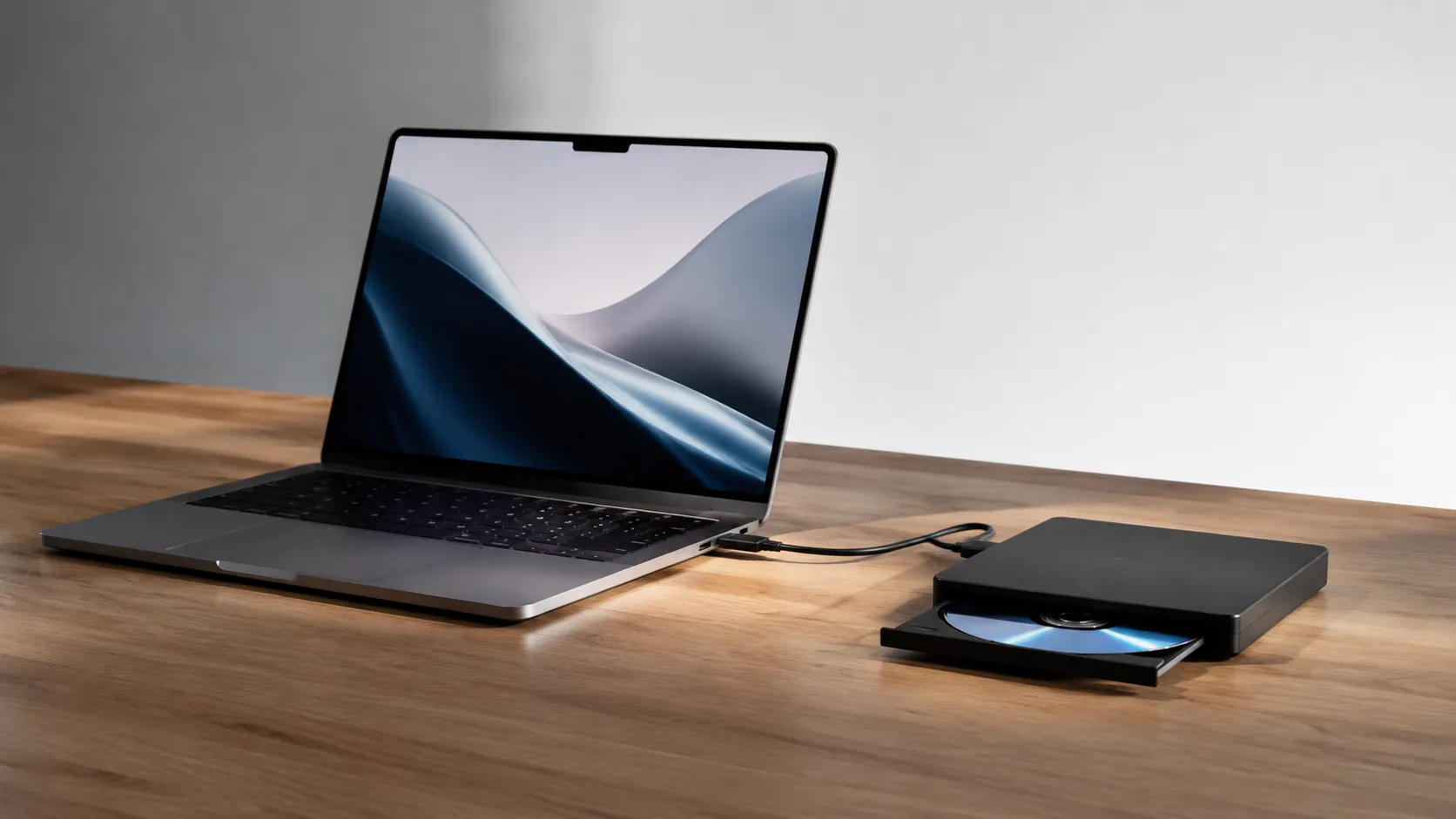
Every price in this guide was checked against the vendor’s own page on August 26, 2026, and every version number against the vendor’s own download or App Store listing on August 30, 2026. Many vendors in this category run a permanent discount countdown, so the figure at checkout is a promotional one and moves; where a vendor publishes no price on its own site, this guide says so rather than guessing.
Read This First
Ripping a Blu-ray means copying its video and audio to a file on your Mac or home server. The appeal is easy to understand: discs scratch, streaming libraries shrink overnight, and the director’s cut with the DTS-HD track and the commentary is often not licensed to any service at any price.
There is a complication that most guides on this subject skip past, and it changes what a guide can usefully tell you. Essentially every commercially released Blu-ray is encrypted with AACS, and unlike DVDs, there is very little unencrypted Blu-ray content in ordinary hands. Getting past AACS is not the same act as copying a disc, and in the United States it is separately prohibited by the DMCA (17 U.S.C. section 1201) whether or not you own the disc and whatever you do with the copy afterwards.
So this article is a comparison of the software in this category, what an external drive costs, and where the legal line actually falls. It does not tell you how to defeat a disc’s encryption, which firmware to flash, or how to get around a region code. If what you want is to watch your discs on your Mac rather than copy them, playing a Blu-ray on a Mac is the more useful guide and raises none of this.
Essential Hardware: Choosing an External Blu-Ray Drive for macOS
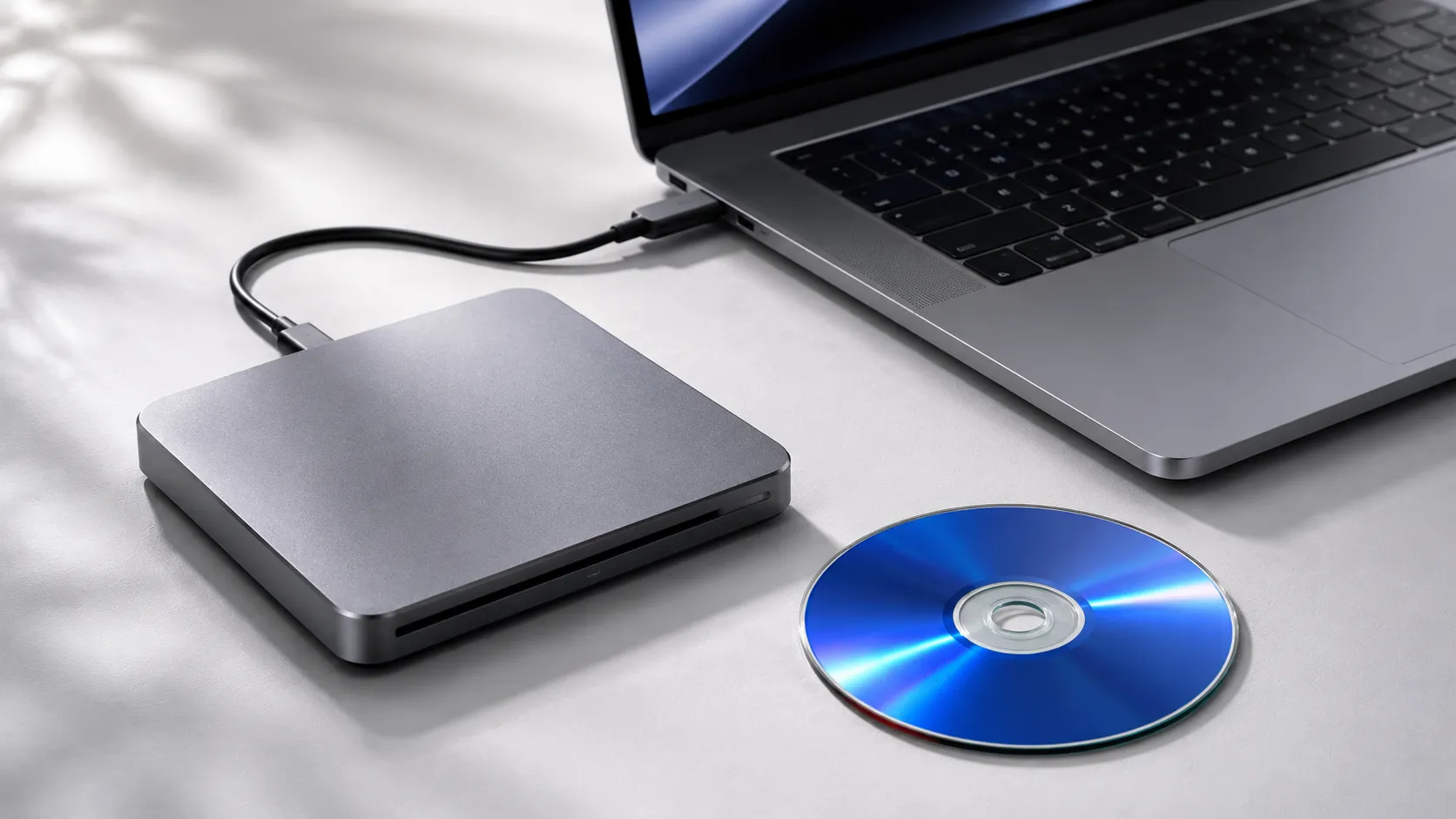
No Mac ships with a Blu-ray drive, so your first purchase is an external USB or USB-C unit. Budget drives from LG, Pioneer, and ASUS range from $40 to $120 and handle standard 1080p Blu-ray without issue. The complication arises with 4K UHD discs.
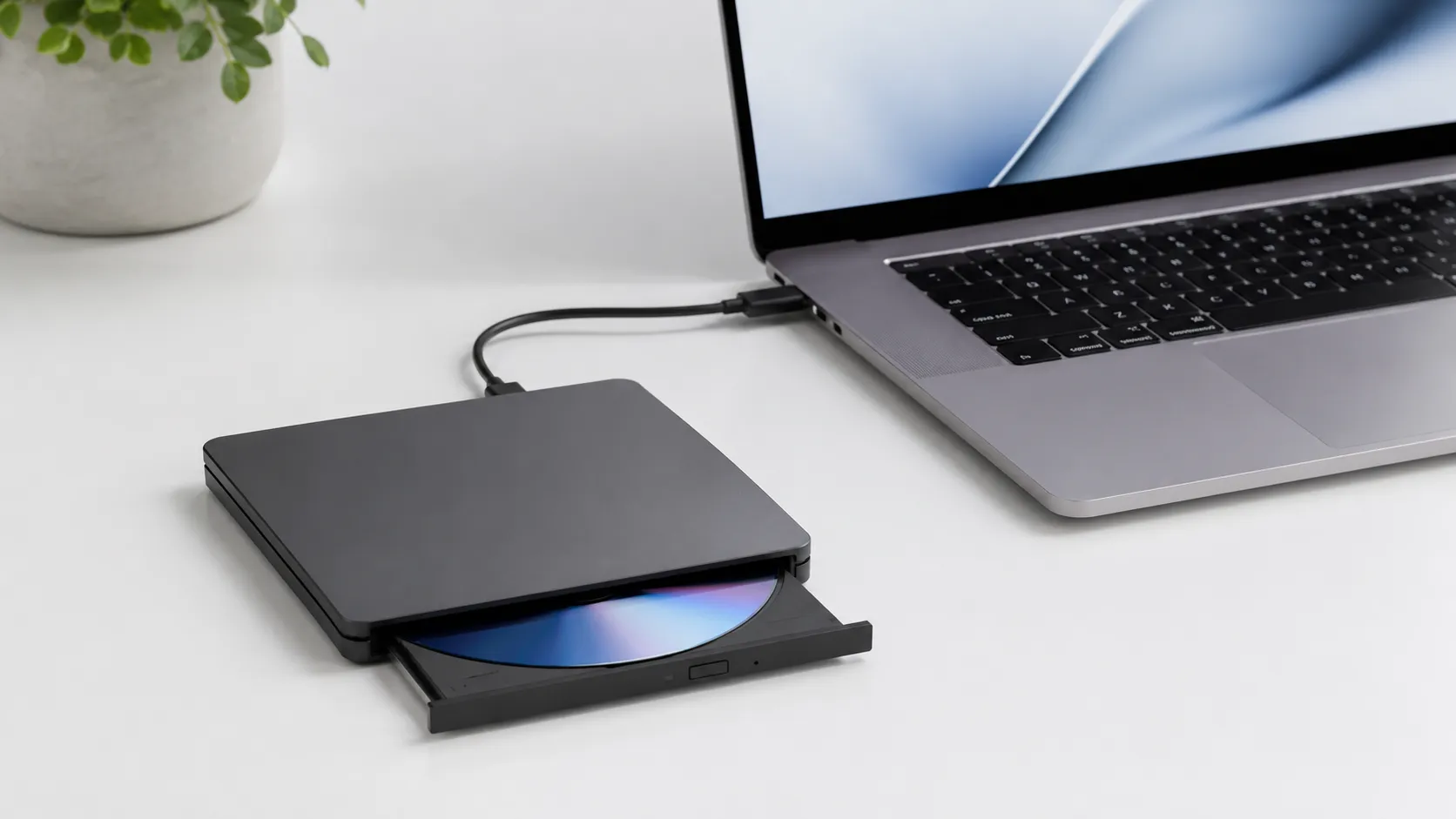
Any USB 3.0 external Blu-ray drive above roughly $50 reads standard 1080p discs without trouble, and that is the whole hardware decision for playback and for any disc you are entitled to copy. Bus-powered units draw their current from the port; if your Mac only has USB-C, a powered hub is a more reliable pairing than a bare adapter.
4K UHD is a different matter, and the honest answer is that the hardware question people ask about it is really a circumvention question. UHD discs carry AACS 2.0, and the drive modifications the enthusiast community trades in exist to disable the drive’s own content-protection checks. That is the part this guide does not cover.
Free Software Combo: MakeMKV and HandBrake Workflow
MakeMKV is the most widely recommended free Blu-ray ripper for Mac, and HandBrake handles the subsequent compression step. Together, they cover the full pipeline from raw disc to finished file. MakeMKV remains free while in beta as of 2026, with a registration key posted regularly on its official forum.
What Each Tool Does
MakeMKV is a disc-reading tool. On a disc it can read, it outputs a lossless MKV that preserves every audio track, subtitle stream and chapter marker, with no re-encoding at all. Files are large, 20-50 GB for a feature film, but bit-for-bit accurate.
HandBrake is a free, open-source video transcoder. It takes the MKV from MakeMKV and re-encodes it to H.264 or H.265 at a size you choose. HandBrake’s own documentation states it has been a universal binary since version 1.4.0, running natively on both Apple Silicon and Intel Macs. Its download page offers one macOS build, marked “For 10.13 and later” and “Universal”; the documentation separately lists macOS 14 Sonoma and later as supported, with Ventura and older marked deprecated. Both are true and they answer different questions: 10.13 is where it still runs, 14 is where the project will still help you.
Step-by-Step: MakeMKV and HandBrake on macOS
- Install MakeMKV from makemkv.com and register it with the current beta key posted on the MakeMKV forum. The outage that used to block this step has cleared. makemkv.com was unreachable from mid-August 2026 through at least August 31, returning a Cloudflare 525 with no statement from the developer, and forum members were passing round file-sharing mirrors of the installer. Rechecked September 6, 2026: the download page answers again and offers MakeMKV 1.18.4 for Mac OS X. Download it from the official site. This guide never linked a mirror and there is now no reason to want one.
- Connect the external drive and insert a disc you are entitled to copy.
- Open MakeMKV and click the disc icon to scan. The title list that appears is the disc’s structure: the longest title is normally the main feature, and expanding a title shows its individual audio tracks and subtitle streams.
- Select what you want, choose an output folder with room for it, and click “Make MKV”. Reading is limited by the drive’s speed rather than by the Mac.
- Open HandBrake and drag the resulting MKV onto its source window.
- Choose a preset. “H.265 MKV 1080p” is a sensible default for Mac and Apple TV playback; for iPhone or iPad, “Apple 1080p60 Surround”.
- Set the destination and click “Start Encode”. HandBrake documents its VideoToolbox encoders as the hardware-accelerated path on Apple Silicon, faster than the software x264/x265 encoders at some cost in compression efficiency.
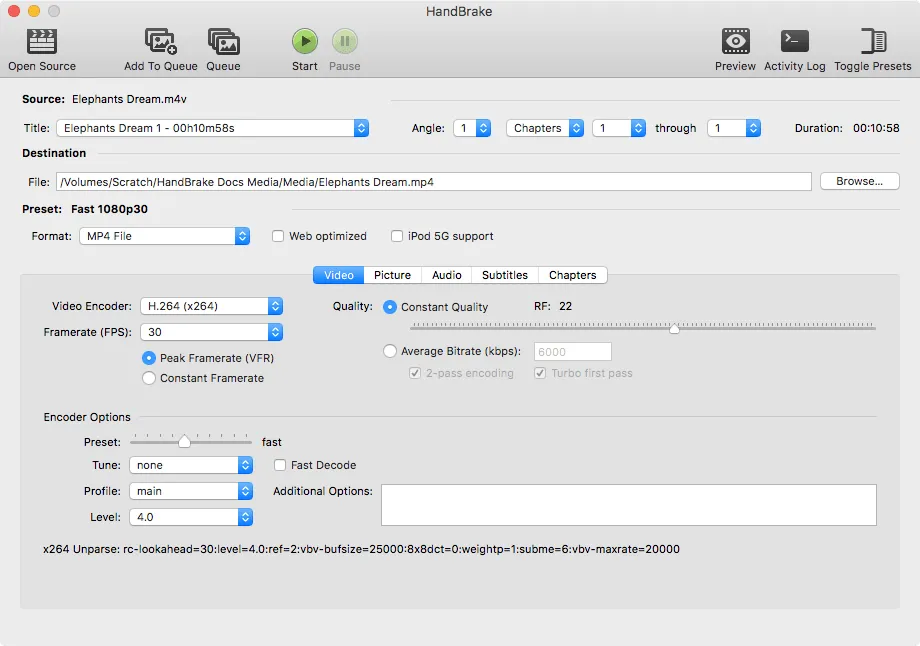
HandBrake’s output runs 4-15 GB depending on length and quality settings. Its default audio behavior is to pass through or transcode to AAC rather than preserve the disc’s lossless track, so if the DTS-HD or TrueHD track is the reason you kept the disc, check the Audio tab before encoding rather than after.
How to convert and edit video on Mac
Top Paid Blu-Ray Rippers for Mac: Feature Comparison
The paid products in this category sell one thing above all: a single application instead of two, with reading and conversion behind one button. The prices below were read off each vendor’s own purchase page on August 26, 2026, which in this category is not the same as the price on their comparison pages.
| Tool | Price | One-Step Workflow | Output Formats | Minimum macOS |
|---|---|---|---|---|
| MakeMKV (free/beta) | Free while in beta | No (read only) | MKV | 10.7, x64 and ARM64 stated |
| HandBrake 1.11.2 | Free | No (encode only) | MKV, MP4 | 10.13 (14+ supported) |
| DVDFab Blu-ray Ripper | $69.99 | Yes | 1000+ formats | 12 |
| EaseFab Blu-ray Ripper v5.9.2 | $42.95 lifetime / $27.95 a year | Yes | MKV, MP4, MOV, 500+ | 10.13 |
| VideoByte BD-DVD Ripper | $84.95 one-time / $69.95 a year | Yes | MP4, MKV, AVI, 300+ | 10.11 |
Minimum macOS replaces an “Apple Silicon native” column, for the same reason it was dropped from our free image viewer guide: the old column answered with an architecture in one row, a macOS version in another and “check current Mac support” in a third, which is three different questions with one of them a guess. These figures were read off each vendor’s own requirements page on August 31, 2026: HandBrake, DVDFab, EaseFab and VideoByte.
DVDFab is the row to be careful with. Its Mac page carries “macOS 10.13 - 15.x” in the product blurb and “macOS 12 or newer” in the requirements field, on the same page. The 15.x ceiling would rule out macOS 26, which that same page sells against, so the requirements field is the figure in the table.
Two things in that table are worth more than the feature columns. VideoByte’s annual plan at $69.95 costs more than its own one-time license within two years, which is a pricing structure that only makes sense if you assume the buyer does not compare the two lines. And MakeMKV has been free in beta for over a decade on a key the developer reposts on the forum, with a permanent license at $50 that has not changed price in that time.
For a free setup and a tolerance for two applications, MakeMKV plus HandBrake is the pairing most people land on. Among the paid options EaseFab is the cheapest route to a single-application workflow. DVDFab is the most feature-complete but runs on a subscription, and its forum carries a recurring pattern of updates breaking UHD support with no immediate fix.
Troubleshooting Common Ripping Errors on Mac
Most ripping failures fall into a small number of categories. The table below maps symptoms to causes and fixes.
| Error / Symptom | Likely Cause | Fix |
|---|---|---|
| MakeMKV shows “failed to open disc” | Drive not recognized by macOS | Check the USB connection, try another port, and confirm the drive appears in System Information before blaming the software |
| Drive disconnects or stalls partway | Bus-powered drive starved of current | Move it to a powered hub rather than a bare USB-C adapter |
| HandBrake encode freezes mid-job | Corrupted source file or insufficient disk space | Check free space on the output volume; a Blu-ray source needs tens of gigabytes |
| Audio track missing from the output | HandBrake dropped it at the default settings | Add the track explicitly in the Audio tab and encode again |
| An encrypted disc will not open | The disc is AACS-protected | Outside the scope of this guide. See the legal section below |
Notice what is not in that table. The errors people most often search for in this category are the ones that appear when software meets a protection measure, and every fix for those is a circumvention step. Those are the ones this guide leaves alone.
Preserving Bonus Features, Menus, and Commentaries
Standard ripping workflows extract only the main feature. If you want director’s commentaries, deleted scenes, or interactive menus, you need to handle the disc structure differently.
MakeMKV shows every title on the disc in its title list. Expand each title and you will see individual audio tracks (including commentary tracks labeled as such) and subtitle streams. Checking all of these before clicking “Make MKV” preserves them in the output file. For a complete disc backup including menus, MakeMKV’s “Backup” function (not the standard rip) copies the full disc structure to a folder on your Mac, which can then be mounted as a virtual disc or stored for later.
This is also the clearest illustration of why people want to copy discs in the first place. A Criterion commentary track is not licensed to any streaming service, and when the disc goes out of print there is no other copy of it. That is a real preservation problem, and it is worth being honest that current US law does not provide a route for an individual to solve it.
The detail is more interesting than the summary. The Copyright Office renews and grants circumvention exemptions on a three-year cycle, and the current list at 37 CFR 201.40(b) runs to 22 classes covering everything from vehicle repair to video game preservation. Motion pictures appear four times: educational use and documentary film-making, accessibility captioning, text and data mining by non-profit researchers, and preservation. That preservation class is real but narrow: it covers libraries, archives and museums, for discs that are already damaged or deteriorating, where a replacement is not available at a fair price, and with no commercial purpose. A private collector preserving a Criterion commentary track before the disc rots is not covered by any of the 22.
Convert and edit video on Mac after ripping
Apple Silicon vs. Intel: Where the Time Actually Goes
The two steps in this workflow are limited by completely different things, which is why “how long does it take” has no single answer.
Reading a disc with MakeMKV does no encoding at all, so it runs at whatever speed the drive reads, and a bus-powered unit or a scratched disc is the constraint rather than the Mac. An Intel Mac and an M-series Mac read at the same speed on the same drive.
Encoding with HandBrake is the step where the Mac matters. Apple Silicon includes a dedicated media engine, and HandBrake exposes it through the VideoToolbox encoders; Intel Macs without Quick Sync fall back to software x264 and x265, which is substantially slower. We do not publish our own timings for either step, because we have no Mac to measure them on.
The Legal Side: Is Ripping Your Own Blu-Rays Legal?
Most guides on this topic collapse two separate acts into one question, and separating them is the whole answer.
Copying is one act. Breaking the encryption is another. In the United States the Digital Millennium Copyright Act, at 17 U.S.C. section 1201, prohibits circumventing a technological protection measure. AACS is such a measure. That prohibition applies to the act of circumvention itself, so it does not matter that you bought the disc, and it does not matter that you never share the file. This is the part people expect to be a grey area and it is not.
Fair use sits downstream of that, and it is a defence rather than a permission. It is argued case by case after the fact, and it has never been settled for personal Blu-ray backup in US case law. The Electronic Frontier Foundation has pressed for a personal-backup exemption in the Copyright Office’s triennial rulemaking without success so far.
Outside the United States the picture genuinely differs. Several EU member states, France and Germany among them, recognize a private-copying exception, though national rules implementing the EU Copyright Directive’s anti-circumvention articles sit alongside it. The United Kingdom introduced a personal copying exception in 2014 and the High Court quashed it in 2015. Canada, Australia and Japan each land somewhere different again.
This is not legal advice, and the question of how likely anyone is to be sued is not the same question as whether something is permitted. Where the aim is to keep watching a film you paid for, the licensed digital copy carries none of this ambiguity. Where the aim is preservation of something out of print, the honest answer is that US law currently offers no clean route, and that is a problem with the law rather than something a guide can route around.
Final Verdict: Which Blu-Ray Ripper Is Best for Your Mac?
The answer depends on what you are ripping and how much friction you will tolerate.
At zero cost, MakeMKV plus HandBrake is the pairing worth installing: MakeMKV reads a disc without re-encoding anything, HandBrake compresses the result, and between them they cover the whole pipeline for material you are entitled to copy. Two applications is the only real friction.
Among paid tools, EaseFab Blu-ray Ripper v5.9.2 at $42.95 for a lifetime license is the cheapest way to a single-application workflow and runs natively on Apple Silicon. DVDFab has more features and a subscription, plus a forum history of updates breaking things. VideoByte is the one to look at twice: its annual plan costs more than its own one-time license inside two years.
The more useful conclusion may be that ripping is the wrong tool for most of the reasons people reach for it. If the goal is watching your discs on a Mac, play a Blu-ray on a Mac solves that directly. If the goal is a copy on a plane, the licensed digital version usually exists and carries no legal ambiguity. The case ripping uniquely answers is out-of-print material with no digital release, and that is exactly the case US law currently does not accommodate.
Key Takeaways
- Essentially every commercial Blu-ray is AACS-encrypted, and in the United States getting past that encryption is prohibited by the DMCA on its own terms, whether or not you own the disc. That is not the grey area people assume it is.
- MakeMKV (free while in beta) plus HandBrake is the free pairing; MakeMKV reads without re-encoding, HandBrake compresses.
- An external Blu-ray drive costs $40-$120 and every Mac needs one. A powered hub matters more than the brand.
- Among paid tools, EaseFab v5.9.2 at $42.95 lifetime is the cheapest single-application option. Check VideoByte’s annual price against its own one-time price before subscribing.
- If the aim is watching rather than copying, playing the disc directly avoids the entire question.
Frequently Asked Questions
Can I rip a Blu-ray on a Mac without an external drive?
No. Apple has not shipped a Mac with a built-in optical drive since 2012, so an external USB or USB-C Blu-ray drive is required, at $40 to $120. Pair a bus-powered unit with a powered hub rather than a bare USB-C adapter; power, not brand, is what most stalled reads come down to.
Is MakeMKV free on Mac?
Yes, for as long as it stays in beta, which it has now done for well over a decade. The developer reposts a registration key on the MakeMKV forum periodically and it unlocks full functionality at no cost. A permanent license is $50, a figure the developer has held without a discount for that entire period, which in this category is unusual enough to be worth noting on its own.
What is the difference between lossless and compressed Blu-ray ripping?
Lossless ripping (MakeMKV’s default MKV output) copies every bit of the original disc with no quality loss, producing files of 20-50 GB per movie. Compressed ripping (HandBrake’s H.264 or H.265 output) re-encodes the video to a smaller file, typically 4-15 GB, at the cost of some quality and encoding time.
Do Blu-ray rippers work on Apple Silicon Macs?
All four say so in writing, which became true again on September 6, 2026. HandBrake has been a universal binary since 1.4.0, DVDFab lists “Intel Core i5 or Apple Silicon” in its Mac requirements, and EaseFab lists “Native Apple Silicon Support and Intel Support”. MakeMKV was the fourth and was unanswerable while its site was down; with the site back, its download page states “Requires x64 or ARM64 Mac OS X 10.7 or later”, and ARM64 is Apple Silicon. This guide used to answer “natively or via Rosetta 2”, which covers every case a program can possibly be in and therefore settles nothing; where a vendor is silent, install it and read the Kind line in Get Info. Apple Silicon’s media engine does accelerate H.265 encoding in HandBrake through its VideoToolbox encoders, which the project documents as the hardware path.
Is ripping a Blu-ray you own legal?
Two questions are hiding inside that one. Copying a disc is one act; defeating the AACS encryption on it is another, and in the United States the DMCA (17 U.S.C. section 1201) prohibits the second one on its own terms, regardless of ownership and regardless of what you do with the copy. That part is not a grey area. What is unsettled is whether a personal copy would qualify as fair use, and fair use is a defence argued after the fact rather than a permission held in advance. It has never been tested for Blu-ray specifically. Other countries differ, sometimes substantially, so local law governs. None of this is legal advice.
Recommended reading
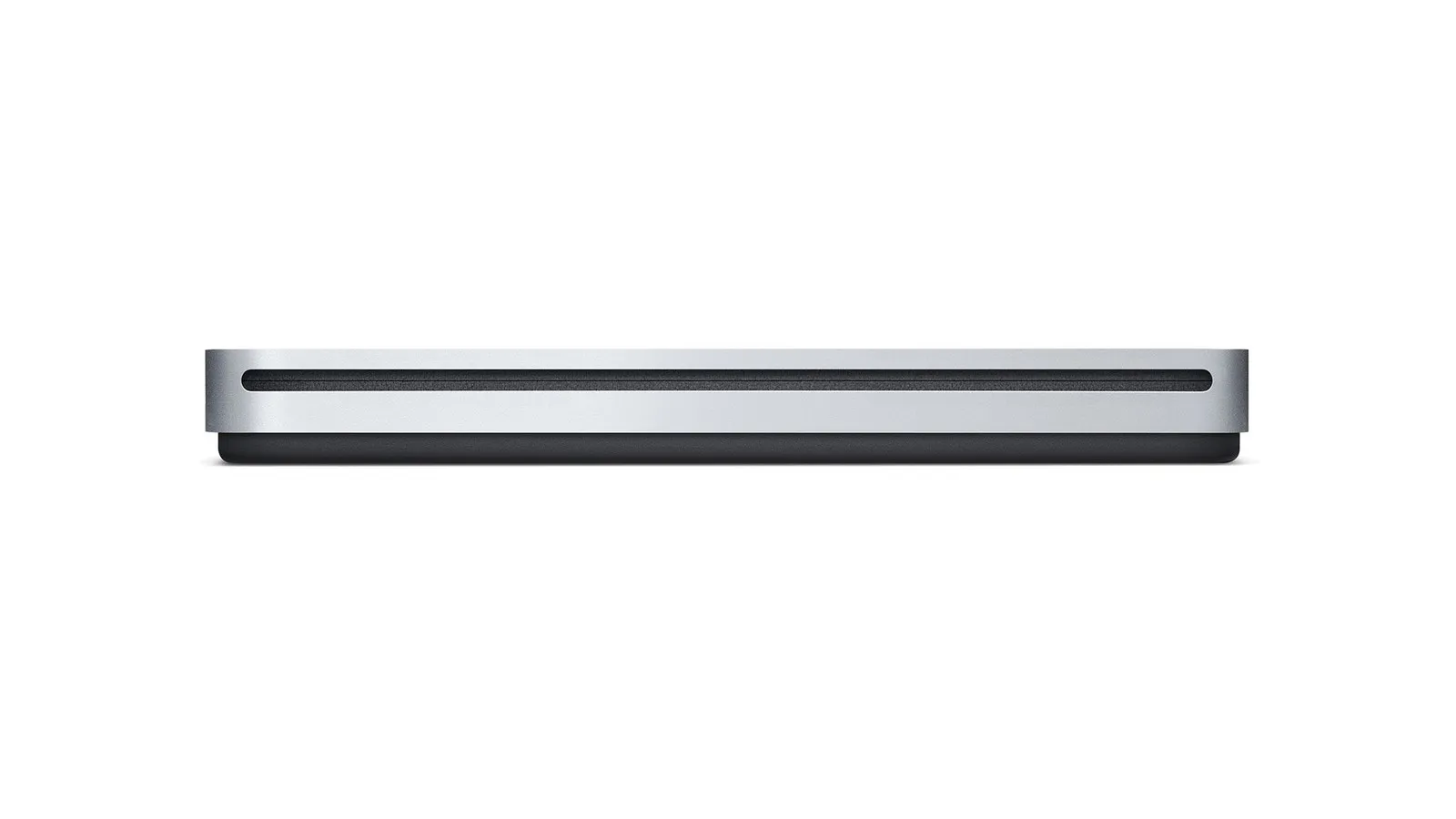
External DVD Drive for Mac in 2026: What Actually Works
Apple stopped selling the USB SuperDrive in 2024 and now sells nothing that reads a disc. What Apple still documents, what the drive makers actually promise, and where their promises stop.
How to Play Blu-Ray on Mac: The Drive, the Software and What It Costs
Learn how to play Blu-ray on Mac with the right external drive and software. Free VLC method, paid apps, and ripping compared for macOS Tahoe 26.
Convert Facebook Video to MP3: Online Tools, VLC and yt-dlp
Learn how to convert Facebook video to MP3 using free online tools, VLC, yt-dlp, and desktop apps. Step-by-step guide with quality comparisons.