How to Play Blu-Ray on Mac: The Drive, the Software and What It Costs
Every price in this guide was checked against the vendor’s own page on August 26, 2026. Many vendors in this category run a permanent discount countdown, so the figure at checkout is a promotional one and moves; where a vendor publishes no price on its own site, this guide says so rather than guessing.
Why Macs Don’t Play Blu-Rays Out of the Box
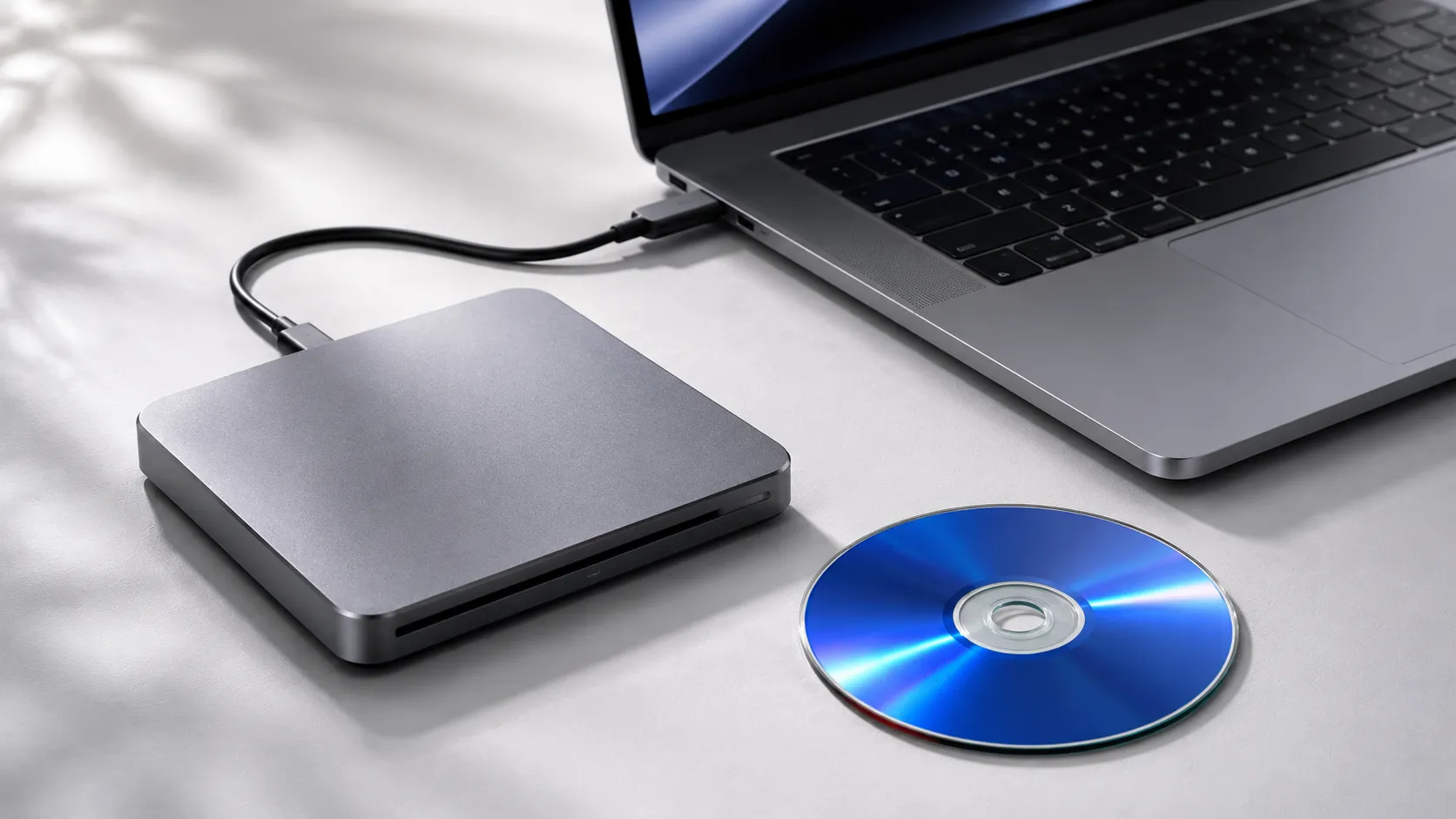
macOS does not natively support Blu-ray playback, and Apple has never shipped a Mac with a built-in Blu-ray drive. The reason is a mix of licensing costs, Apple’s push toward digital distribution via the iTunes Store (now Apple TV), and the DRM complexity baked into the Blu-ray format. If you insert a Blu-ray disc into an external drive connected to a Mac, the operating system will either ignore it or prompt you to eject it.
This is not a hardware limitation that Apple is likely to fix. Steve Jobs famously called Blu-ray licensing “a bag of hurt” in 2008, and the company’s position has not shifted since. The practical result: every Mac owner who wants to watch physical Blu-ray discs needs to solve both a hardware problem (no built-in drive) and a software problem (no native decryption or playback engine).
The frustration is real and widely shared. Many users reasonably ask why a $2,000 MacBook Pro cannot play a disc that a $30 DVD player handles without issue. The answer is purely a business decision, not a technical one.
Essential Hardware: Choosing a Compatible External Blu-ray Drive
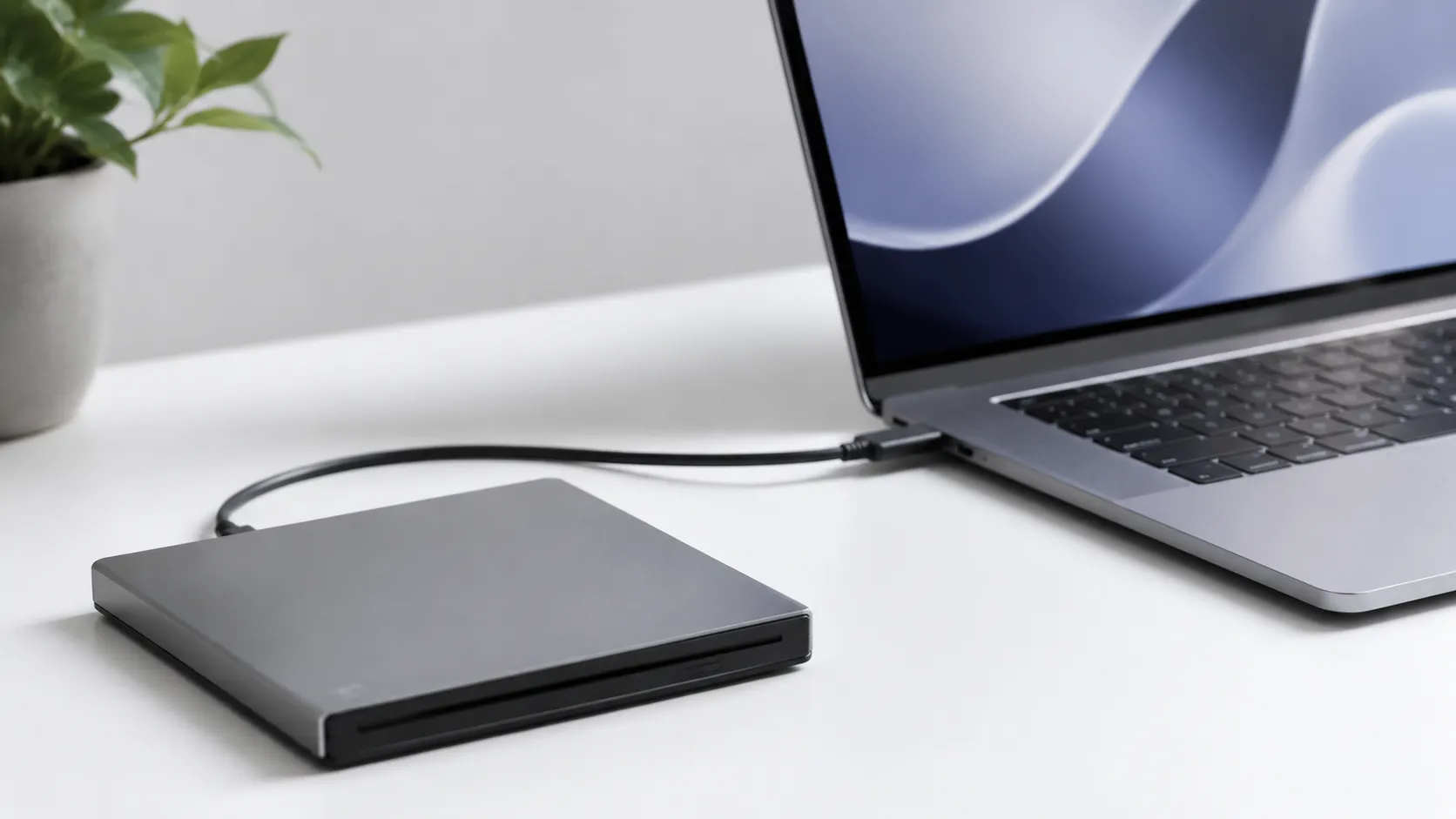
Before any software discussion matters, you need a physical drive that macOS will recognize. External Blu-ray drives connect via USB-A or USB-C and appear in macOS as standard optical drives once mounted. The Mac itself does not need any special hardware beyond a free USB port.
Three brands dominate community recommendations for Mac compatibility: LG, Pioneer, and OWC. The LG BP60NB10 is a slim, bus-powered model that connects via USB-C and is consistently cited in Apple Communities threads as reliable on both Intel and Apple Silicon Macs. Pioneer’s BDR-XD08 is another portable option with strong macOS compatibility. OWC sells Blu-ray drive enclosures paired with proven optical mechanisms, which appeals to users who want a more “Mac-native” aesthetic.
Key specs to check before buying:
- Confirm the drive supports BD-ROM (read) at minimum. BD-RE (write) drives also read, so they are not a downgrade.
- Check whether the drive is bus-powered via USB or requires an external power adapter. Bus-powered drives are simpler for laptop use.
- If you plan to attempt 4K Ultra HD Blu-ray ripping (not real-time playback), verify the drive supports UHD-friendly firmware. Not all drives do, and firmware updates matter here.
- Avoid no-brand drives sold on Amazon with no listed model number. Firmware update support is critical for long-term use, and these drives rarely provide it.
One observation from community reports: updating the firmware on certain LG and Pioneer drives resolves read errors that otherwise make discs appear damaged. If your drive struggles with specific titles, check the manufacturer’s firmware page before assuming the disc is at fault.
Best Blu-Ray Ripper for Mac in 2026: Free & Paid
Method 1: Free Playback with VLC and Decryption Libraries
VLC Media Player is an open-source video player that can play Blu-ray discs with additional decryption libraries. Out of the box, VLC 3.0.x handles unencrypted Blu-ray content. For the commercially pressed discs most people own, you also need libaacs, a free library that handles AACS encryption, plus a KEYDB.cfg file containing the actual decryption keys for specific discs.
Setting this up on a current macOS requires the following steps:
- Download and install VLC 3.0.21 or later from videolan.org.
- Download the libaacs library. The easiest source is via Homebrew: run
brew install libaacsin Terminal. - Create the directory
~/Library/Preferences/aacs/if it does not exist. - Download a current KEYDB.cfg file from vlc-bluray.whoknowsmy.name (a community-maintained keys database) and place it in that directory.
- Insert your Blu-ray disc, open VLC, go to File > Open Disc, select Blu-ray, and click Open.
The honest assessment: this works inconsistently. User reports describe inconsistent results: roughly half of standard Blu-ray titles play correctly, while others throw a “libaacs AACS error” or cause VLC to crash entirely. M1 systems have a higher crash rate, consistent with user reports across MacRumors forums. The KEYDB.cfg file also requires manual updates as new discs with new encryption keys are released, which is an ongoing maintenance burden.
VLC does not support Blu-ray disc menus in any meaningful way. You navigate by going to Playback > Title and selecting the main feature manually. For users who just want to watch the film and skip the extras, this is workable. For anyone who wants chapter selection or special features, it falls short.
Method 2: One-Click Commercial Software
Commercial Blu-ray player apps for Mac exist specifically to solve the problems that VLC leaves unsolved: menu support, stable playback, and no manual library wrangling. The trade-off is cost and, in some cases, software quality that does not match the price.
Start with what to avoid. Macgo Mac Blu-ray Player Pro was the default recommendation in this category for years, and it still sits at the top of most Blu-ray guides you will find. It should not. Macgo’s own site now marks both Mac Blu-ray Player Pro and the standard Mac Blu-ray Player as Discontinued. Existing licences still activate and the downloads still work, but nobody is maintaining either app. That matters more here than in most software categories: new discs ship with new encryption keys, and a player that stops getting updates gradually stops opening new releases. If you already own it, keep using it until it fails. Do not buy it now.
Aiseesoft Mac Blu-ray Player names macOS Tahoe on its product page. That was this guide’s reason for putting it first, until VideoByte turned out to name the same release under its number, macOS 26. A lifetime single-Mac licence starts at $49.96, with a $15.60 monthly option and a $79.96 licence covering three Macs, read off the product page on August 31, 2026. Each of those sits next to a higher struck-through figure, $62.45 for the single licence, which reads as a sale and is not one. The Internet Archive holds this page carrying the identical six numbers, discounts included, in May 2024, August 2025, February 2026 and this month. Twenty-seven months without moving makes $49.96 the price and $62.45 an ornament. It plays any-region discs, folders and ISO files, passes through lossless DTS-HD Master Audio and Dolby TrueHD, and doubles as a 4K video and DVD player.
VideoByte Blu-ray Player is the other actively sold option. A lifetime licence for one Mac starts at $44.95, printed against a struck-through $49.95 in the same style as Aiseesoft’s, though this page has no archive history for us to say how long that has been so. There is also a $29.95 monthly subscription that almost nobody should choose, since two months of it costs more than the permanent licence. VideoByte’s tech spec for the player states “Mac OS X 10.9 or above (including macOS 26)” and a processor line reading “1GHz Intel processor and Apple M-series chips (including M5)”. This guide previously reported 10.11 and no named release for it, which was the requirement for VideoByte’s separate BD-DVD Ripper, a different product on the same site.
A fair warning: several Blu-ray player apps in the Mac App Store and on third-party download sites are effectively scamware. They display aggressive upsell prompts, have no functional free tier, and provide no meaningful support. If a Blu-ray app is not from a named developer with a real website and a verifiable version history, treat it with skepticism.
| Software | Price | Menu Support | Stated macOS support | Free Tier |
|---|---|---|---|---|
| VLC + libaacs | Free | No | 10.7.5, separate Apple Silicon build | Full (unstable) |
| Aiseesoft Mac Blu-ray Player | From $49.96 lifetime | Yes | 10.9, names Tahoe, no architecture stated | Trial |
| VideoByte Blu-ray Player | From $44.95 lifetime | Yes | 10.9, names macOS 26, M-series stated | 5-min trial |
| Macgo Mac Blu-ray Player Pro | Discontinued | Yes | Unmaintained | n/a |
| MakeMKV (rip then play) | Free beta, $50 permanent | N/A | 10.7, x64 and ARM64 stated | Full (ripping only) |
That single column used to be two, “Apple Silicon Native” and “macOS Sequoia”, which turned out to be one question asked twice. The architecture half answered “Yes” for all five without a vendor saying so in three of the five cases. What the vendors do publish is a macOS floor, read on August 31, 2026 from VLC, Aiseesoft and VideoByte. Two of them do commit to an architecture: VLC ships a separate Apple Silicon download alongside its Intel and universal builds, and VideoByte names M-series chips up to the M5. Aiseesoft’s page names macOS Tahoe but never mentions a processor.
For users who want to insert a disc and press play without any setup, a commercial player is the answer, and with Macgo out of the picture the choice is between Aiseesoft and VideoByte. Both are one-time licences rather than subscriptions if you pick the right tier. This guide used to give Aiseesoft the nod for naming Tahoe on its product page, which does not survive a check: VideoByte names macOS 26, the same release, and adds an M-series statement Aiseesoft does not make, at $5 less. Aiseesoft still covers more ground per licence, since it doubles as a 4K video and DVD player with lossless audio passthrough. On stated compatibility alone VideoByte is now the better documented of the two. For anyone comfortable with a two-step workflow instead, MakeMKV combined with a free player is more reliable and, in beta, costs nothing. Best iTunes Alternatives in 2026: 9 Apps Compared
Method 3: Ripping Your Discs with MakeMKV
MakeMKV is a disc-ripping application that converts Blu-ray content into MKV files, a container format that stores video, audio, and subtitle tracks without re-encoding. The ripping process typically takes 20-30 minutes per disc on a modern Mac with a USB 3.0 drive. A full 50 GB dual-layer disc can extend that to 40-45 minutes.
The key advantage: once ripped, the MKV file plays in VLC, IINA, or Infuse without any decryption libraries, KEYDB.cfg files, or disc menus to navigate. The playback reliability jumps from inconsistent to near-perfect. Many users who struggled with direct Blu-ray playback find MakeMKV the pragmatic fix.
MakeMKV is technically in a permanent “beta” state, which means it is free to use for ripping. The developer periodically issues a new beta key that you enter in the registration field to keep it free. The current key is always posted on the MakeMKV forum.
To rip a Blu-ray with MakeMKV on macOS:
- Download MakeMKV from makemkv.com and install it. That download was broken for several weeks: checked August 31, 2026, the site returned a Cloudflare 525, with forum threads about the outage going back to mid-August and no comment from the developer. Rechecked September 6, 2026: the site is back, serving version 1.18.4 for Mac. Take the installer from there rather than from any of the mirrors forum members were passing round during the outage.
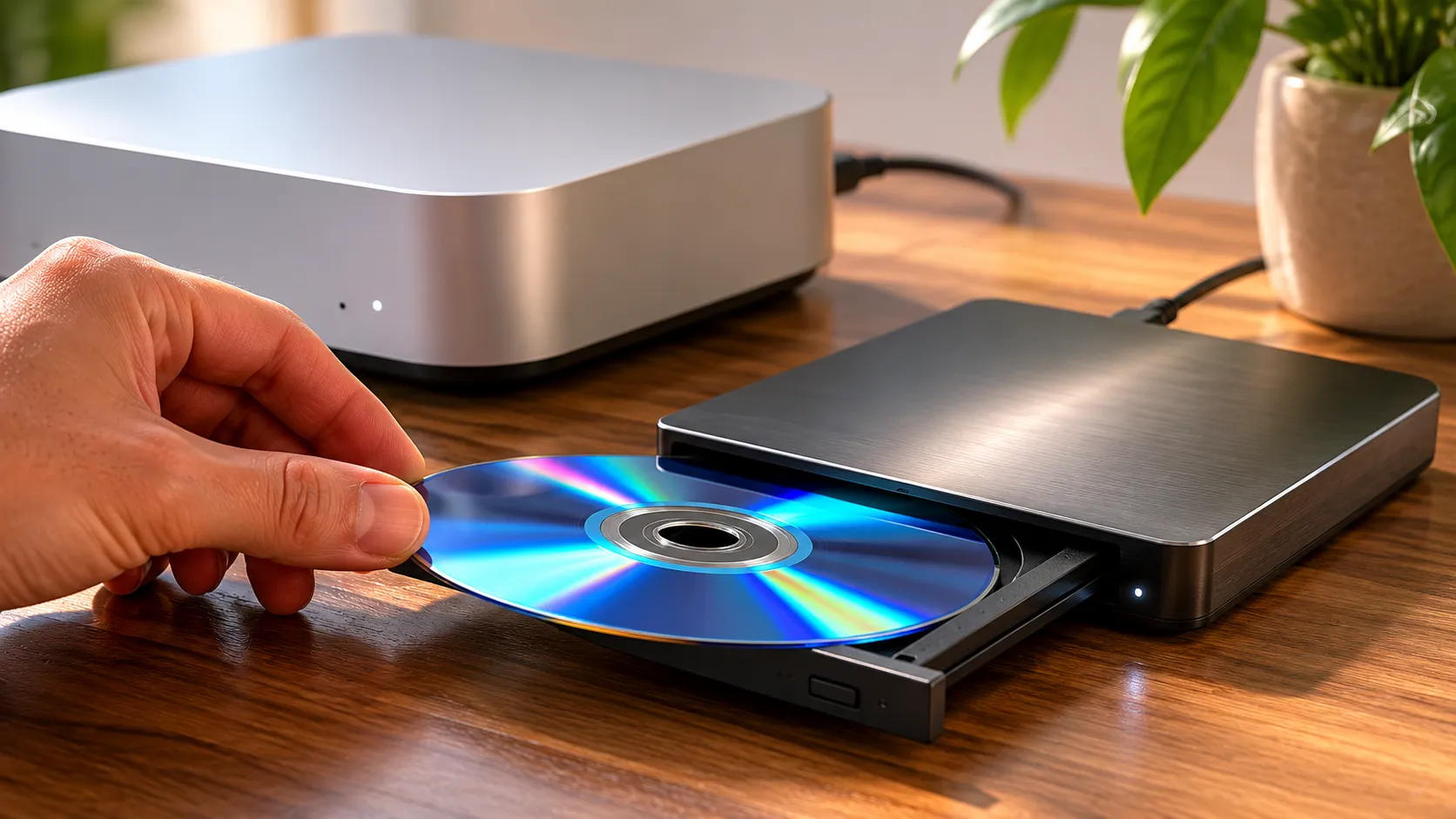
- Insert your Blu-ray disc and wait for MakeMKV to detect it (usually 30-60 seconds).
- Click the large disc icon to scan the disc. MakeMKV will list all titles found.
- Select the main feature (usually the longest title) and deselect extras if you want to save space.
- Choose an output folder and click the green MakeMKV button to begin ripping.
- Once complete, open the MKV file in VLC or IINA for playback.
One practical note: ripped Blu-ray files are large. A standard 1080p feature runs 20-40 GB. Budget your storage accordingly before building a library this way.
How to Rip a DVD on Mac: Software, Steps & Tips
Playing 4K Ultra HD Blu-Ray on Mac: What You Need to Know
4K Ultra HD Blu-ray is a separate format from standard Blu-ray, and it is significantly harder to play on a Mac. The discs use AACS 2.0 encryption, which is more complex than the AACS 1.0 used on standard Blu-rays. As of 2026, no Mac software reliably decrypts and plays 4K Blu-ray discs in real time.
A user reported in Apple Communities in December 2024 attempting 4K Blu-ray playback on a Mac Studio M1 Ultra running macOS Sequoia 15.2. The result was failure at the software level despite the hardware being more than capable of handling the video decode workload. This is a software and licensing problem, not a processing power problem.
MakeMKV can rip 4K Blu-ray discs on drives with UHD-compatible firmware, but the resulting files are 60-80 GB per film and require a player that supports HDR10 or Dolby Vision passthrough. IINA handles HDR10 MKV files reasonably well on Apple Silicon Macs with ProMotion displays. Dolby Vision from a ripped disc is a more complex problem that no free Mac player fully addresses.
The practical advice: if 4K Blu-ray is your primary use case, a dedicated UHD player (hardware, not software) connected to your TV is currently the only reliable solution. Mac software playback of 4K Blu-ray remains an unsolved problem in 2026.
Troubleshooting Common Blu-Ray Playback Errors
Blu-ray playback on Mac fails in predictable patterns. Knowing which error maps to which fix saves significant time.
“No disc found” or drive not recognized: macOS sometimes delays mounting optical media. Wait 60 seconds after insertion before opening your player. If the drive still does not appear in Disk Utility, try a different USB port or cable. USB hubs without dedicated power can fail to supply enough current for bus-powered drives.
VLC libaacs AACS error: The KEYDB.cfg file either does not contain the key for that specific disc or is outdated. Download a fresh copy from the community database and replace the existing file in ~/Library/Preferences/aacs/. Some discs use newer encryption that the community has not yet reverse-engineered.
VLC crashes on M1/M2 Mac: This is a known instability. Switching VLC to open under Rosetta 2 (right-click VLC in Finder, Get Info, check “Open using Rosetta”) sometimes improves stability, though it is not a guaranteed fix. Commercial software or ripping are more reliable paths on Apple Silicon.
MakeMKV read errors mid-rip: The disc may be dirty or scratched. Clean the disc with a microfiber cloth from center outward (not in circles). If errors persist on a clean disc, the drive firmware may need updating. Check the manufacturer’s support page for the latest firmware version for your specific model.
Region code mismatch: Blu-ray drives are region-locked. Most external drives sold in North America default to Region A. European discs are Region B. Software like MakeMKV ignores region codes during ripping. For direct playback, Aiseesoft and VideoByte handle region switching in their settings, but drives typically limit you to five region changes before locking permanently.
How to Convert and Edit Video on Mac (2026)
Best Blu-Ray Player Software for Mac in 2026
Choosing the right software depends on how much setup you are willing to tolerate and what playback features matter to you. The market in 2026 has not changed dramatically from prior years: the free options require technical patience, and the paid options charge a premium for convenience.
For most users who own a modest disc collection and want reliable playback without ongoing maintenance, the rip-then-play workflow using MakeMKV plus IINA is the strongest combination. IINA is a free, native macOS player built on mpv that handles large MKV files cleanly on Apple Silicon. It supports HDR10 and handles multiple audio tracks and subtitle streams without configuration.
For users who want the closest experience to a standalone Blu-ray player, including disc menus and chapter navigation, the two still on sale are Aiseesoft Mac Blu-ray Player from $49.96 and VideoByte Blu-ray Player from $44.95. Both name the current macOS release on their own pages, so that is not the tiebreak it once looked like. VideoByte is cheaper and states M-series support; Aiseesoft’s licence stretches beyond discs to 4K video and DVD.
VLC remains valuable as a free diagnostic tool and works acceptably for unencrypted discs or ripped files, but it is not the right primary solution for encrypted commercial discs on Apple Silicon.
Convert & Edit Video on Mac: Best Tools and Methods
Key Takeaways
- macOS has no native Blu-ray support. You need both an external USB drive (LG, Pioneer, or OWC are the reliable choices) and third-party software before any disc will play.
- VLC with libaacs is free but crashes frequently on M1 and M2 Macs and requires manual maintenance of the decryption key database.
- Macgo, the app most Blu-ray guides still recommend first, discontinued both of its Mac players. The two still actively sold are Aiseesoft Mac Blu-ray Player ($49.96 lifetime, names macOS Tahoe) and VideoByte Blu-ray Player ($44.95 lifetime, names macOS 26 and M-series chips).
- Ripping with MakeMKV (free in beta) takes 20-30 minutes per disc but produces MKV files that play reliably in IINA or VLC without any decryption steps.
- 4K Ultra HD Blu-ray playback on Mac is not reliably solved by any software as of 2026. Ripping to file is possible on UHD-capable drives, but real-time decryption and playback remains unsupported.
Frequently Asked Questions
Can any Mac play Blu-ray discs natively?
No Mac ships with a built-in Blu-ray drive or native Blu-ray software support. Apple removed optical drives from its lineup starting around 2012 and has never added Blu-ray. You need both an external USB drive and third-party software to play a disc on any current Mac, including M-series models running macOS Tahoe 26.
Does VLC Media Player support Blu-ray on a current macOS?
VLC can play unencrypted Blu-ray discs on macOS without any extras. For commercially encrypted discs, you also need the libaacs decryption library and an updated KEYDB.cfg keys database. This combination is unreliable on Apple Silicon, with crashes reported on M1 and M2 systems.
What is the best paid Blu-ray player for Mac in 2026?
The most widely cited option, Macgo Mac Blu-ray Player Pro, is no longer sold: Macgo lists it as discontinued. Of the apps still on sale, both name the current macOS: Aiseesoft Mac Blu-ray Player ($49.96 for a lifetime single-Mac licence) says macOS Tahoe, and VideoByte Blu-ray Player ($44.95 lifetime) says macOS 26, which is the same release. VideoByte also states M-series chip support, which Aiseesoft’s page does not. Aiseesoft’s licence covers more file types beyond discs.
How long does ripping a Blu-ray disc with MakeMKV take?
MakeMKV typically takes 20-30 minutes to rip a standard Blu-ray disc to an MKV file, depending on disc size and drive speed. A full 50 GB dual-layer disc can push toward the 45-minute mark. The resulting MKV plays in VLC, IINA, or Infuse without any additional decryption steps.
Can I play 4K Ultra HD Blu-ray discs on a Mac?
Software playback of 4K Ultra HD Blu-ray is not reliably supported on any Mac as of 2026. The AACS 2.0 encryption on 4K discs is significantly harder to crack than standard Blu-ray encryption, and no mainstream Mac software decodes it in real time. Ripping 4K discs with MakeMKV is possible on supported drives, but the resulting files are very large (60-80 GB) and require a capable player.
Do external Blu-ray drives work with M1, M2, M3, and M4 Macs?
Yes, USB-connected external Blu-ray drives from LG, Pioneer, and OWC work at the hardware level with Apple Silicon Macs. The drive itself is not the bottleneck. The challenge is software: many Blu-ray player apps were slow to update for Apple Silicon and some still run under Rosetta 2, which can cause instability.
Recommended reading

External DVD Drive for Mac in 2026: What Actually Works
Apple stopped selling the USB SuperDrive in 2024 and now sells nothing that reads a disc. What Apple still documents, what the drive makers actually promise, and where their promises stop.
Best Blu-Ray Ripper for Mac in 2026: Free & Paid
Compare the Blu-ray ripping software available on Mac in 2026: MakeMKV, HandBrake, DVDFab and EaseFab, what an external drive costs, and where the law draws the line.
Convert Facebook Video to MP3: Online Tools, VLC and yt-dlp
Learn how to convert Facebook video to MP3 using free online tools, VLC, yt-dlp, and desktop apps. Step-by-step guide with quality comparisons.