How to Recover iPhone Data, With or Without a Backup
Every price in this guide was checked against the vendor’s own page on August 26, 2026. Many vendors in this category run a permanent discount countdown, so the figure at checkout is a promotional one and moves; where a vendor publishes no price on its own site, this guide says so rather than guessing.
Understanding iPhone Data Loss: What Actually Happened to Your Files
Data loss on an iPhone falls into a handful of distinct categories, and knowing which one applies to you determines which recovery path has any chance of working. The categories are: accidental deletion, a failed iOS update or factory reset, physical damage (cracked screen, water ingress, bent logic board), and forgotten passcode or Apple ID lockout. Each scenario has a different success rate and a different cost ceiling.
One point that trips up a lot of users: forgetting your screen lock passcode is not the same as losing your Apple ID password. The first locks you out of the device and usually requires an erase via Recovery Mode, which wipes local storage. The second locks you out of iCloud but leaves the phone itself fully accessible. Mixing these up leads people to nuke their data when they did not need to.
Before doing anything else, stop using the iPhone. Every photo you take, every message you send, every app you open after a deletion event overwrites storage sectors that might still hold your missing files. The less you write to the device, the better your odds with any recovery method.
How to Restore iPhone Data from iCloud or Finder/iTunes Backup
Restoring from a backup is the highest-reliability recovery method available, with near-100% success rates for the data that was captured in the backup. Apple’s official support article (updated September 16, 2025) covers two paths: restoring via iCloud during device setup, and restoring via a Mac or PC using Finder (macOS Catalina 10.15 and later) or iTunes (Windows and older macOS).
Restoring from iCloud backup:
- Erase the iPhone via Settings > General > Transfer or Reset iPhone > Erase All Content and Settings.
- Follow the Setup Assistant until you reach the Apps & Data screen.
- Tap Restore from iCloud Backup and sign in with your Apple ID.
- Select the most recent backup (or the last backup before the data loss event) and wait for the transfer to complete. Keep the phone on Wi-Fi and plugged in.
Restoring from a Finder or iTunes backup:
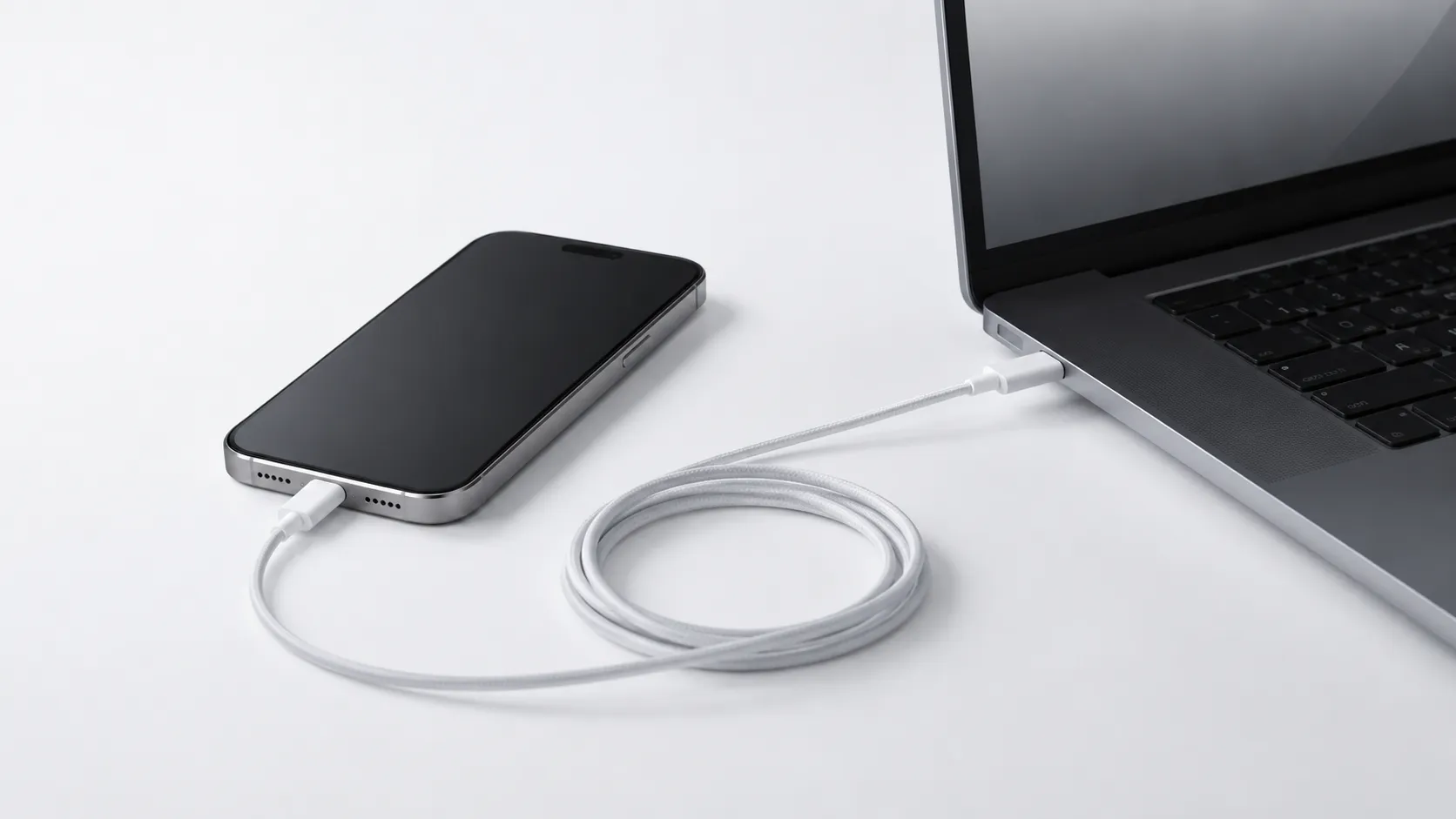
- Connect the iPhone to the Mac or PC with a USB cable.
- Open Finder (Mac) or iTunes (Windows/older Mac) and select the device.
- Click Restore Backup, choose the relevant backup from the list, and click Restore.
- Do not disconnect the cable until the process finishes and the iPhone restarts.
A common frustration here: iTunes on Windows sometimes fails to detect the device, particularly after a driver update. If Finder or iTunes shows nothing when the phone is connected, try a different USB port, a different cable, and then restart both devices before trying again. Updating Apple Mobile Device Support via Windows Update often resolves detection failures.
how to move iPhone content to your Mac before a restore
Recovering Deleted iCloud Files Without a Full Restore
A full restore is disruptive: it replaces everything on the phone with the backup’s contents. For cases where you only need to retrieve a specific file type, iCloud’s web interface offers targeted recovery that avoids overwriting the current device state.
According to Apple’s iCloud Recovery page, deleted files stay recoverable for up to 30 days. The recoverable categories via iCloud.com include:
- iCloud Drive files: Go to iCloud.com > iCloud Drive > Recently Deleted.
- Contacts: iCloud.com > Account Settings > Advanced > Restore Contacts.
- Calendars and Reminders: iCloud.com > Account Settings > Advanced > Restore Calendars.
- Safari Bookmarks: iCloud.com > Account Settings > Advanced > Restore Bookmarks.
Note the limitation: this does not cover Photos (use the Recently Deleted album in the Photos app on the iPhone itself, which also holds deletions for 30 days), Messages, or third-party app data. For those, you need either a device backup or third-party software.
Third-Party Software to Recover iPhone Data, Free and Paid
Third-party recovery tools work by connecting the iPhone to a Mac or PC over USB and scanning the device’s NAND storage for file remnants that iOS has marked as deleted but not yet overwritten. The critical requirement: the device must power on and be recognized by the computer.
Real-world reports consistently show that scan quality and preview accuracy vary significantly between tools. The most important feature to look for is a genuine free preview before you pay, so you can confirm your target files are actually recoverable.
| Tool | iOS 18 Support | Free Preview | Paid License Price | Best For |
|---|---|---|---|---|
| Disk Drill | Yes | Yes | $89/year or $149 lifetime | Photos, messages, general scan |
| Ontrack EasyRecovery | Yes | Yes | Five tiers, price not published | iTunes backup extraction, selective restore |
| Syncios (now sold as iOS Data Recovery) | Partial | Limited | Subscription | Contacts, SMS, call logs |
| iMobie PhoneRescue | Yes | Yes | Annual and one-time tiers, permanently discounted; business from $299 | Full device and backup scan |
Two of those price cells say something other than a number, and both were checked again on August 31, 2026. Ontrack genuinely publishes none: its Mac page names a free tier capped at 25 MB and then Home, Professional, Premium and Technician editions without a figure against any of them. PhoneRescue publishes plenty, and that is the problem. Every tier on its store page is shown at a discount against a struck-through list price, and the Internet Archive holds the same six figures on that page in June, July, August and December 2025. Fourteen months without movement means the discount is the price, so this guide gives the shape of the licensing rather than a checkout number that is permanently on offer.
Disk Drill, developed by Cleverfiles, supports current iOS releases and is the most frequently cited tool in real-world recovery discussions. Ontrack EasyRecovery is notable for its ability to extract specific file types from an existing iTunes backup without performing a full device restore, which is useful when you want to pull one conversation from a backup without overwriting current data.
A pattern worth flagging: some tools display a suspiciously detailed preview of “recoverable” files before any payment, including file names and thumbnails that look too good to be true. Legitimate tools show partial previews or blurred thumbnails to confirm files exist, not the full content. If the free scan looks perfect and then the paid recovery fails to produce results, you have likely encountered one of the inflated-demo tools that have drawn complaints across user communities.
managing iPhone storage to prevent future data loss
DIY Recovery from a Broken, Water-Damaged, or Unresponsive iPhone
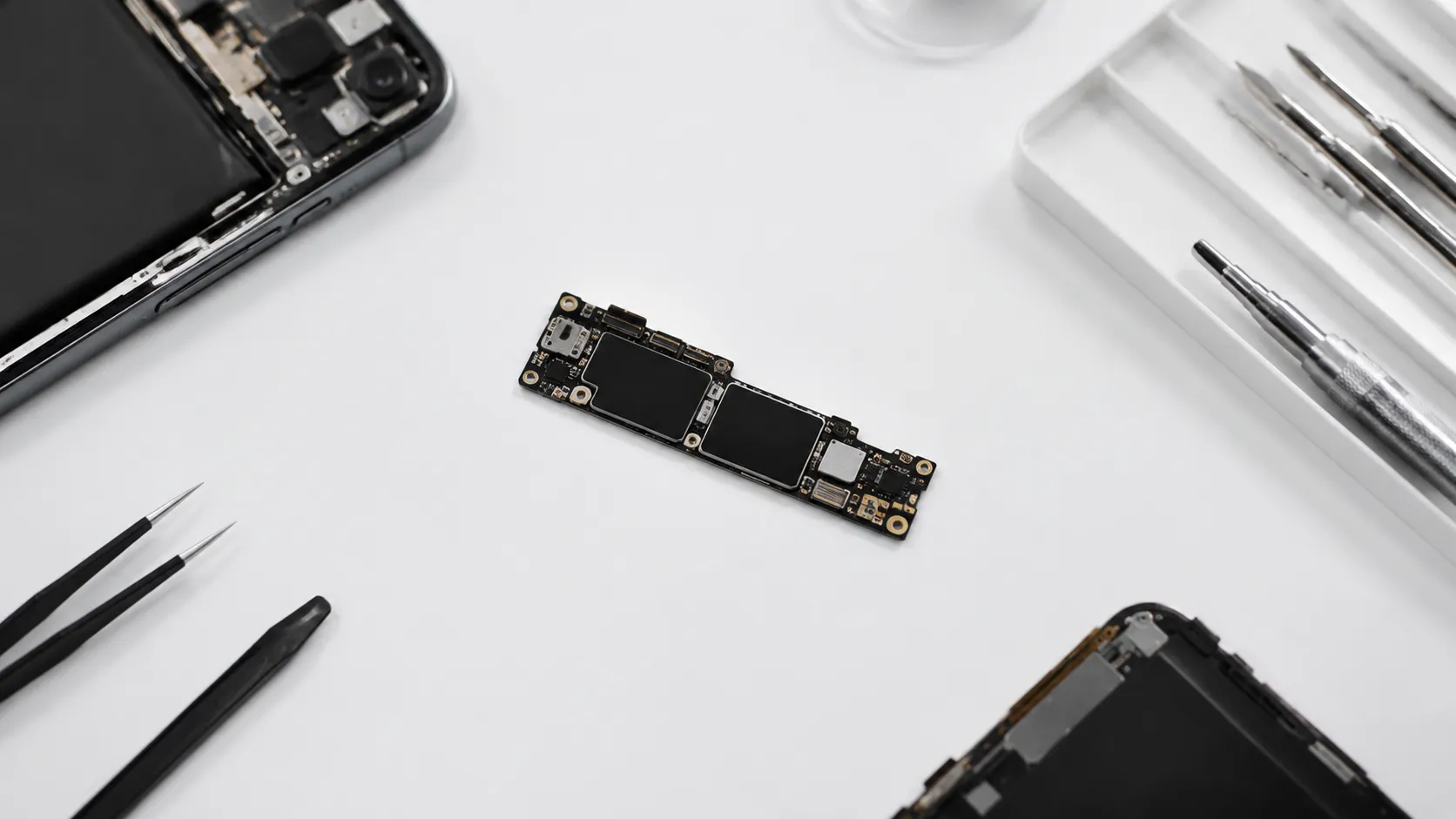
When the iPhone will not power on, software tools are useless because there is nothing for the Mac to connect to. The practical question becomes: can the device be repaired just enough to boot and be recognized over USB?
iFixit published a guide in April 2019 confirming that data recovery from an unresponsive iPhone is possible if the device can be brought back to a bootable state, even temporarily. For a cracked screen with an otherwise functional logic board, replacing the display module (a $40-$120 part depending on model) may be enough to get the phone to boot. For water damage, the standard first step is a thorough isopropyl alcohol (90%+ concentration) cleaning of the logic board to remove corrosion before attempting to power on.
For iPhones stuck in a Recovery Mode loop or a boot loop during an attempted restore:
- Try a force restart first: on iPhone 8 and later, press and release Volume Up, press and release Volume Down, then press and hold the Side button until the Apple logo appears.
- If the device stays in Recovery Mode, use Finder or iTunes to attempt a restore. This will erase the device, so only proceed if you have a backup.
- If the device is not recognized at all, try a different cable (USB-C on newer models, Lightning on older ones) and a direct USB port on the Mac rather than a hub.
For severe physical damage, including a bent logic board, burned components, or a failed NAND chip, DIY repair crosses into microsoldering territory. Some professional services can transplant the NAND chip to a donor board to extract data, but this is specialist work requiring equipment that costs thousands of dollars. Attempting it without the right tools destroys the chip permanently.
When to Use a Professional iPhone Data Recovery Service
Professional data recovery services are the correct choice when the device cannot be repaired to a bootable state, when the logic board is damaged, or when the data is critical enough to justify the cost. The tradeoff is straightforward: higher success rates for severe damage, higher price, and longer turnaround.
DriveSavers specifically advertises recovery for water-damaged and physically broken iPhones, operating a certified cleanroom environment for chip-level work. DataRecovery.com offers free evaluation with quotes that, according to user reports, start at approximately $200 for iPhone recovery and require you to ship the device. Turnaround times typically run 5-10 business days depending on damage severity.
Choosing a service is where users frequently get burned. Mixed reviews and inconsistent price quotes make the market confusing. A few signals of a legitimate service:
- Free evaluation with a written quote before any work begins.
- No-data, no-fee policy (you only pay if files are recovered).
- Physical address and verifiable business history.
- Willingness to explain the recovery process in plain terms.
Avoid services that demand payment upfront before evaluation, cannot explain their process, or offer prices dramatically below market rate with no explanation.
Common Mistakes and Scams to Avoid
The iPhone data recovery space has a measurable scam problem, and the patterns are consistent enough to be worth cataloguing directly.
Overwriting the device before recovery. Using the iPhone normally after data loss is the single most common mistake. Every new file written to storage reduces the chance of recovering deleted data. If the data matters, put the phone in airplane mode and stop using it.
Performing a factory reset without a backup. Some users who forget their passcode immediately erase the device without checking whether an iCloud or computer backup exists. Check iCloud.com and Finder/iTunes for available backups before erasing.
Paying for software that inflated its preview. As noted above, some tools show an unrealistically accurate scan result to drive purchases, then fail to deliver on recovery. The free-preview policy is a minimum bar, not a guarantee. Read independent reviews on sites with verifiable user histories before purchasing.
Confusing passcode recovery with iCloud account recovery. These are different problems with different solutions. A forgotten screen passcode requires a device erase via Recovery Mode (losing local data without a backup). A forgotten Apple ID password is resolved through Apple’s account recovery process at appleid.apple.com without touching local device data.
Shipping to an unverified service. Once your device leaves your hands, you have limited recourse if the service disappears or returns it in worse condition. Verify the service has a physical address, read third-party reviews, and confirm the no-data, no-fee policy in writing before shipping.
Preventing Future Data Loss: Backup Strategies That Actually Work
The most reliable way to recover iPhone data is to never need recovery in the first place. A two-backup strategy covers the scenarios where one method fails.
iCloud Backup runs automatically when the iPhone is connected to power, locked, and on Wi-Fi. Enable it at Settings > [Your Name] > iCloud > iCloud Backup > Back Up This iPhone. The free 5 GB iCloud tier fills quickly; 50 GB costs $0.99/month and 200 GB costs $2.99/month as of 2026.
Local backup via Finder or iTunes creates an encrypted copy on your Mac or PC. Encrypted backups include Health data, passwords, and Wi-Fi credentials that unencrypted backups omit. Run a manual backup before any iOS update or before sending the device in for repair.
For photos specifically, iCloud Photos syncs the full library to iCloud in real time, separate from the device backup. Enabling both iCloud Photos and iCloud Backup means photos are protected by two independent systems.
protecting and managing iPhone camera photos
Key Takeaways
- Start with backups. iCloud and Finder/iTunes restores have near-100% success rates for data that was captured before the loss event. Check both before trying anything else.
- The 30-day window matters. iCloud’s Recently Deleted folders for Drive files, Contacts, Calendars, and Bookmarks purge after 30 days. Act within that window for targeted file recovery without a full restore.
- Software tools require a working device. Third-party tools like Disk Drill (iOS 18 compatible as of July 2025) only work when the iPhone powers on and is recognized over USB. They cannot help with a completely dead device.
- Professional services are for hardware-level damage. Services like DriveSavers handle water damage and logic board failures starting around $200, but verify the no-data, no-fee policy before shipping.
- Two-backup strategy prevents most loss scenarios. Running both iCloud Backup and a local encrypted Finder backup means a single point of failure (a full iCloud outage, or a Mac failure) does not leave you exposed.
Frequently Asked Questions
Can I recover iPhone data without a backup?
Yes, but options narrow considerably. Third-party tools like Disk Drill can scan the iPhone’s internal storage for deleted file remnants, provided the device is still functional and you have not overwritten the storage with new data. For broken devices, professional recovery services can extract data at the hardware level, though costs start around $200.
How long does iCloud keep deleted files?
According to Apple’s iCloud Recovery page, deleted files remain in the Recently Deleted folder for up to 30 days before being permanently purged. After that window closes, iCloud-side recovery is no longer possible without a full backup restore.
What is the difference between forgetting my screen passcode and forgetting my Apple ID password?
Forgetting your screen passcode locks you out of the device itself and typically requires an erase-and-restore via Recovery Mode, which deletes local data unless a backup exists. Forgetting your Apple ID password prevents iCloud access but does not lock the device, and Apple’s account recovery process can restore access without touching local device data.
Is free iPhone data recovery software trustworthy?
Most reputable tools offer a free scan with a preview of recoverable files, then charge for the actual extraction. Be cautious of any tool that shows a suspiciously complete preview before payment, as some inflate results to drive purchases. Disk Drill, one of the more established tools, charges $89 a year or $149 outright for a personal licence covering three devices.
When should I use a professional data recovery service instead of software?
Professional services are the right call when the iPhone will not power on, has water damage, or has a cracked logic board that prevents the device from being detected by a Mac. Software tools require the phone to boot and be recognized over USB; hardware recovery bypasses that requirement entirely.
Recommended reading
Transfer Photos from iPhone to Mac Without Wrecking the Originals
Six ways to transfer photos from iPhone to Mac, compared on speed, quality and reliability. Covers Image Capture, AirDrop, iCloud, and keeping HEIC files as the iPhone stored them.
Transfer iPhone Music to Mac: Why No Single Apple Method Covers Everything
Learn how to transfer iPhone music to Mac using Finder, iCloud, AirDrop, and third-party tools. Free and paid options covered with step-by-step instructions.
Mirror iPhone to Mac: iPhone Mirroring, AirPlay and QuickTime (2026)
Learn how to mirror iPhone to Mac using iPhone Mirroring, AirPlay, or USB cable. Step-by-step setup, troubleshooting tips, and app comparisons.