Best Free Video Editor for Mac in 2026: 7 Apps Compared
Every price in this guide was checked against the vendor’s own page on August 26, 2026, and every version number against the vendor’s own download or App Store listing on August 30, 2026. Many vendors in this category run a permanent discount countdown, so the figure at checkout is a promotional one and moves; where a vendor publishes no price on its own site, this guide says so rather than guessing.
Free video editing on Mac has never been stronger. Between Apple’s own pre-installed tools and a wave of capable third-party apps, you can cut, color-grade, and export professional-looking video in 2026 without spending a cent or tolerating a watermark.
This guide compares seven editors by capability, honest limitations, and the type of work each handles best. It draws on vendor documentation, published system requirements, and feedback from the Mac editing community.
iMovie: The No-Fuss Editor for Everyday Use
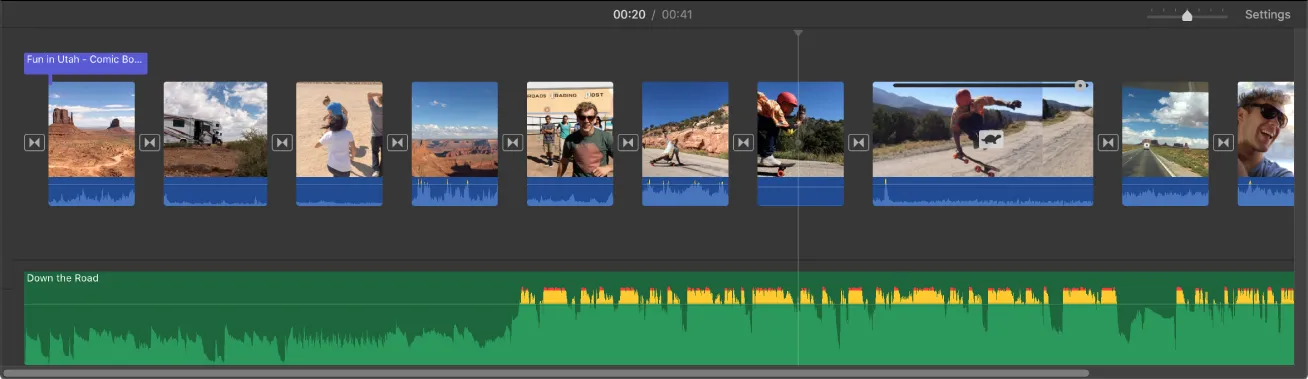
iMovie is a non-linear video editor that is free from the Mac App Store and comes pre-installed on most new Macs. The current version (10.4.4) requires macOS 14 Sonoma or later, while older builds still run on macOS 12 Monterey and macOS 13 Ventura. It matters because it removes the biggest barrier to starting: it costs nothing, there is usually nothing to install, no account to create, and no export watermark.
On Apple Silicon, iMovie handles 4K ProRes footage from recent iPhones without dropping frames. The magnetic timeline keeps clips snapped together automatically, which suits casual editors who just want to trim, add titles, and export.
The feature ceiling is real, though. iMovie gives you two video tracks maximum, no color wheels, no keyframe animation, and no compound clips. Editors who outgrow it tend to move toward DaVinci Resolve rather than paying for a mid-tier app, a progression that real-world Mac users describe as the natural path for anyone serious about improving their skills.
How to export an iMovie project on Mac, iPhone and iPad
iMovie quick specs:
- Price: Free (Mac App Store; pre-installed on most new Macs)
- macOS requirement: macOS 14 Sonoma or later for the current version (older builds run on macOS 12-13)
- 4K export: Yes, no watermark
- Video tracks: 2
- Best for: Family videos, school projects, quick YouTube cuts
DaVinci Resolve: Hollywood-Grade Tools Without the Price Tag
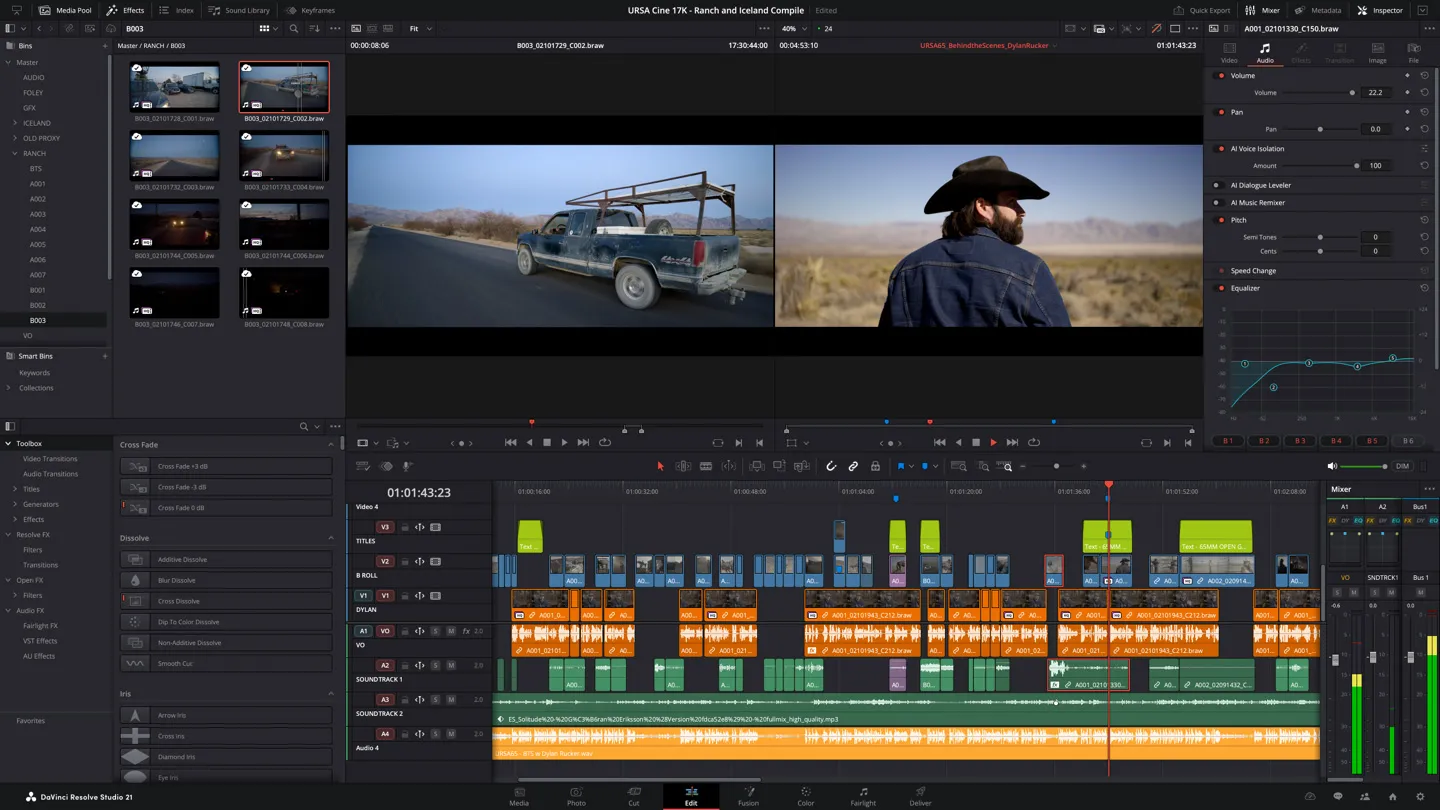
DaVinci Resolve is a professional non-linear editor and color grading suite developed by Blackmagic Design. Its free version includes the full Cut and Edit pages, the Fusion compositing environment, and the Fairlight audio mixer, tools used on actual feature films and broadcast productions.
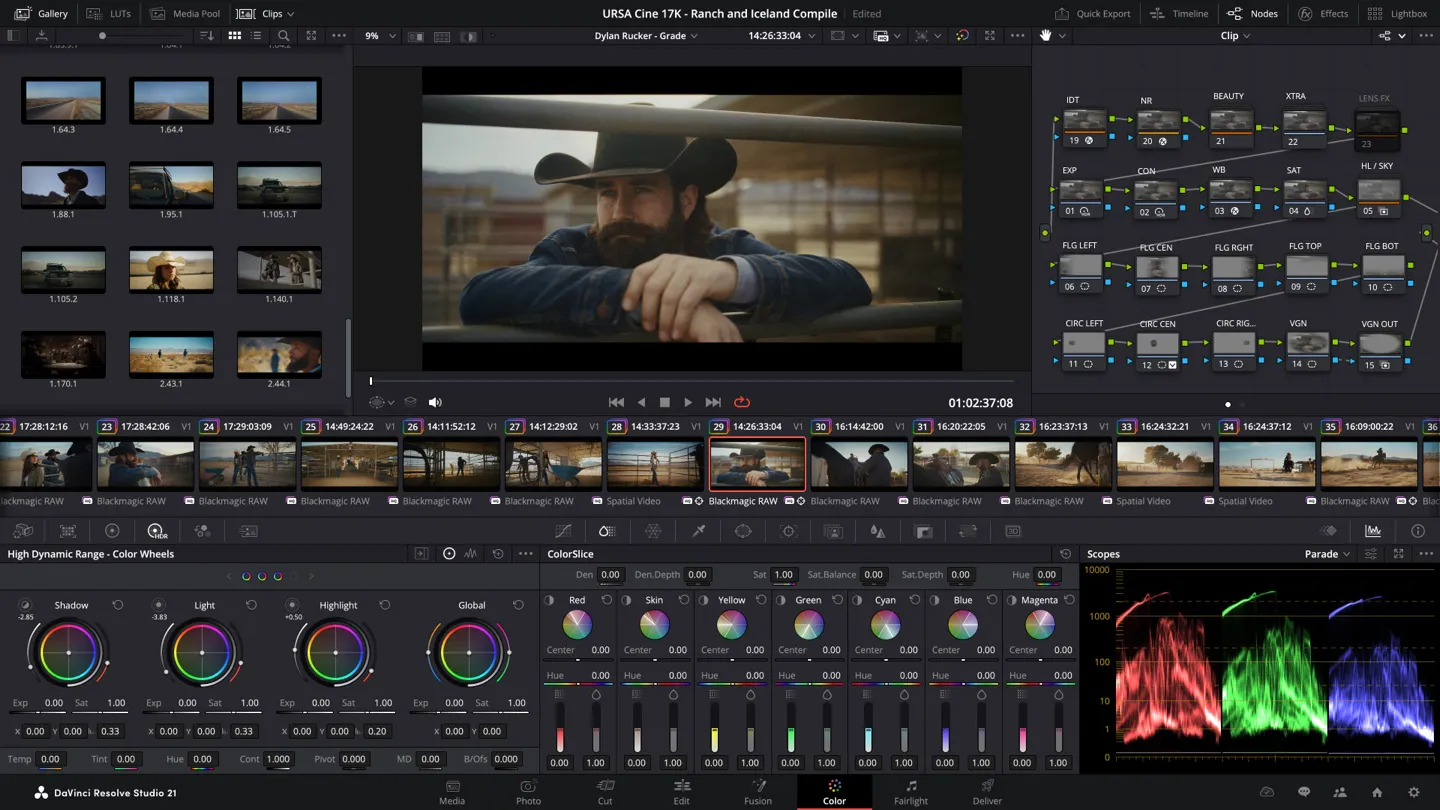
The color grading toolset alone justifies the download. Resolve’s node-based color correction, with scopes, HDR grading, and LUT support, is more capable than anything in editors costing $50 per month. Blackmagic’s published system requirements and user reports point the same way: 4K DaVinci Wide Gamut playback is smooth on Apple Silicon with adequate memory, and drops noticeably on Intel Macs with integrated graphics and 8 GB RAM.
The learning curve is the honest caveat here. The interface has seven distinct workspace pages, each with its own logic. Community feedback consistently flags this: editors who only need basic cuts find Resolve overwhelming, and the time investment to become productive is measured in weeks, not hours. That said, Resolve skills transfer directly to industry workflows in ways that iMovie knowledge simply does not.
DaVinci Resolve free vs. Studio:
| Feature | Free Version | Studio ($295 one-time) |
|---|---|---|
| Color grading nodes | Full | Full |
| Fusion VFX | Full | Full |
| Fairlight audio | Full | Full |
| Noise reduction | No | Yes |
| Multi-user collaboration | Limited | Full |
| Neural Engine effects | Partial | Full |
| Maximum export resolution | 4K UHD (3840x2160) | Up to 32K |
For solo creators, the free version covers everything. Studio becomes relevant only for studio teams or editors who need AI-powered noise reduction.
Best tools to convert and edit video on Mac, including format compatibility guides
CapCut and VN: Social Media’s Favorite Free Editors
CapCut and VN Video Editor are mobile-first editing apps with Mac versions that target short-form content for TikTok, Instagram Reels, and YouTube Shorts. Both are free with no export watermark, and both sync projects across Mac, iPhone, and Android.
CapCut, developed by ByteDance, offers automatic captioning, text-to-speech, one-tap background removal, and a library of trending audio and effects templates. Advanced features including the AI script generator and certain premium templates sit behind CapCut’s paid tiers, which were restructured in early 2026 into Standard at $9.99 per month and Pro at $19.99 per month (or $179.99 per year). The free tier is still genuinely useful for most social content creators.
VN Video Editor, available free on the Mac App Store, takes a cleaner approach: multi-track timeline, keyframe animation, speed curves, and chroma key, all free with no subscription tier at all. VN’s iOS-to-Mac project sync runs over iCloud, which makes it practical for creators who rough-cut on iPhone and finish on Mac.
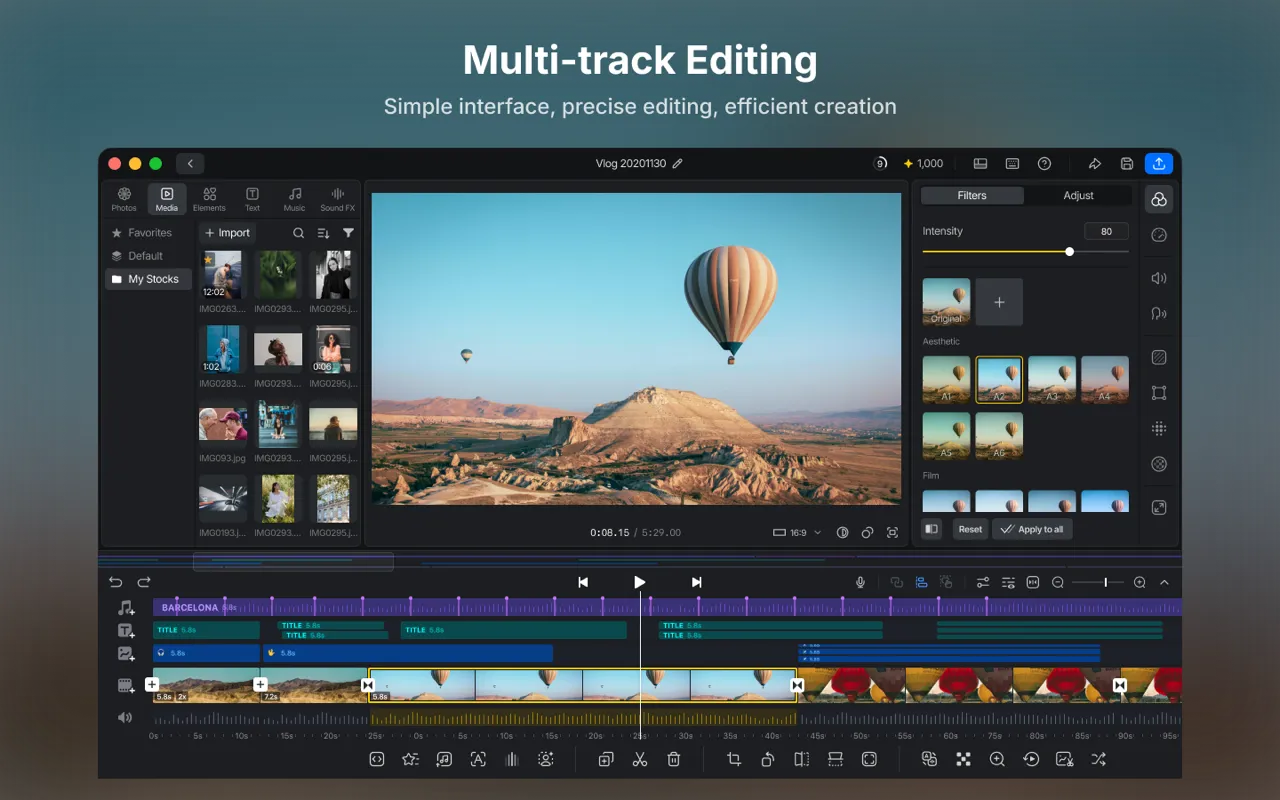
The CapCut-versus-VN question comes down to automation versus control. CapCut’s auto-captions save real time on talking-head videos. VN gives more precise timeline control for editors who want to build multi-layer sequences without paying anything.
CapCut vs. VN Video Editor for Mac:
| Feature | CapCut (Free) | VN Video Editor (Free) |
|---|---|---|
| Export watermark | No | No |
| 4K export | Yes | Yes |
| Auto-captions | Yes | No |
| Multi-track timeline | Limited | Yes |
| Keyframe animation | Limited (free) | Yes |
| Cross-platform sync | Mac, iOS, Android | Mac, iOS, Android |
| Subscription required | No (Pro optional) | No |
Verdict: CapCut wins for fast, effect-heavy social clips where automation saves time. VN wins for creators who want timeline precision across devices without any paywall.
Underrated Gems: OpenShot, VideoProc Vlogger, and More
Three editors sit below the radar but deserve attention for specific use cases.
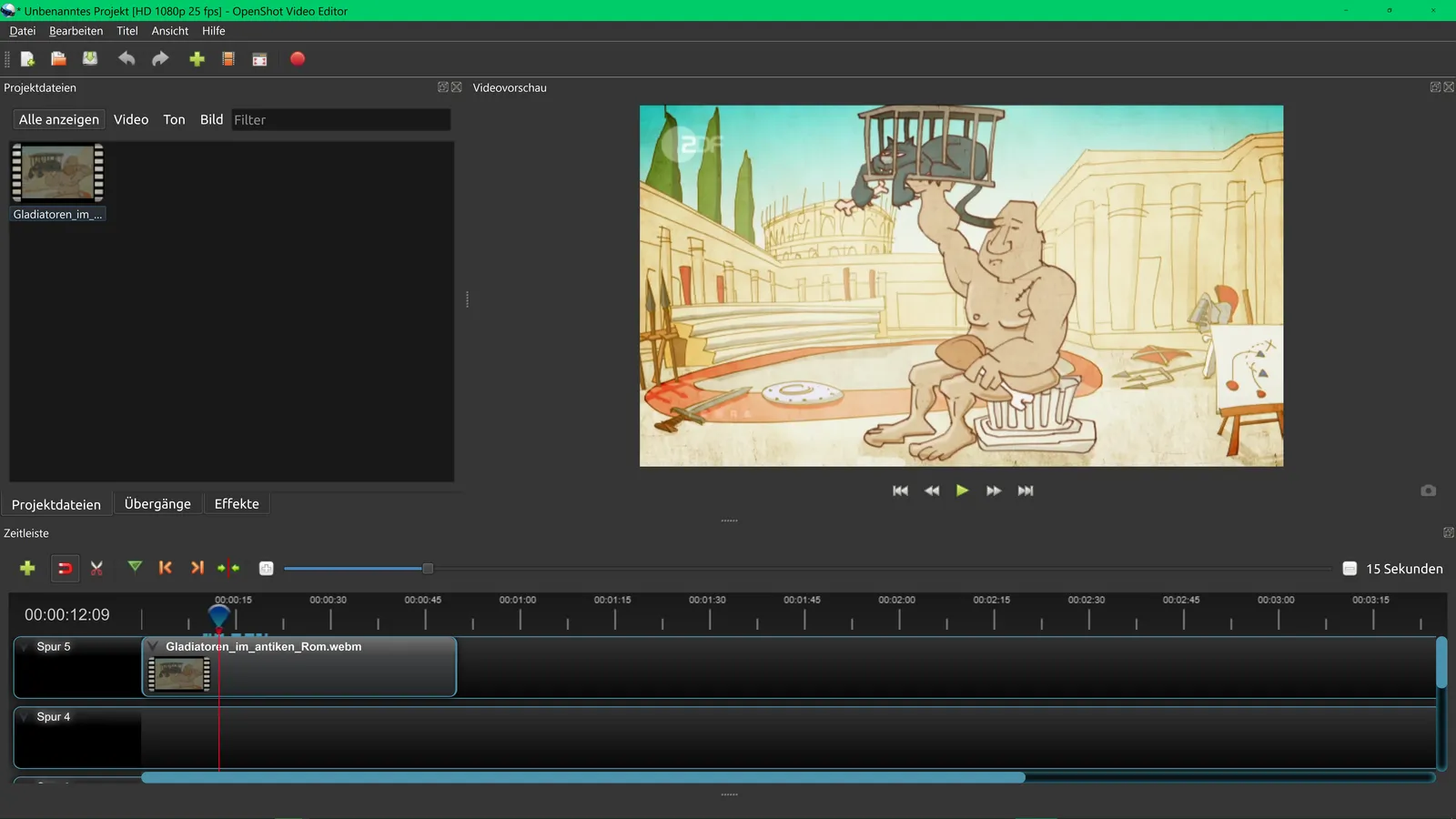
OpenShot is an open-source, cross-platform editor (Windows, macOS, Linux) that supports unlimited video and audio tracks, keyframe animation, and a range of transition effects. It is genuinely free with no feature locks and no watermark. The Mac version runs on macOS 12 and later. The trade-off is a less polished interface compared to iMovie, and the app can be slow to render on Macs without a dedicated GPU. OpenShot suits editors who want open-source principles and unlimited tracks without paying for Resolve.
VideoProc Vlogger, developed by Digiarty, is a free desktop editor (not a subscription app) whose own tech specs claim GPU acceleration and a build that runs natively on Apple Silicon, from M1 through M5. That is the vendor’s claim about 4K playback without proxy files, not a measurement of ours. The interface is closer to iMovie in simplicity than to Resolve in depth. It supports color correction, speed ramping, and audio mixing, all free. The app is less well known than it deserves to be, and community users who have found it consistently flag its responsiveness as the standout quality.
Kdenlive is another open-source option worth naming. It offers multi-track editing, a full effects library, and proxy editing for older Macs. It requires a separate download and is less optimized for Apple Silicon than the apps above, but it is a capable fallback for editors who want open-source tools with more depth than OpenShot.
How to Pick the Right Editor for Your Projects and Skill Level
Choosing the right free Mac video editor depends on three variables: your Mac’s hardware, your editing goals, and how much time you can invest in learning.
Editor selection by use case:
| Editor | Best Use Case | Skill Level | Minimum macOS |
|---|---|---|---|
| iMovie | Family/casual, quick YouTube | Beginner | 15.6 |
| DaVinci Resolve | Professional, color work | Intermediate-Advanced | 15.0 |
| CapCut | TikTok, Reels, Shorts | Beginner | 13.0 |
| VN Video Editor | Multi-platform social content | Beginner-Intermediate | 13.0 |
| OpenShot | Open-source, unlimited tracks | Intermediate | Not stated |
| VideoProc Vlogger | 4K on modest hardware | Beginner-Intermediate | 10.11 |
| Kdenlive | Open-source power users | Intermediate | 13 |
A “4K, no watermark” column used to sit at the end of this table answering Yes seven times out of seven. All seven do export 4K without a watermark, which is why the column was doing no work: it separated nothing. The one export limit here that is worth knowing is in the DaVinci Resolve table above, where the free version tops out at 4K UHD and Studio goes further.
The last column used to read “Mac Silicon Optimized”, answered Yes, Partial or No, and got two of its answers backwards. OpenShot’s download page says “Works on both Intel and Apple Silicon Macs” and Kdenlive offers a Silicon build next to its Intel one; the table told readers neither of them was optimised for Apple Silicon. “Partial”, against CapCut and VN, is a judgement neither vendor makes and neither of us can support.
Minimum macOS is what each of them does publish, checked August 31, 2026. iMovie 10.4.4 and DaVinci Resolve 21.0.4 come from their App Store listings, where Apple and Blackmagic sell them; CapCut 19.2.0 and VN 1.3.0 come from theirs; Kdenlive states “Requires macOS 13 (Ventura) or newer” on its download page. OpenShot 3.5.1 is the one that names no macOS version at all, saying only that it works on Intel and Apple Silicon Macs. VideoProc Vlogger’s marketing page leads on an October 2021 note about M1 support, but its Mac tech specs are current and say OS X 10.11 or higher, with native builds through M5.
The column earns its place on the first row. iMovie is the beginner recommendation, it is free, it comes from Apple, and it has the steepest requirement in the table at macOS 15.6. On a Mac that stopped at Sonoma the obvious starting point is the one option that will not install.
If your Mac has 8 GB RAM or less, avoid running DaVinci Resolve on 4K timelines without enabling proxy media (Edit > Project Settings > Optimized Media). iMovie and VideoProc Vlogger both lean on hardware acceleration and are the lighter starting points on constrained hardware, on their makers’ own descriptions rather than on any measurement made here.
One pattern that shows up repeatedly in community discussions: editors start with iMovie, hit its two-track ceiling, move to a mid-tier paid app like Filmora, then eventually migrate to DaVinci Resolve when they realize the free version outperforms what they were paying for. Skipping the paid middle step saves money and builds more transferable skills.
Best free screen recorders for Mac, useful for capturing footage to edit
Pro Tips: Overcoming Common Free Editor Limitations
Free editors share predictable constraints. Here is how to work around the most common ones.
1. Proxy editing for 4K on older Macs. DaVinci Resolve and Kdenlive both support proxy workflows. Generate optimized media at 1/4 resolution for the edit, then switch back to full resolution before export. This makes 4K editing viable on Intel Macs with 8 GB RAM.
2. Audio mixing outside the editor. iMovie’s audio tools are minimal. Export your cut as a video file, bring it into GarageBand (also free on Mac), apply EQ and compression, then export the mixed audio and re-import it. This two-app workflow produces better results than iMovie’s built-in audio controls.
3. Color grading in Resolve for projects cut elsewhere. DaVinci Resolve accepts XML and EDL project files exported from other editors. Cut your project in iMovie or CapCut, export an XML, import it into Resolve, and use only the Color page. This approach gives you Resolve’s grading tools without learning its full edit workflow.
4. Template dependency in CapCut. CapCut’s trending templates are compelling but can create a style dependency. Editors who rely on templates for every project report difficulty developing original editing instincts. Use templates as a starting point, then modify the timing, color, and text to build independent technique.
5. Export format mismatches. iMovie exports H.264 and HEVC (H.265) in .mov containers by default. If you are delivering to a client or platform that requires MP4, use HandBrake (free) to remux the file without re-encoding. How to import camera video to Mac before editing covers format preparation in detail.
6. Storage management. DaVinci Resolve’s cache files can consume 20 GB or more on active projects. Set a custom cache location to an external SSD (Preferences > Media Storage) to keep your internal drive clear.
Best free photo viewers for Mac, useful for reviewing stills pulled from video projects
Key Takeaways
- iMovie is the best starting point for Mac users who want zero setup, no watermark, and 4K export out of the box.
- DaVinci Resolve’s free version delivers professional color grading, Fusion VFX, and Fairlight audio at no cost, with the honest caveat that the learning curve is steep.
- CapCut leads for automated social media content; VN Video Editor leads for cross-device timeline control with no subscription at all.
- VideoProc Vlogger is the most underrated option for GPU-accelerated 4K editing on Macs with modest specs.
- Skipping paid mid-tier editors and moving directly from iMovie to DaVinci Resolve builds more durable, industry-relevant skills and saves money.
Frequently Asked Questions
Which free Mac video editors export 4K without a watermark?
iMovie, DaVinci Resolve, VN Video Editor, and VideoProc Vlogger all export 4K footage with no watermark in their free versions. CapCut’s free tier also exports without a watermark, though some templates add a brief logo at the end. OpenShot exports watermark-free at any resolution.
Is DaVinci Resolve really free, or is there a catch?
DaVinci Resolve’s free version is genuinely full-featured, covering professional color grading, Fusion VFX compositing, Fairlight audio mixing, and multi-track editing. The paid DaVinci Resolve Studio version (one-time $295) adds noise reduction, certain collaboration features, and a few advanced effects. Most solo editors never need to upgrade.
Can I use iMovie on an older Intel Mac?
Yes. iMovie runs on macOS 14 Sonoma and later, but older versions of iMovie remain usable on macOS 12 Monterey and macOS 13 Ventura on Intel machines. Performance on Intel Macs with 8 GB RAM is adequate for 1080p editing; 4K timelines can stutter on machines without a discrete GPU.
What is the easiest free video editor for Mac beginners?
iMovie is the standard recommendation for beginners: it ships pre-installed on every Mac, the interface is drag-and-drop, and Apple’s own support documentation is thorough. CapCut is a close second for anyone making short-form social media content, thanks to its one-tap effects and automatic captioning.
Does CapCut work properly on Apple Silicon Macs?
CapCut has a native Mac App Store version that runs on Apple Silicon via Rosetta 2 and, as of recent updates, with partial native ARM support. Performance is generally smooth on M1 and later chips. The app requires macOS 12 or later and a free account to access cloud-synced projects.
Image credits: iMovie screenshot courtesy of Apple; DaVinci Resolve screenshots courtesy of Blackmagic Design; VN Video Editor screenshot via its Mac App Store listing; OpenShot screenshot by PantheraLeo1359531 (CC BY 4.0, via Wikimedia Commons). Software interface images are used for editorial review.
Recommended reading
PDF Editors for Mac: What They Cost, and What Preview Already Does
What a Mac PDF editor really costs in 2026. Preview's exact limits, why every App Store listing says Free, and which tools are subscription, buy-once, or genuinely free.
Mac Cleaner Apps in 2026: What Each One Costs and Removes
Mac cleaner apps in 2026 compared on price and on what they actually delete: the macOS built-in tools, free apps like OnyX and Mole, and the paid suites, including the checkout terms.
Mac Activity Monitor: How to Read CPU, Memory Pressure and Energy Impact
Learn to read Mac Activity Monitor like a pro: CPU, Memory Pressure, Energy Impact, and which processes are safe to quit in macOS 26 Tahoe.