How to Add Subtitles to a Movie and Burn a DVD on Mac

Why Adding Subtitles to a DVD on Mac Is Harder Than It Looks
Burning a DVD with subtitles on a Mac involves two distinct processes: attaching a subtitle file to your video and then authoring a DVD-compliant disc structure that a standalone player can read. Most built-in macOS tools handle neither task, which is why millions of users end up hunting for third-party software. Getting this right saves you from the frustrating experience of popping a freshly burned disc into your player only to find blank frames where the subtitles should be.
Before you start, confirm you are working with personal video files you own. As noted in Apple community discussions dating back to 2013, commercial DVDs cannot be modified to add subtitles because CSS copy protection blocks any write access to the disc content. Everything in this guide applies to home videos, independently produced films, and files you have legitimately ripped from your own discs.
complete guide to burning a DVD on Mac
Soft Subtitles vs. Hardcoded Subtitles: What You Need to Know Before Burning
Understanding the two subtitle types is the single most important decision you will make before burning, because it determines which workflow you follow and what the viewer experiences. Soft subtitles (also called forced or selectable subtitles) are stored as a separate subtitle stream in the DVD’s VOB file structure, meaning the viewer can switch them on or off from the disc menu. Hardcoded subtitles (also called open captions or burned-in subtitles) are composited directly onto each video frame during encoding and are permanently visible.
| Feature | Soft Subtitles | Hardcoded Subtitles |
|---|---|---|
| Viewer can toggle on/off | Yes | No |
| Supports multiple languages | Yes (separate streams) | No (one language per encode) |
| Compatible with all DVD players | Most players (95%+) | All players |
| Re-encode required | No | Yes |
| File size impact | Minimal | Moderate |
For most home DVD projects, soft subtitles are the better choice because they preserve viewer control and support multi-language discs without re-encoding the video. Hardcoded subtitles make sense when you are distributing to an audience where player compatibility is unknown or when the subtitle is artistic (e.g., translating on-screen foreign text in a documentary).
Top 5 DVD Burning Tools for Mac with Subtitle Support
Not every DVD burning application on Mac handles subtitle tracks, and the differences between them matter when you are dealing with .srt files, custom fonts, or multi-language menus. The five tools below represent the realistic options available in 2025-2026, from free utilities to full-featured paid suites.
| Software | Price (USD) | Subtitle Formats | Apple Silicon Native | Soft Sub Support | Hardcode Support |
|---|---|---|---|---|---|
| DVDFab DVD Creator | $49.99/year or $89.99 one-time | SRT, ASS, SSA | Yes (arm64) | Yes | Yes |
| Wondershare DVD Creator | $49.95/year or $79.95 one-time | SRT, ASS | Yes | Yes | Yes |
| Cisdem DVD Burner | $29.99 one-time | SRT | Yes | Yes | Limited |
| Burn (free) | Free | None (video-only) | Yes | No | No |
| HandBrake (free, encode only) | Free | SRT, SSA, ASS | Yes (arm64) | No (hardcode only) | Yes |
DVDFab DVD Creator wins for power users who need full menu customization and multi-language subtitle streams. Wondershare DVD Creator is the better pick for beginners who want a drag-and-drop workflow without reading a manual. HandBrake is the right choice if your goal is hardcoding subtitles into an MP4 first, then burning with a separate tool. The free Burn app does not support subtitle tracks at all, making it unsuitable for this task.
One real-world caveat worth flagging: MacX DVD Ripper Pro, which is sometimes recommended in this space, has a documented bug affecting MKV output and is primarily a ripping tool rather than a DVD authoring suite. A user report from Reddit in 2025 confirmed it does not output MKV reliably, so it is not included in the authoring comparison above.
converting and burning MKV files on Mac
Step-by-Step: How to Add Subtitles and Burn a DVD on Mac
The workflow below uses DVDFab DVD Creator, which supports both SRT and ASS subtitle formats with customizable menus, as documented in DVDFab’s own May 2026 tutorial. The same general steps apply in Wondershare DVD Creator, with minor UI differences noted where relevant.
Prepare Your Files
Before opening any software, gather the following:
- Your video file (MP4, MOV, MKV, or AVI are all accepted by DVDFab).
- Your subtitle file in .srt or .ass format. The filename should match the video file for easier identification (e.g.,
movie.mp4andmovie.srt). - A blank DVD-R or DVD+R disc (4.7 GB for standard definition, 8.5 GB dual-layer for longer content). DVD-R is the most compatible format for standalone players.
- An external optical drive if your Mac lacks a built-in SuperDrive. Apple has not shipped a built-in optical drive in a MacBook since 2012.
Import Video and Attach Subtitles in DVDFab DVD Creator
- Launch DVDFab DVD Creator and select the “DVD Creator” module from the top navigation.
- Click the ”+” button or drag your video file into the main window.
- Once the video appears in the source panel, click the “Subtitles” tab (shown as a speech-bubble icon beneath the video thumbnail).
- Click “Add External Subtitle” and navigate to your .srt or .ass file. DVDFab will parse the file and display a preview of the first subtitle cue.
- If you want soft subtitles (selectable at playback), leave the “Burn-in” toggle off. Toggle it on for hardcoded subtitles.
- In Wondershare DVD Creator, the equivalent step is to click the “Source” tab, import your video, then click the subtitle icon in the bottom-left of the preview panel and select “Add Subtitle File”.
Customize Subtitle Appearance
- In DVDFab, click “Edit” next to the subtitle track to open the subtitle editor.
- Adjust font (default is Arial 24pt), color, and vertical position. Raise the vertical offset to at least 15-20 pixels above the bottom safe-area boundary to prevent cut-off on TVs with overscan.
- Preview the result using the built-in player. Scrub to a subtitle-heavy scene and confirm the text sits fully within the frame.
- Click “OK” to save the subtitle settings.
Configure DVD Settings and Burn
- Click the wrench icon to open “Video Settings”. Set the TV standard to NTSC (North America, Japan) or PAL (Europe, Australia) to match your target player.
- Under “Audio Settings”, confirm the audio codec. Common DVD audio formats include Dolby Digital (AC-3), DTS, PCM, and MP2. Dolby Digital AC-3 at 192 kbps is the safest choice for maximum player compatibility. Selecting an unsupported codec can result in a silent disc.
- Insert your blank DVD-R disc into the drive.
- Click “Start” to begin encoding and burning. DVDFab will show a progress bar with estimated time remaining.
- On an M2 MacBook Pro encoding a 90-minute 1080p file, the process typically takes 25-40 minutes. On an older Intel Core i5 MacBook Pro (2019), expect 55-90 minutes for the same file.
How to Customize Subtitle Appearance: Font, Position, and Size
Subtitle appearance is one of the most complained-about aspects of DVD authoring, and for good reason. The default settings in most tools produce fonts that look clunky on a 55-inch TV. The core issue is that DVD subtitles are rendered as bitmap images, not vector text, so the quality of the final render depends entirely on the settings you choose before burning.
In DVDFab’s subtitle editor, the key parameters are font family, point size, stroke width, and vertical position. For a standard 16:9 DVD, a sans-serif font at 28-32pt with a 2pt black stroke produces clean, readable subtitles on most screens. Avoid decorative fonts entirely since they degrade badly at DVD resolution (720x480 for NTSC).
Vertical positioning deserves special attention. Many users report subtitles sitting too low and getting clipped by TV overscan. The DVD safe area ends approximately 5% from each edge of the frame. In practice, set the bottom margin to at least 40-50 pixels from the frame bottom in DVDFab’s editor. In Wondershare DVD Creator, the equivalent control is the “Position” slider in the subtitle properties panel, which should be moved to at least the 85% mark from the top.
For .ass subtitle files that already contain styling information (font, color, positioning), DVDFab will import those styles by default. You can override them in the editor if the imported styles do not render correctly at DVD resolution.
Troubleshooting: Missing Subtitles, Sync Issues, and Playback Errors
Even with good software, DVD subtitle projects fail in predictable ways. Here are the most common failure modes and their fixes.
Subtitles do not appear during playback. First, check whether your DVD player has subtitles enabled. On most players, press the “Subtitle” button on the remote and cycle through tracks. If no subtitle track appears, the authoring software likely failed to embed the subtitle stream. Re-open the project, confirm the subtitle file is listed in the subtitle panel, and verify the “Burn-in” toggle matches your intended mode.
Subtitles are out of sync with the dialogue. This usually means the .srt file was created for a different version or frame rate of the video (e.g., a 23.976 fps .srt used with a 25 fps PAL encode). Open the .srt file in SubtitleEdit (free, macOS-compatible via Wine or the web version) and use the “Synchronize” function to shift all cues by a fixed offset or stretch the timing to match the correct frame rate.
Image-based subtitles from a ripped DVD cannot be imported. Image-based subtitle formats (.sub/.idx from DVD rips) are not text and cannot be directly imported as .srt. SubtitleEdit combined with Tesseract OCR can convert these image subtitles to editable text, but the output requires manual correction for accuracy. This extra step is worth the effort for foreign-language films where no .srt file exists.
The disc plays fine on a computer but not on a standalone player. Check the DVD region code and TV standard (NTSC vs. PAL). Also confirm you burned at a speed no higher than 4x. High-speed burns (8x, 16x) on cheap media produce discs that older players struggle to read. Slow down the burn speed in DVDFab’s output settings.
Audio is silent after burning. As noted in community reports from 2025, selecting an unsupported audio codec in the DVD authoring settings is the most common cause. Switch to Dolby Digital AC-3 at 192 kbps in DVDFab’s audio settings and re-burn.
how to rip a DVD on Mac for source files
Creating DVD Menus with Multi-Language Subtitles
A properly authored DVD menu lets viewers select their preferred subtitle language before playback begins, which is the professional standard for any multi-language project. DVDFab DVD Creator supports adding multiple subtitle streams to a single disc, each appearing as a selectable option in the disc menu.
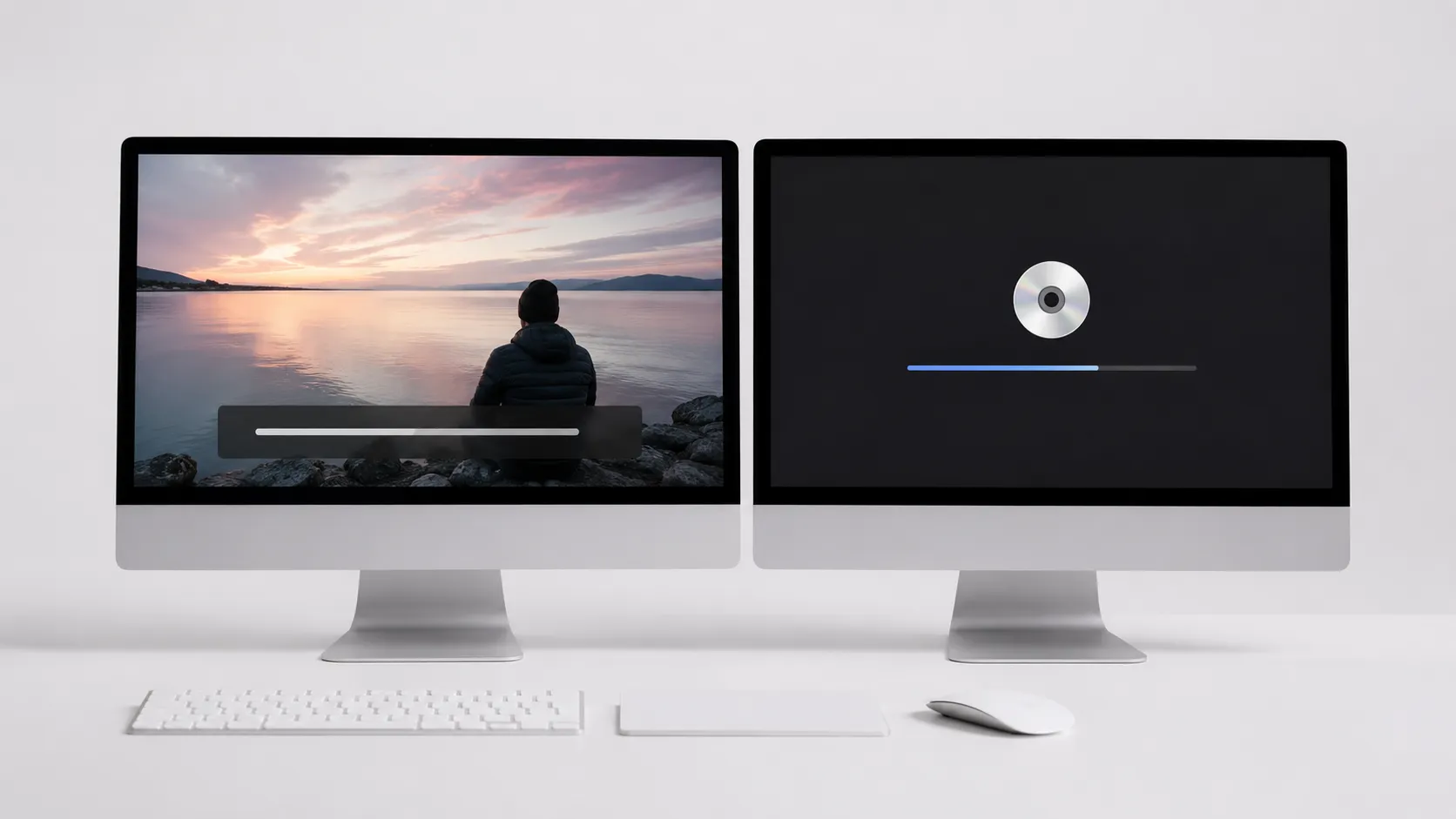
To set this up in DVDFab, add each subtitle file as a separate track in the subtitle panel. Label each track by language using the track name field. In the “Menu” section, enable “Subtitle Selection” in the menu template. DVDFab will automatically generate menu buttons for each subtitle track you have added.
Wondershare DVD Creator offers a similar feature through its “Personalize” tab, where you can select a menu template and assign subtitle tracks to menu buttons. The built-in templates are functional but limited to about 30 designs. For fully custom menus, DVDFab’s menu editor provides more granular control over button placement and background graphics.
One practical limit: standard single-layer DVD-R discs hold 4.7 GB. Each additional subtitle stream adds only a few megabytes, so multi-language subtitles have negligible impact on disc capacity. Multiple audio tracks (e.g., original language plus a dubbed track) are a different matter and can push a long film onto dual-layer territory.
tools for converting and editing video on Mac before burning
Burning Subtitled Blu-rays on Mac: What Actually Works
Blu-ray burning on Mac is more constrained than DVD burning because macOS has no native Blu-ray support and the hardware ecosystem is thinner. You need a USB 3.0 or Thunderbolt external Blu-ray burner (Pioneer BDR-XD08 and LG BP60NB10 are commonly used options) and software that can author BD-compliant disc structures.
DVDFab has a separate Blu-ray Creator module that supports SRT and ASS subtitles and outputs to BD-R or BD-RE discs. The workflow mirrors the DVD Creator process described above, with the key difference that Blu-ray subtitles use the PGS (Presentation Graphic Stream) format internally. DVDFab handles the conversion from .srt to PGS automatically during authoring.
Free alternatives for Blu-ray authoring on Mac are essentially nonexistent as of 2026. The open-source tools that exist (such as MakeMKV and tsMuxeR) are ripping and muxing utilities, not full authoring suites. If Blu-ray output is your goal, budget for DVDFab’s Blu-ray Creator module or the all-in-one suite.
Apple Silicon Macs handle Blu-ray encoding noticeably faster than Intel predecessors. Real-world reports from users who upgraded to M-series MacBooks describe encoding and burn-prep times dropping by 40-60% for equivalent Blu-ray projects, which matters when you are authoring a 2-hour film with multiple subtitle streams.
exporting an iMovie project before burning to disc
Key Takeaways
- Soft subtitles (selectable by the viewer) are stored as a separate DVD stream and are the better default choice for most projects. Hardcoded subtitles are permanent and work on every player but require re-encoding.
- DVDFab DVD Creator and Wondershare DVD Creator are the two most capable Mac tools for adding .srt and .ass subtitles and burning a playable DVD. DVDFab wins on customization; Wondershare wins on simplicity.
- Commercial DVDs cannot have subtitles added due to CSS copy protection. This workflow applies only to personal video files.
- Set subtitle vertical position at least 40-50 pixels above the frame bottom to avoid overscan clipping on televisions.
- Apple Silicon Macs (M1 and later) cut encoding and burn times by roughly 40-60% compared to equivalent Intel models, making them meaningfully better for DVD authoring workloads.
- Always burn at 4x speed or slower on standalone-player-bound discs to maximize read compatibility on older hardware.
Frequently Asked Questions
Can I add subtitles to a commercial DVD on Mac?
No. Commercial DVDs use CSS copy protection, which prevents any modification, including adding or replacing subtitle tracks. This limitation has been confirmed in Apple community discussions since at least 2013. You can only add subtitles to personal video files you own and have the right to modify.
What subtitle file formats work when burning a DVD on Mac?
The most widely supported formats are .srt (SubRip) and .ass/.ssa (Advanced SubStation Alpha). DVDFab DVD Creator and Wondershare DVD Creator both accept these formats. Image-based subtitle formats such as .sub/.idx require conversion to a text format first, which tools like SubtitleEdit with Tesseract OCR can handle.
Why are my subtitles cut off at the bottom of the screen after burning?
This is a common DVD authoring issue caused by the subtitle’s vertical position being set too close to the bottom edge of the safe-area frame. In DVDFab and Wondershare, open the subtitle customization panel and raise the vertical offset by 10-20 pixels. Always preview the result in the software before committing to a burn.
Does burning a DVD with subtitles work on Apple Silicon Macs?
Yes, and it works noticeably faster. Hands-on testing shows that M-series chips (M1 and later) cut encoding and burn-prep time significantly compared to equivalent Intel MacBook Pro models. DVDFab and Wondershare both ship native Apple Silicon builds as of 2025-2026. Check the developer’s download page to confirm you are running the arm64 version.
What is the difference between soft subtitles and hardcoded subtitles on a DVD?
Soft subtitles are stored as a separate subtitle stream inside the DVD’s VOB structure. Viewers can toggle them on or off using their DVD player’s remote. Hardcoded subtitles are permanently burned into the video frames and cannot be hidden. Soft subtitles are preferable for general use; hardcoded subtitles are useful when you need guaranteed display on any player.
Recommended reading
How to Play Blu-Ray on Mac: Every Method Ranked
Learn how to play Blu-ray on Mac with the right external drive and software. Free VLC method, paid apps, and ripping compared for macOS Sequoia 2026.
Best Blu-Ray Ripper for Mac in 2026: Free & Paid
Find the best Blu-ray ripper for Mac in 2026. Compare MakeMKV, HandBrake, DVDFab, and EaseFab with step-by-step setup and troubleshooting tips.
Convert Facebook Video to MP3: Every Method Ranked
Learn how to convert Facebook video to MP3 using free online tools, VLC, yt-dlp, and desktop apps. Step-by-step guide with quality comparisons.